> ## Documentation Index
> Fetch the complete documentation index at: https://intunedhq.com/docs/llms.txt
> Use this file to discover all available pages before exploring further.
# Environment variables and secrets
## Overview
Environment variables let you pass sensitive information—API keys, passwords, authentication tokens—to your Projects without exposing them in your code. Use them to authenticate with external services, configure different settings for development versus production, or share configuration across multiple Projects.
## How it works
Environment variables are defined at either the Project level or workspace level.
**Variable hierarchy**: Project-level variables take precedence over workspace-level variables. If you define the same key at both levels, the Project-level value is used. This lets you set workspace-wide defaults while allowing individual Projects to override specific values.
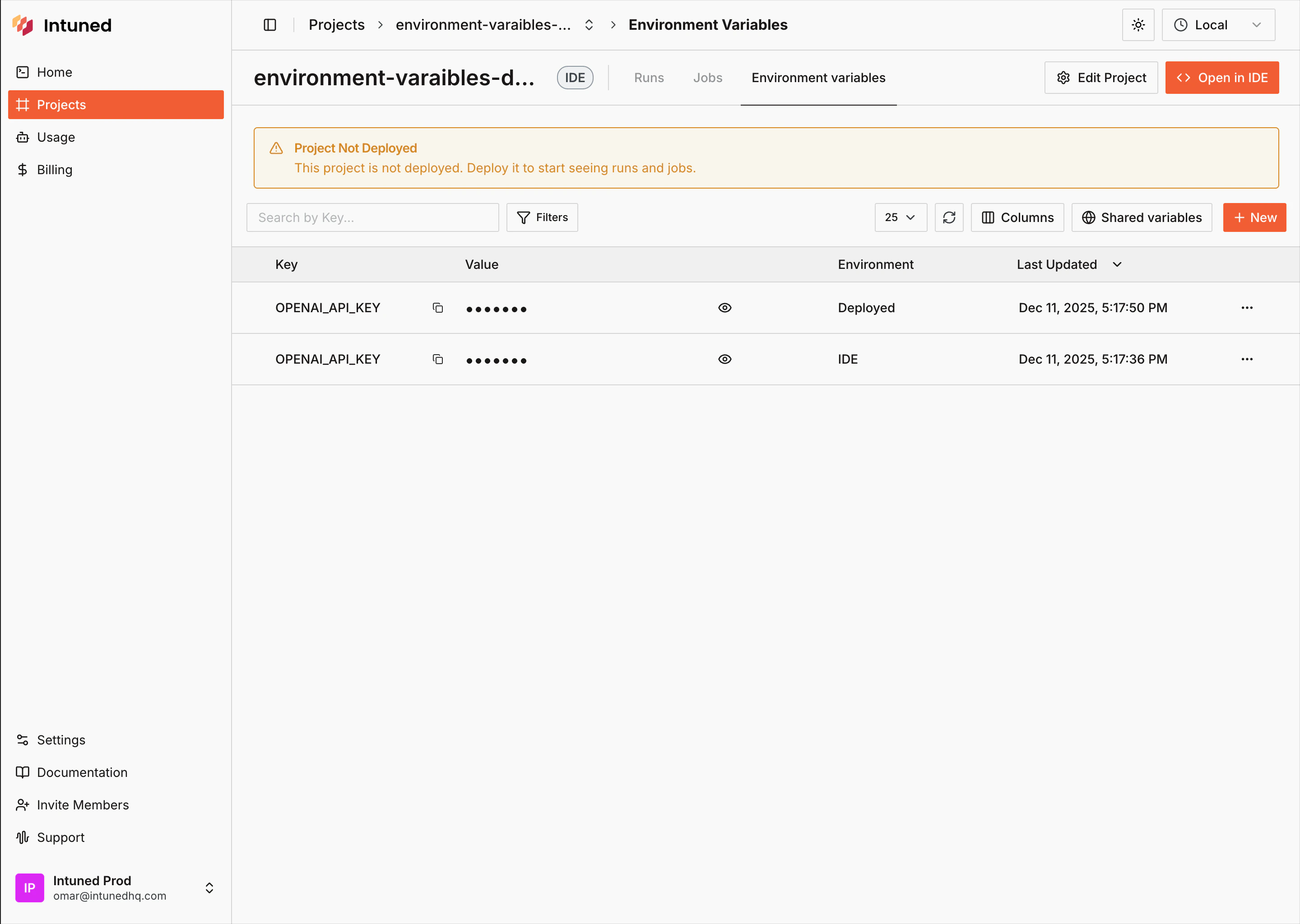
**Environment targeting**: Each variable can target three contexts: Online IDE (development), deployed Projects (production), or both. Use different API keys or configuration for development versus production.
## Usage
### Project-level environment variables
Project environment variables are scoped to a single project. Manage them via the dashboard at `https://app.intuned.io/projects/{project-id}/env-vars` or with the CLI from your project directory.
### Create an environment variable
Select **New** and provide a key, value, and optional description. Choose where to expose it: Online IDE, deployed Projects, or both.
Deployed environment variables require redeployment to take effect. When developing locally via CLI, see [Local development](#local-development).
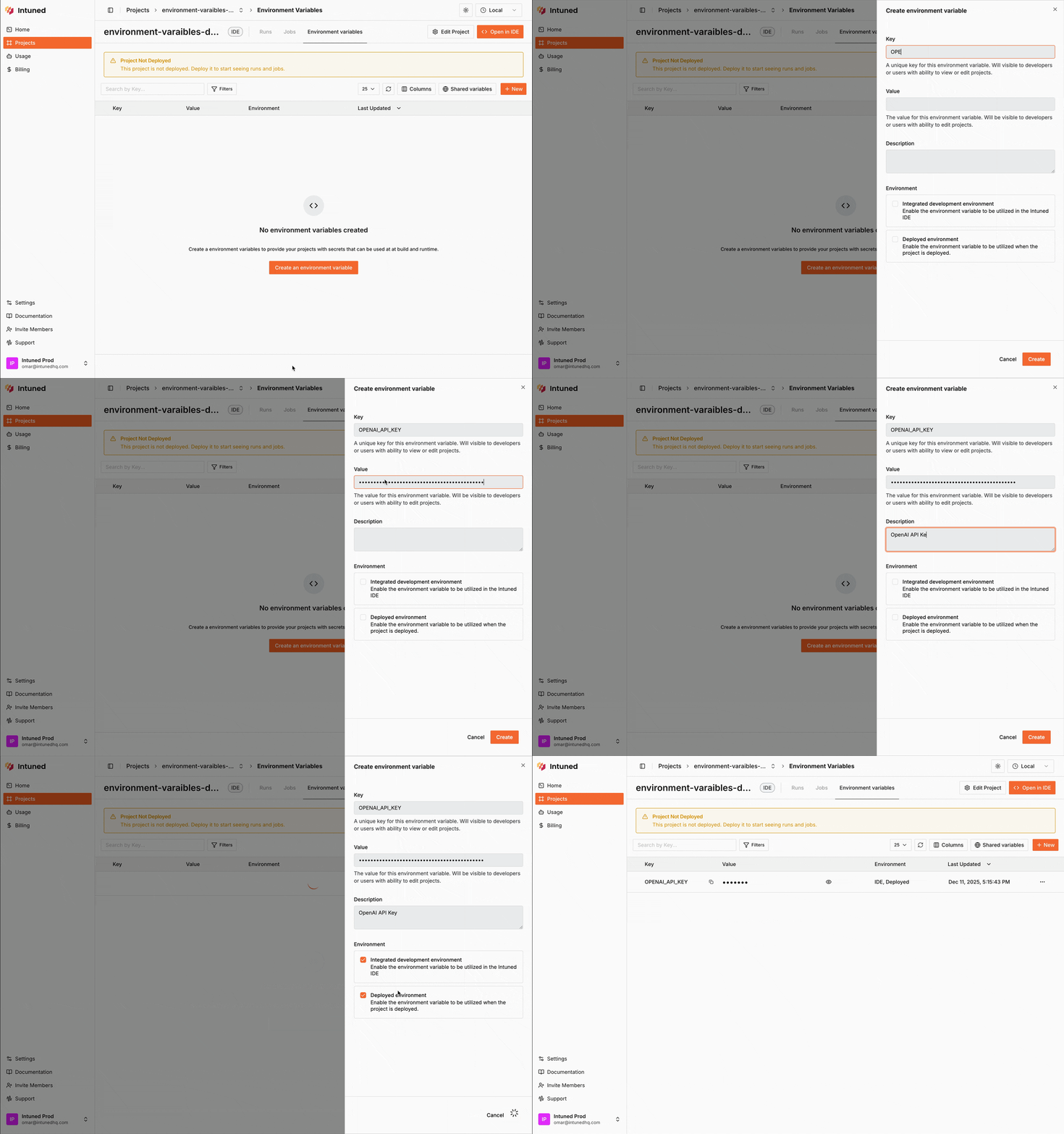 To use different values per environment, create two variables with the same key and select the appropriate environment for each.
 Run from your project directory (where Intuned Settings is located), or specify the project explicitly with `-p `.
```bash theme={null}
intuned platform env-vars create --key MY_VAR --value my-value
```
Use `--envs` to target specific environments (comma-separated). Supported values: `PUBLISHED`, `AUTHORING`. Defaults to `PUBLISHED`.
```bash theme={null}
# Create for both environments
intuned platform env-vars create --key MY_VAR --value my-value --envs PUBLISHED,AUTHORING
# With a description
intuned platform env-vars create --key MY_VAR --value my-value --description "My API key"
# Specify project explicitly
intuned platform env-vars create -p my-project --key MY_VAR --value my-value
```
To use different values per environment, create two variables with the same key using `--envs` to target each environment separately.
Deployed environment variables require redeployment to take effect. When developing locally via CLI, see [Local development](#local-development).
See [Env Vars Create](/main/05-references/cli/platform#env-vars-create) for all options.
### Edit an environment variable
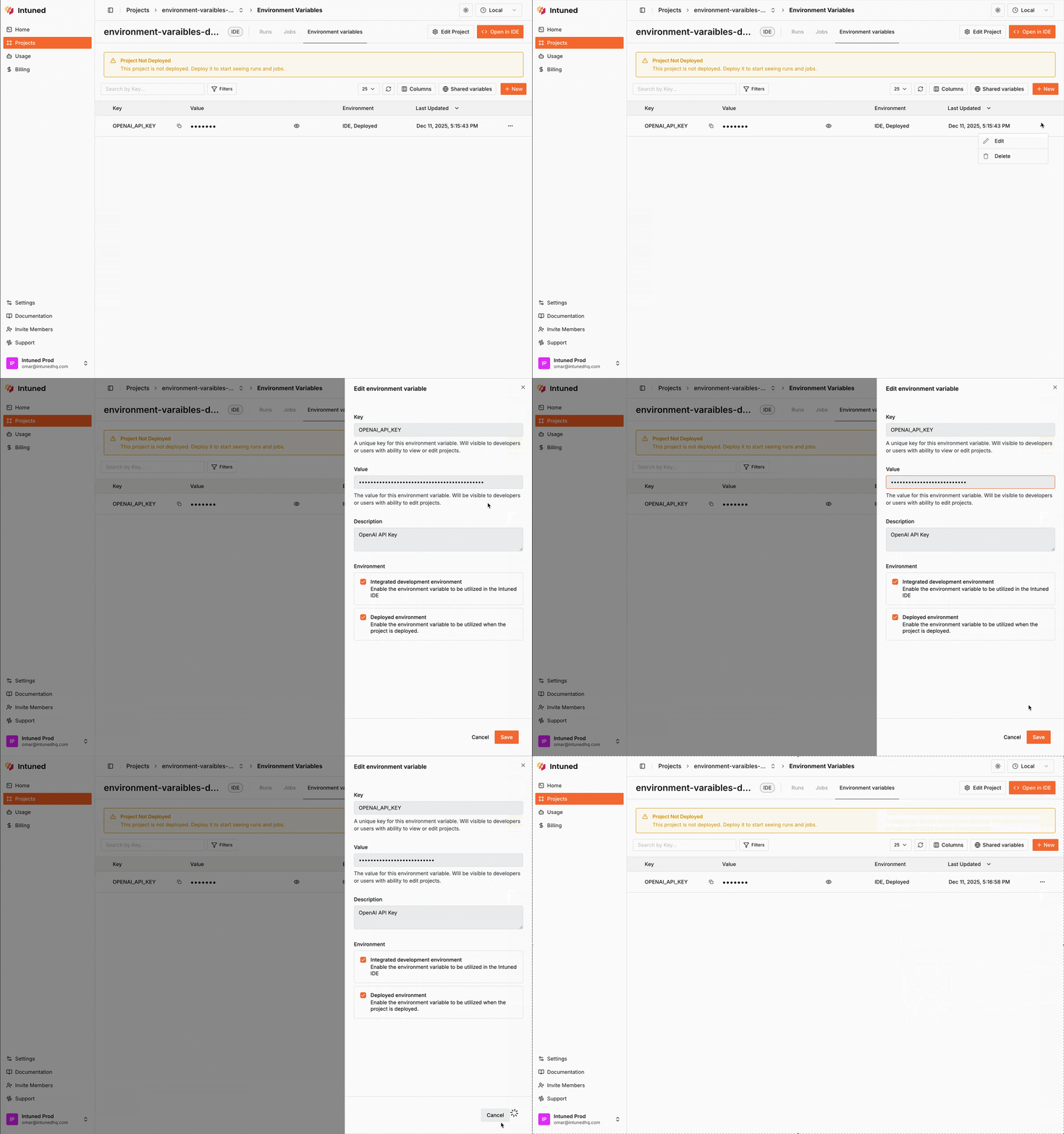
Select **...** > **Edit** next to a variable to update its key, value, or environments.
Run from your project directory (where Intuned Settings is located), or specify the project explicitly with `-p `.
```bash theme={null}
intuned platform env-vars create --key MY_VAR --value my-value
```
Use `--envs` to target specific environments (comma-separated). Supported values: `PUBLISHED`, `AUTHORING`. Defaults to `PUBLISHED`.
```bash theme={null}
# Create for both environments
intuned platform env-vars create --key MY_VAR --value my-value --envs PUBLISHED,AUTHORING
# With a description
intuned platform env-vars create --key MY_VAR --value my-value --description "My API key"
# Specify project explicitly
intuned platform env-vars create -p my-project --key MY_VAR --value my-value
```
To use different values per environment, create two variables with the same key using `--envs` to target each environment separately.
Deployed environment variables require redeployment to take effect. When developing locally via CLI, see [Local development](#local-development).
See [Env Vars Create](/main/05-references/cli/platform#env-vars-create) for all options.
### Edit an environment variable
Select **...** > **Edit** next to a variable to update its key, value, or environments.
 Run from your project directory (where Intuned Settings is located), or specify the project explicitly with `-p `.
```bash theme={null}
intuned platform env-vars update MY_VAR --value new-value
```
See [Env Vars Update](/main/05-references/cli/platform#env-vars-update) for all options.
### Delete an environment variable
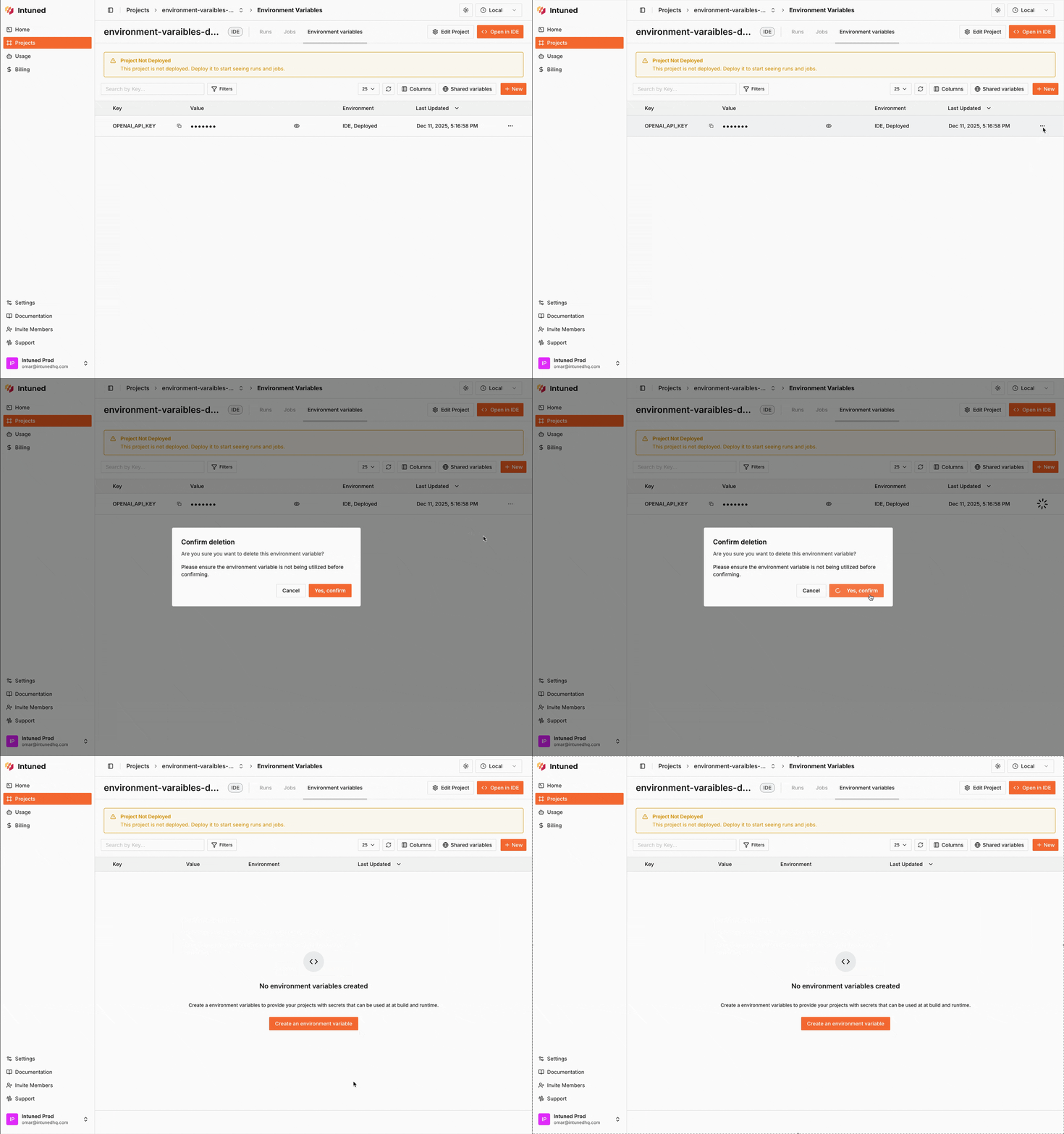
Select **...** next to the variable you want to delete, then select **Delete**. Confirm when prompted.
Run from your project directory (where Intuned Settings is located), or specify the project explicitly with `-p `.
```bash theme={null}
intuned platform env-vars update MY_VAR --value new-value
```
See [Env Vars Update](/main/05-references/cli/platform#env-vars-update) for all options.
### Delete an environment variable
Select **...** next to the variable you want to delete, then select **Delete**. Confirm when prompted.
 Run from your project directory (where Intuned Settings is located), or specify the project explicitly with `-p `.
```bash theme={null}
intuned platform env-vars delete MY_VAR
```
Add `--force` to skip the confirmation prompt:
```bash theme={null}
intuned platform env-vars delete MY_VAR --force
```
See [Env Vars Delete](/main/05-references/cli/platform#env-vars-delete) for all options.
### Workspace-level environment variables
Workspace environment variables are defined at the workspace level and exposed to all Projects in that workspace.
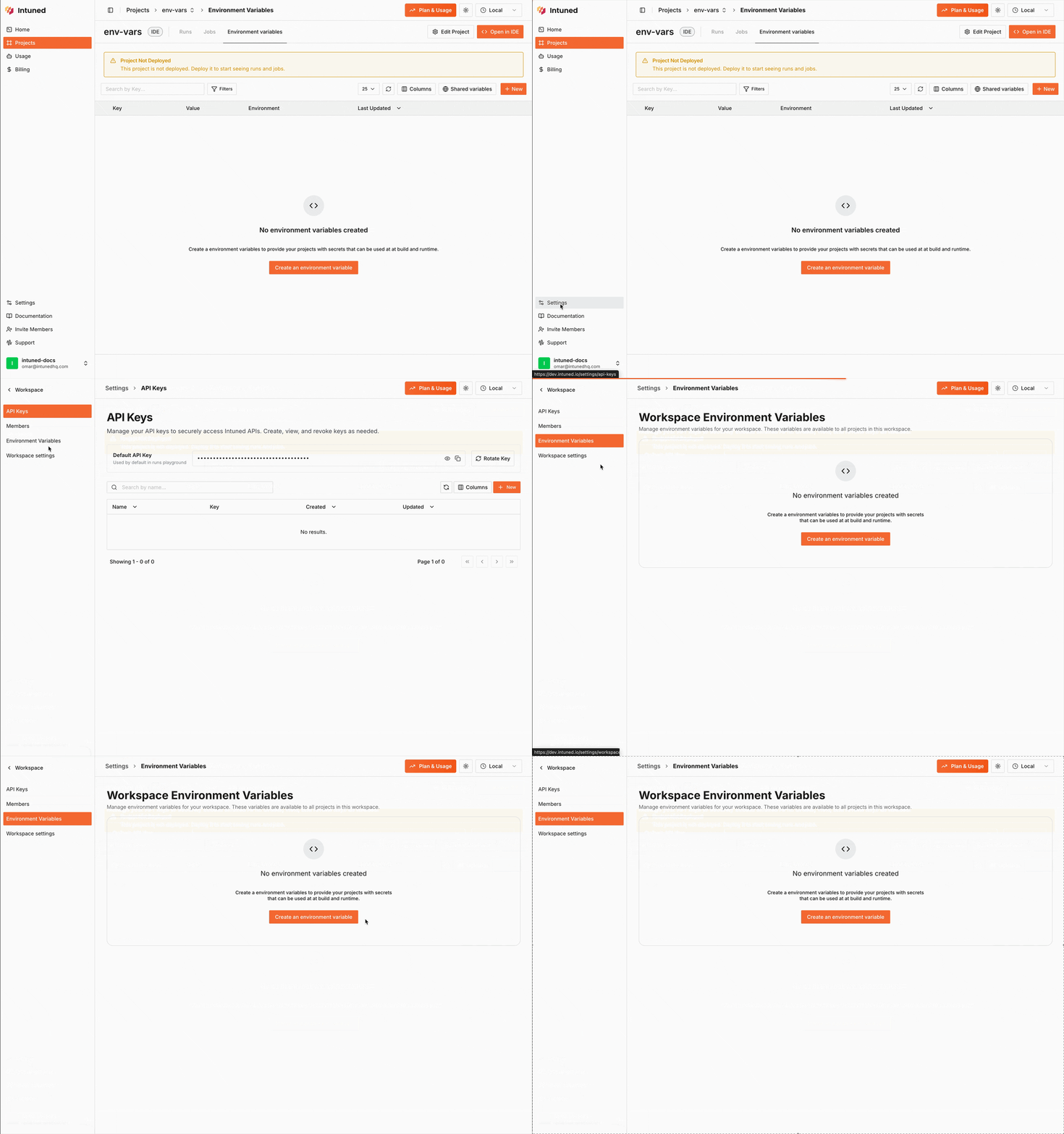
Go to `https://app.intuned.io/settings/env-vars` to manage workspace-level variables.
Access them from within a project by selecting **Shared variables** in the Environment Variables tab.
Run from your project directory (where Intuned Settings is located), or specify the project explicitly with `-p `.
```bash theme={null}
intuned platform env-vars delete MY_VAR
```
Add `--force` to skip the confirmation prompt:
```bash theme={null}
intuned platform env-vars delete MY_VAR --force
```
See [Env Vars Delete](/main/05-references/cli/platform#env-vars-delete) for all options.
### Workspace-level environment variables
Workspace environment variables are defined at the workspace level and exposed to all Projects in that workspace.
Go to `https://app.intuned.io/settings/env-vars` to manage workspace-level variables.
Access them from within a project by selecting **Shared variables** in the Environment Variables tab.
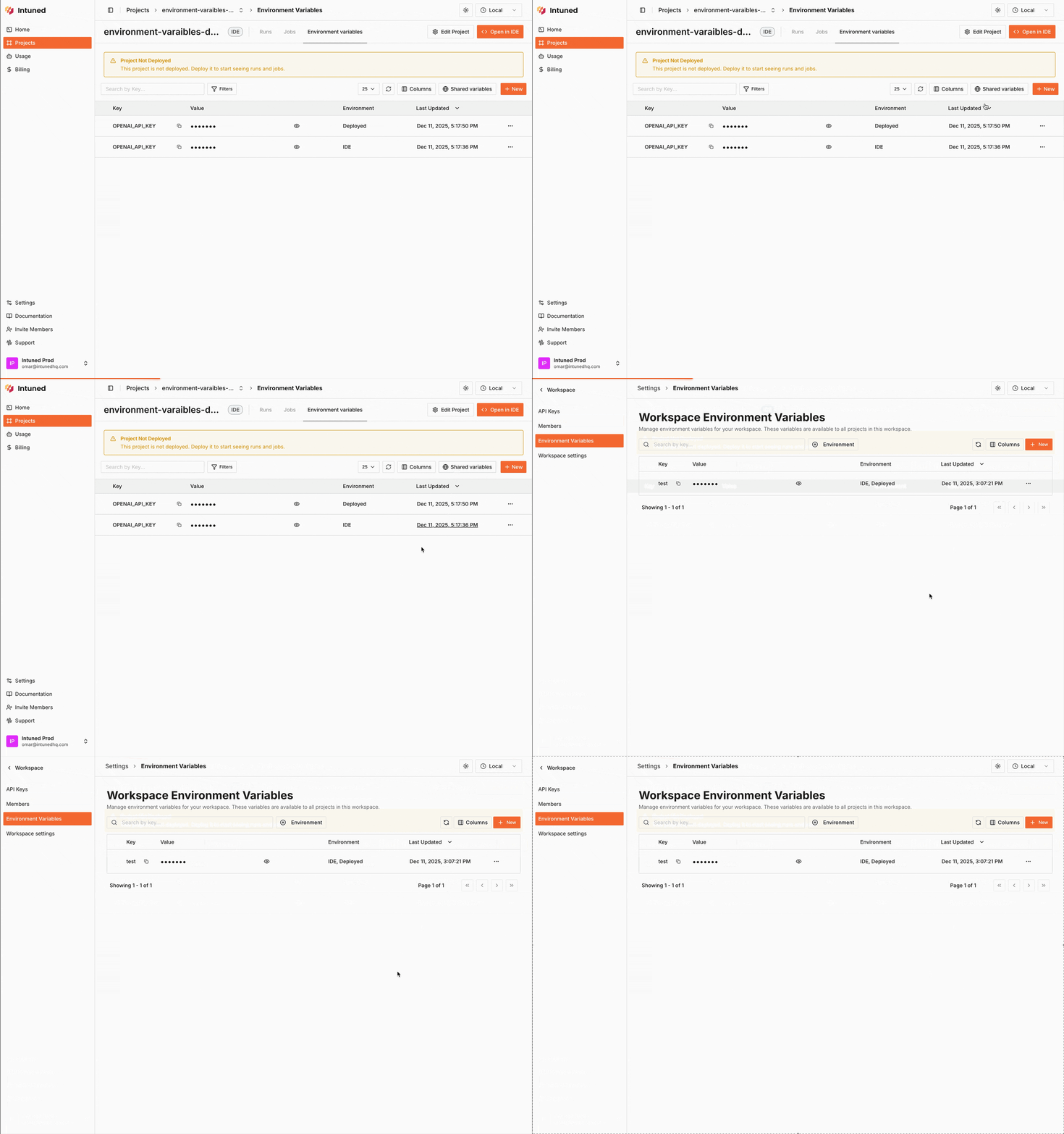 Alternatively, go to **side panel** > **Workspace Settings** > **Environment Variables**.
 Manage workspace-level variables with the `workspace env-vars` subcommands:
```bash theme={null}
# List workspace env vars
intuned platform workspace env-vars list
# Create a workspace env var
intuned platform workspace env-vars create --key SHARED_KEY --value shared-value
# Update a workspace env var
intuned platform workspace env-vars update SHARED_KEY --value new-value
# Delete a workspace env var
intuned platform workspace env-vars delete SHARED_KEY
```
See [Workspace Env Vars](/main/05-references/cli/platform#workspace-env-vars-list) for all options.
### Local development
When developing locally via CLI, the CLI reads `.env` files and system environment variables.
```env .env theme={null}
TEST_VAR=local_value
```
`.env` files are for local development only and aren't deployed. Before
deploying, configure your environment variables using the dashboard or CLI
commands above.
## Related resources
Develop on Intuned with zero config
Develop locally with your favorite IDE and tools
Manage workspace-level variables with the `workspace env-vars` subcommands:
```bash theme={null}
# List workspace env vars
intuned platform workspace env-vars list
# Create a workspace env var
intuned platform workspace env-vars create --key SHARED_KEY --value shared-value
# Update a workspace env var
intuned platform workspace env-vars update SHARED_KEY --value new-value
# Delete a workspace env var
intuned platform workspace env-vars delete SHARED_KEY
```
See [Workspace Env Vars](/main/05-references/cli/platform#workspace-env-vars-list) for all options.
### Local development
When developing locally via CLI, the CLI reads `.env` files and system environment variables.
```env .env theme={null}
TEST_VAR=local_value
```
`.env` files are for local development only and aren't deployed. Before
deploying, configure your environment variables using the dashboard or CLI
commands above.
## Related resources
Develop on Intuned with zero config
Develop locally with your favorite IDE and tools