> ## Documentation Index
> Fetch the complete documentation index at: https://intunedhq.com/docs/llms.txt
> Use this file to discover all available pages before exploring further.
# Jobs (batched executions)
> Execute browser automations at scale with scheduled, batched, and dynamically expandable workflows
## Overview
Jobs are blueprints that define when, how, and what browser automations to execute. Instead of triggering individual API runs manually, Jobs let you orchestrate multiple automation executions together—running them in bulk, on a schedule, or both. They handle scheduling, retries, concurrency management, and result aggregation.
The most common use case: set up a scraper to run on a schedule and configure a sink to deliver results directly to your system. You create the scraper, configure the Job with a schedule and a webhook or S3 sink, and the data flows into your service automatically—no polling or manual exports required.
```
Job (blueprint)
└── JobRun (execution instance)
├── Run 1 (API execution for payload item 1)
│ └── Attempt 1, Attempt 2, etc.
├── Run 2 (API execution for payload item 2)
│ └── Attempt 1, Attempt 2, etc.
└── Run N (API execution for payload item N)
└── Attempt 1, Attempt 2, etc.
```
## Usage
### Create a Job
Open your Project in the Intuned dashboard and select the **Jobs** tab.
Select **Create Job** to open the configuration editor. A UI wizard will guide you through defining the Job's ID, payload, schedule, concurrency, retries, and sink.
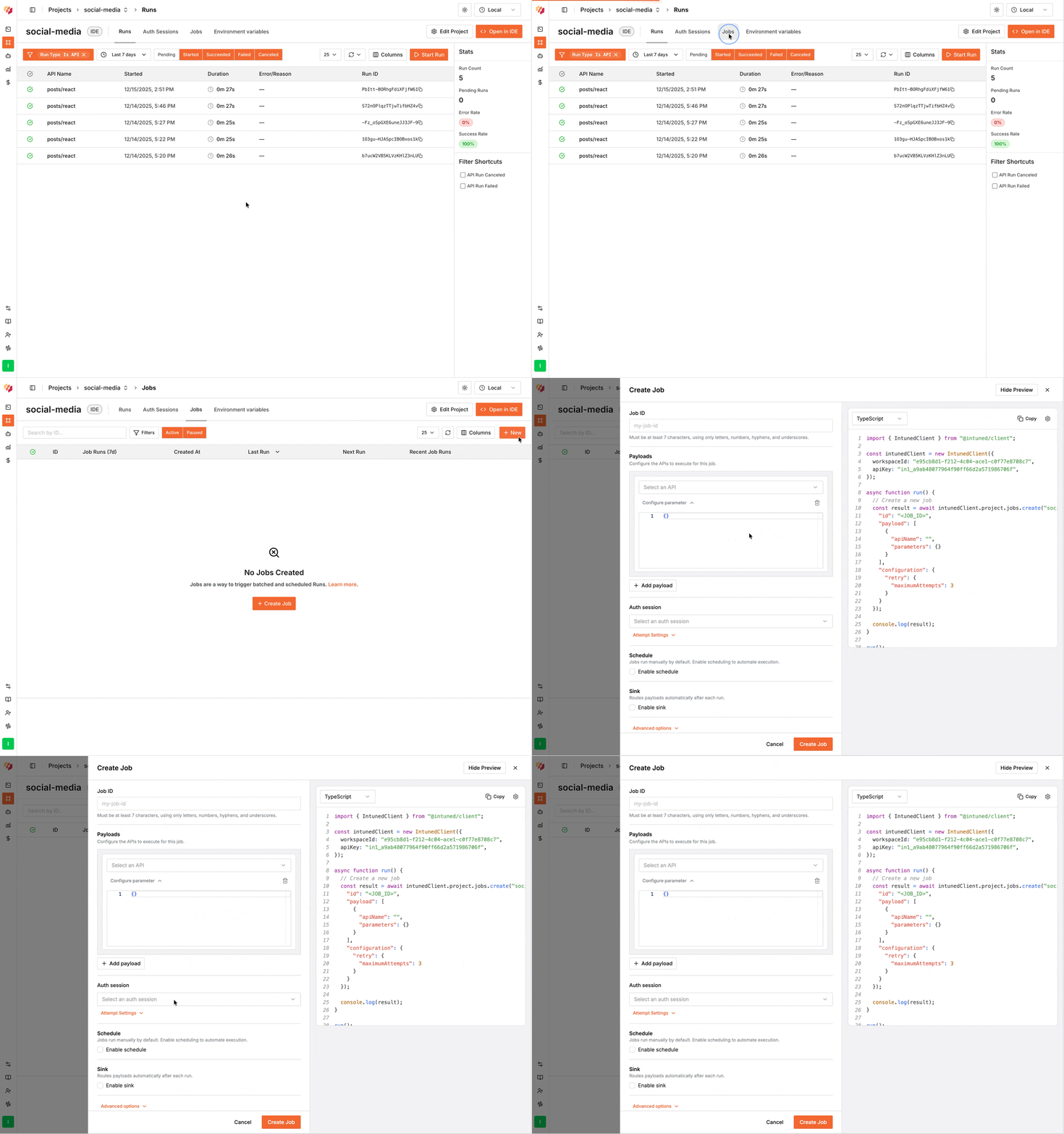 See the [Create Job API endpoint](/client-apis/api-reference/projectsjobs/create-job) for programmatic Job creation.
Run from your project directory (where Intuned Settings is located), or specify the project explicitly with `-p `.
Pass the Job configuration as a JSON string or a path to a JSON file:
```bash theme={null}
intuned platform jobs create '{
"id": "daily-sync",
"payload": [{"apiName": "list", "parameters": {}}],
"configuration": {"retry": {"maximumAttempts": 3}}
}'
```
With an AuthSession:
```bash theme={null}
intuned platform jobs create '{
"id": "daily-sync",
"payload": [{"apiName": "list", "parameters": {}}],
"configuration": {"retry": {"maximumAttempts": 3}},
"auth_session": {
"id": "auth-session-123"
}
}'
```
With a webhook sink:
```bash theme={null}
intuned platform jobs create '{
"id": "daily-sync",
"payload": [{"apiName": "list", "parameters": {}}],
"configuration": {"retry": {"maximumAttempts": 3}},
"sink": {
"type": "webhook",
"url": ""
}
}'
```
With an S3 sink:
```bash theme={null}
intuned platform jobs create '{
"id": "daily-sync",
"payload": [{"apiName": "list", "parameters": {}}],
"configuration": {"retry": {"maximumAttempts": 3}},
"sink": {
"type": "s3",
"bucket": "",
"accessKeyId": "",
"secretAccessKey": "",
"region": ""
}
}'
```
Using a file (recommended for complex configurations):
```bash theme={null}
intuned platform jobs create @job-config.json
```
See [Jobs Create](/main/05-references/cli/platform#jobs-create) for all options.
Define Jobs in `intuned-resources/jobs/` and deploy them with your project. Each file becomes one Job, and the filename becomes the Job ID.
```jsonc intuned-resources/jobs/daily-sync.job.jsonc theme={null}
{
"configuration": {
"maxConcurrentRequests": 2,
"retry": {
"maximumAttempts": 3
}
},
"payload": [
{
"apiName": "list",
"parameters": {}
}
],
"schedule": {
"calendars": [
{
"hour": 9,
"minute": 0
}
]
}
}
```
* `daily-sync.job.jsonc` creates a Job with ID `daily-sync`.
* `.json` and `.jsonc` are both supported.
* After deployment, the Job appears in the **Jobs** tab with **Source** shown as `Created via code`.
* Update the file and redeploy to change the Job. Remove the file and redeploy to delete it.
* Code-defined Jobs are read-only in the dashboard and API. Edit the file instead.
### Trigger a JobRun
A Job can have a schedule, but the schedule is optional. Even if a Job has a schedule configured, you can trigger it on-demand whenever you want. Each trigger creates a new JobRun.
Go to the **Jobs** tab in your Project.
Locate your Job in the list.
Select **...** next to the Job, then select **Trigger**.
See the [Trigger Job API
endpoint](/client-apis/api-reference/projectsjobs/trigger-job) for
programmatic Job triggering.
Run from your project directory (where Intuned Settings is located), or specify the project explicitly with `-p `.
```bash theme={null}
intuned platform jobs trigger
```
See [Jobs Trigger](/main/05-references/cli/platform#jobs-trigger) for all options.
### Monitor a Job
Intuned provides full observability into every JobRun, giving you complete visibility into what happened and why. Each execution generates detailed logs, browser traces, and session recordings that help you debug issues and understand your automation's behavior.
Navigate to the **Jobs** tab and select the job to view all the JobRuns
for it.
click on the job run to see overall status, progress, and summary of
runs.
View individual Runs and their Attempts, including browser traces and
logs.
See the [Jobs API
reference](/client-apis/api-reference/projectsjobsruns/get-job-runs) for
programmatic Job monitoring.
Run from your project directory (where Intuned Settings is located), or specify the project explicitly with `-p `.
List all JobRuns for a Job:
```bash theme={null}
intuned platform jobruns list
```
Get details of a specific JobRun:
```bash theme={null}
intuned platform jobruns get
```
Use `--json` to get machine-readable output:
```bash theme={null}
intuned platform jobruns list --json
```
See [Job Runs List](/main/05-references/cli/platform#jobruns-list) and [Job Runs Get](/main/05-references/cli/platform#jobruns-get) for all options.
### Pause and resume a Job
Pausing a Job stops new JobRuns from starting and prevents in-progress JobRuns from executing new payload items. Currently running Runs will be canceled and retried when you resume. Use pause when you need to temporarily stop execution—for example, to fix an issue or update credentials.
**Pause:** Navigate to the **Jobs** tab, select **...** next to the Job, then select **Pause**.
**Resume:** Select **...** next to the paused Job, then select **Resume**. This re-enables scheduling and continues any paused JobRuns from where they left off.
See the [Jobs API reference](/client-apis/api-reference/projectsjobs/pause-job) for programmatic pause and resume.
Run from your project directory (where Intuned Settings is located), or specify the project explicitly with `-p `.
Pause a Job:
```bash theme={null}
intuned platform jobs pause
```
Resume a paused Job:
```bash theme={null}
intuned platform jobs resume
```
See [Jobs Pause](/main/05-references/cli/platform#jobs-pause) and [Jobs Resume](/main/05-references/cli/platform#jobs-resume) for all options.
### Terminate a JobRun
Terminating immediately stops a specific JobRun instance. All in-progress Runs are canceled, and no further payload items execute. Use terminate when you need to stop a JobRun completely—for example, if it was triggered by mistake or is no longer needed.
Navigate to the **Jobs** tab and select a Job with active JobRuns.
Select **...** next to the active JobRun, then select **Terminate**.
See the [Jobs API
reference](/client-apis/api-reference/projectsjobsruns/terminate-job-run) for
programmatic JobRun termination.
Run from your project directory (where Intuned Settings is located), or specify the project explicitly with `-p `.
```bash theme={null}
intuned platform jobruns terminate
```
See [Job Runs Terminate](/main/05-references/cli/platform#jobruns-terminate) for all options.
### Delete a Job
Deleting a Job removes it permanently from your Project. Any in-progress JobRuns will be terminated. You cannot undo this action.
Go to the **Jobs** tab in your Project.
Select **...** next to the Job, then select **Delete**.
Confirm when prompted.
See the [Jobs API
reference](/client-apis/api-reference/projectsjobs/delete-job) for
programmatic Job deletion.
Run from your project directory (where Intuned Settings is located), or specify the project explicitly with `-p `.
```bash theme={null}
intuned platform jobs delete
```
The CLI asks for confirmation before deleting. Pass `-y` / `--yes` to skip the prompt in scripts:
```bash theme={null}
intuned platform jobs delete --yes
```
See [Jobs Delete](/main/05-references/cli/platform#jobs-delete) for all options.
### Extend Run timeout
Jobs have a `requestTimeout` configuration that controls how long each Run Attempt can take before it fails. The default is 600 seconds (10 minutes). For long-running automations, call `extendTimeout` to reset the timer:
```typescript TypeScript theme={null}
import { extendTimeout } from "@intuned/runtime";
export default async function handler(params: any, page: Page) {
extendTimeout(); // reset timer to the defined requestTimeout value
// Perform long-running scraping...
return { success: true };
}
```
```python Python theme={null}
from runtime_helpers import extend_timeout
async def automation(page: Page, params: Dict[str, Any], **_ignore_kwargs):
extend_timeout() # reset timer to the defined requestTimeout value
# Perform long-running scraping...
return { "success": True }
```
## Use Jobs with AuthSessions
Jobs fully support AuthSessions. When you configure a Job for an authenticated Project, specify the AuthSession in the Job configuration. All Runs in the JobRun use the same AuthSession, including extended Runs added via `extendPayload`.
Jobs validate the AuthSession when the JobRun starts and before each Run attempt. If validation fails and can't recover, the JobRun pauses—you can fix the AuthSession manually and resume it from where it paused.
When creating or editing a Job, select the AuthSession from the **Auth Session** field.
See the [Create Job API endpoint](/client-apis/api-reference/projectsjobs/create-job) for programmatic Job creation.
Run from your project directory (where Intuned Settings is located), or specify the project explicitly with `-p `.
Pass the Job configuration as a JSON string or a path to a JSON file:
```bash theme={null}
intuned platform jobs create '{
"id": "daily-sync",
"payload": [{"apiName": "list", "parameters": {}}],
"configuration": {"retry": {"maximumAttempts": 3}}
}'
```
With an AuthSession:
```bash theme={null}
intuned platform jobs create '{
"id": "daily-sync",
"payload": [{"apiName": "list", "parameters": {}}],
"configuration": {"retry": {"maximumAttempts": 3}},
"auth_session": {
"id": "auth-session-123"
}
}'
```
With a webhook sink:
```bash theme={null}
intuned platform jobs create '{
"id": "daily-sync",
"payload": [{"apiName": "list", "parameters": {}}],
"configuration": {"retry": {"maximumAttempts": 3}},
"sink": {
"type": "webhook",
"url": ""
}
}'
```
With an S3 sink:
```bash theme={null}
intuned platform jobs create '{
"id": "daily-sync",
"payload": [{"apiName": "list", "parameters": {}}],
"configuration": {"retry": {"maximumAttempts": 3}},
"sink": {
"type": "s3",
"bucket": "",
"accessKeyId": "",
"secretAccessKey": "",
"region": ""
}
}'
```
Using a file (recommended for complex configurations):
```bash theme={null}
intuned platform jobs create @job-config.json
```
See [Jobs Create](/main/05-references/cli/platform#jobs-create) for all options.
Define Jobs in `intuned-resources/jobs/` and deploy them with your project. Each file becomes one Job, and the filename becomes the Job ID.
```jsonc intuned-resources/jobs/daily-sync.job.jsonc theme={null}
{
"configuration": {
"maxConcurrentRequests": 2,
"retry": {
"maximumAttempts": 3
}
},
"payload": [
{
"apiName": "list",
"parameters": {}
}
],
"schedule": {
"calendars": [
{
"hour": 9,
"minute": 0
}
]
}
}
```
* `daily-sync.job.jsonc` creates a Job with ID `daily-sync`.
* `.json` and `.jsonc` are both supported.
* After deployment, the Job appears in the **Jobs** tab with **Source** shown as `Created via code`.
* Update the file and redeploy to change the Job. Remove the file and redeploy to delete it.
* Code-defined Jobs are read-only in the dashboard and API. Edit the file instead.
### Trigger a JobRun
A Job can have a schedule, but the schedule is optional. Even if a Job has a schedule configured, you can trigger it on-demand whenever you want. Each trigger creates a new JobRun.
Go to the **Jobs** tab in your Project.
Locate your Job in the list.
Select **...** next to the Job, then select **Trigger**.
See the [Trigger Job API
endpoint](/client-apis/api-reference/projectsjobs/trigger-job) for
programmatic Job triggering.
Run from your project directory (where Intuned Settings is located), or specify the project explicitly with `-p `.
```bash theme={null}
intuned platform jobs trigger
```
See [Jobs Trigger](/main/05-references/cli/platform#jobs-trigger) for all options.
### Monitor a Job
Intuned provides full observability into every JobRun, giving you complete visibility into what happened and why. Each execution generates detailed logs, browser traces, and session recordings that help you debug issues and understand your automation's behavior.
Navigate to the **Jobs** tab and select the job to view all the JobRuns
for it.
click on the job run to see overall status, progress, and summary of
runs.
View individual Runs and their Attempts, including browser traces and
logs.
See the [Jobs API
reference](/client-apis/api-reference/projectsjobsruns/get-job-runs) for
programmatic Job monitoring.
Run from your project directory (where Intuned Settings is located), or specify the project explicitly with `-p `.
List all JobRuns for a Job:
```bash theme={null}
intuned platform jobruns list
```
Get details of a specific JobRun:
```bash theme={null}
intuned platform jobruns get
```
Use `--json` to get machine-readable output:
```bash theme={null}
intuned platform jobruns list --json
```
See [Job Runs List](/main/05-references/cli/platform#jobruns-list) and [Job Runs Get](/main/05-references/cli/platform#jobruns-get) for all options.
### Pause and resume a Job
Pausing a Job stops new JobRuns from starting and prevents in-progress JobRuns from executing new payload items. Currently running Runs will be canceled and retried when you resume. Use pause when you need to temporarily stop execution—for example, to fix an issue or update credentials.
**Pause:** Navigate to the **Jobs** tab, select **...** next to the Job, then select **Pause**.
**Resume:** Select **...** next to the paused Job, then select **Resume**. This re-enables scheduling and continues any paused JobRuns from where they left off.
See the [Jobs API reference](/client-apis/api-reference/projectsjobs/pause-job) for programmatic pause and resume.
Run from your project directory (where Intuned Settings is located), or specify the project explicitly with `-p `.
Pause a Job:
```bash theme={null}
intuned platform jobs pause
```
Resume a paused Job:
```bash theme={null}
intuned platform jobs resume
```
See [Jobs Pause](/main/05-references/cli/platform#jobs-pause) and [Jobs Resume](/main/05-references/cli/platform#jobs-resume) for all options.
### Terminate a JobRun
Terminating immediately stops a specific JobRun instance. All in-progress Runs are canceled, and no further payload items execute. Use terminate when you need to stop a JobRun completely—for example, if it was triggered by mistake or is no longer needed.
Navigate to the **Jobs** tab and select a Job with active JobRuns.
Select **...** next to the active JobRun, then select **Terminate**.
See the [Jobs API
reference](/client-apis/api-reference/projectsjobsruns/terminate-job-run) for
programmatic JobRun termination.
Run from your project directory (where Intuned Settings is located), or specify the project explicitly with `-p `.
```bash theme={null}
intuned platform jobruns terminate
```
See [Job Runs Terminate](/main/05-references/cli/platform#jobruns-terminate) for all options.
### Delete a Job
Deleting a Job removes it permanently from your Project. Any in-progress JobRuns will be terminated. You cannot undo this action.
Go to the **Jobs** tab in your Project.
Select **...** next to the Job, then select **Delete**.
Confirm when prompted.
See the [Jobs API
reference](/client-apis/api-reference/projectsjobs/delete-job) for
programmatic Job deletion.
Run from your project directory (where Intuned Settings is located), or specify the project explicitly with `-p `.
```bash theme={null}
intuned platform jobs delete
```
The CLI asks for confirmation before deleting. Pass `-y` / `--yes` to skip the prompt in scripts:
```bash theme={null}
intuned platform jobs delete --yes
```
See [Jobs Delete](/main/05-references/cli/platform#jobs-delete) for all options.
### Extend Run timeout
Jobs have a `requestTimeout` configuration that controls how long each Run Attempt can take before it fails. The default is 600 seconds (10 minutes). For long-running automations, call `extendTimeout` to reset the timer:
```typescript TypeScript theme={null}
import { extendTimeout } from "@intuned/runtime";
export default async function handler(params: any, page: Page) {
extendTimeout(); // reset timer to the defined requestTimeout value
// Perform long-running scraping...
return { success: true };
}
```
```python Python theme={null}
from runtime_helpers import extend_timeout
async def automation(page: Page, params: Dict[str, Any], **_ignore_kwargs):
extend_timeout() # reset timer to the defined requestTimeout value
# Perform long-running scraping...
return { "success": True }
```
## Use Jobs with AuthSessions
Jobs fully support AuthSessions. When you configure a Job for an authenticated Project, specify the AuthSession in the Job configuration. All Runs in the JobRun use the same AuthSession, including extended Runs added via `extendPayload`.
Jobs validate the AuthSession when the JobRun starts and before each Run attempt. If validation fails and can't recover, the JobRun pauses—you can fix the AuthSession manually and resume it from where it paused.
When creating or editing a Job, select the AuthSession from the **Auth Session** field.
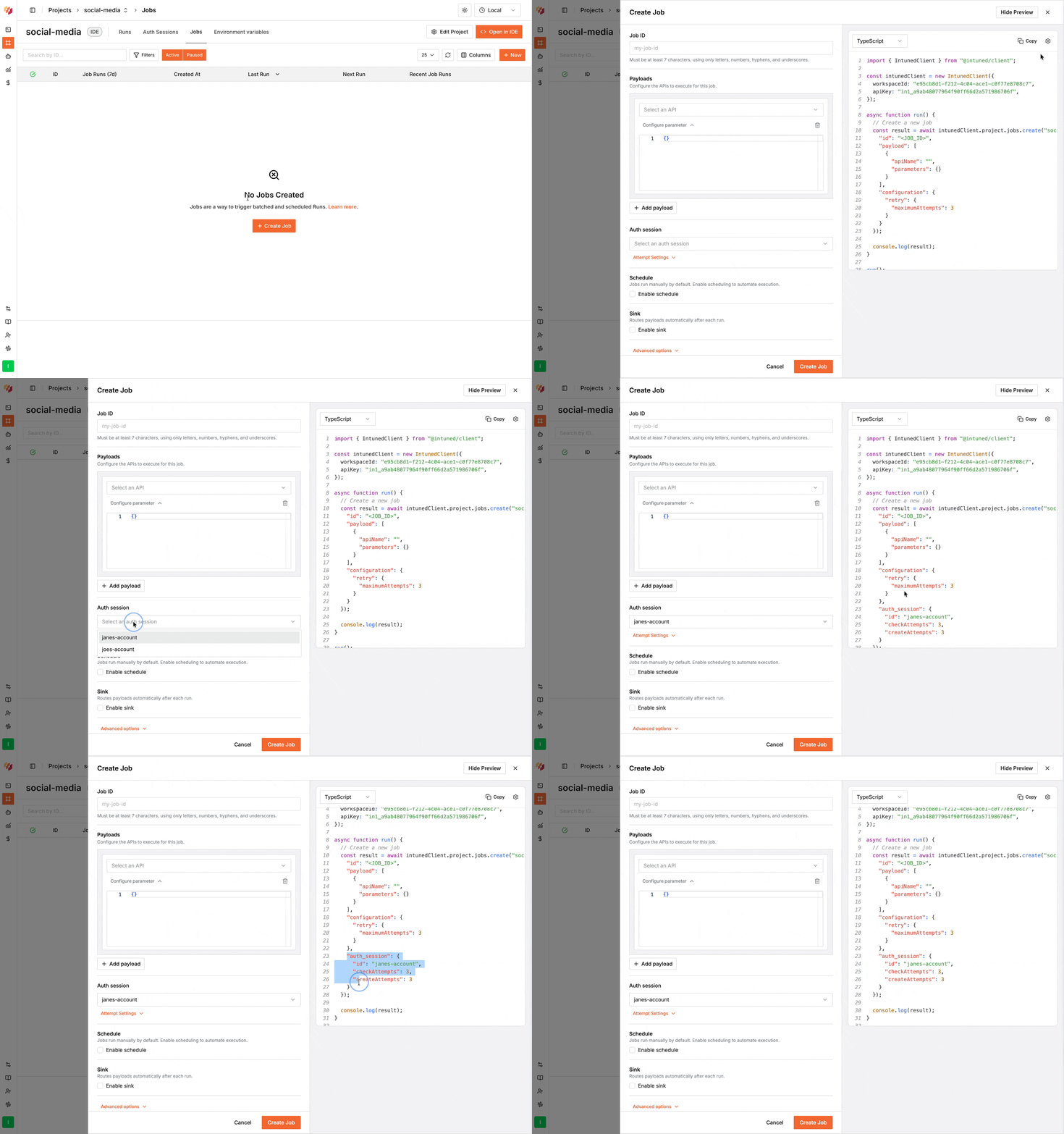 Include `auth_session` in the request body when [creating](/client-apis/api-reference/projectsjobs/create-job) or updating a Job:
```json theme={null}
{
"auth_session": {
"id": "auth-session-123",
"checkAttempts": 3,
"createAttempts": 2
}
}
```
See the [Create Job API endpoint](/client-apis/api-reference/projectsjobs/create-job) for the full request schema.
Run from your project directory (where Intuned Settings is located), or specify the project explicitly with `-p `.
Pass `auth_session` as part of the Job configuration:
```bash theme={null}
intuned platform jobs create '{
"id": "authenticated-scraper",
"payload": [{"apiName": "scrape", "parameters": {}}],
"configuration": {"retry": {"maximumAttempts": 3}},
"auth_session": {
"id": "auth-session-123"
}
}'
```
See [Jobs Create](/main/05-references/cli/platform#jobs-create) for all options.
Add `auth_session` to your job configuration file in `intuned-resources/jobs/`:
```jsonc intuned-resources/jobs/authenticated-scraper.job.jsonc theme={null}
{
"configuration": {
"retry": {
"maximumAttempts": 3
}
},
"payload": [
{
"apiName": "scrape",
"parameters": {}
}
],
"auth_session": {
"id": "auth-session-123"
}
}
```
Jobs use `auth_session` (snake\_case) in configuration files. In TypeScript, runs use `authSession` (camelCase) instead; Python uses `auth_session` for both.
For detailed information about AuthSessions, authentication patterns, and how
validation works, see the [AuthSessions documentation](./auth-sessions) and
[Intuned
indepth](/main/01-learn/deep-dives/intuned-indepth#authsessions-with-jobs).
## Extend Jobs dynamically
Jobs support **nested scheduling**, where an API can dynamically extend the JobRun's payload during execution using the `extendPayload` function. This is useful when the full scope of work isn't known until you start executing—for example, scraping an e-commerce site where product URLs aren't known upfront:
```typescript TypeScript theme={null}
import { extendPayload } from "@intuned/runtime";
import { Page } from "playwright";
export default async function run(params: any, page: Page) {
await page.goto('https://example.com/products');
const productLinks = await page.$$eval('a.product', links =>
links.map(a => a.href)
);
for (const link of productLinks) {
extendPayload({
api: "scrape-product-details",
parameters: { productUrl: link }
});
}
return {
discoveredProducts: productLinks.length,
message: `Extended job with ${productLinks.length} product scraping tasks`
};
}
```
```python Python theme={null}
from intuned_runtime import extend_payload
from playwright.async_api import Page
from typing import Any, Dict
async def automation(page: Page, params: Dict[str, Any], **_ignore_kwargs):
await page.goto('https://example.com/products')
product_links = await page.eval_on_selector_all('a.product',
'(links) => links.map(a => a.href)'
)
for link in product_links:
extend_payload({
"api": "scrape-product-details",
"parameters": { "productUrl": link }
})
return {
"discoveredProducts": len(product_links),
"message": f"Extended job with {len(product_links)} product scraping tasks"
}
```
**Important considerations:**
* `extendPayload` only works within JobRuns (not standalone Runs)
* Extended items are added to the same JobRun and tracked together
* Extended items respect the Job's retry and concurrency configuration
* Extended items automatically inherit the JobRun's AuthSession
* You can call `extendPayload` multiple times within a single API execution
## Configuration reference
Job configuration is defined using a JSON schema. The platform dashboard provides a guided wizard to help you set these values through the UI, or you can use the API to send the configuration directly.
### Basic Job structure
Every Job requires an ID and payload. Here's a minimal example:
```json theme={null}
{
"id": "daily-book-scraper",
"payload": [
{
"api": "scrape-category",
"parameters": {
"category": "Poetry"
}
},
{
"api": "scrape-category",
"parameters": {
"category": "Travel"
}
}
],
"configuration": {
"retry": {
"maximumAttempts": 3
},
"maximumConcurrentRequests": 1
}
}
```
### Payload configuration
The `payload` array defines what APIs to execute:
```json theme={null}
"payload": [
{
"apiName": "login-and-extract",
"parameters": {
"username": "user@example.com",
"targetUrl": "https://example.com/dashboard"
},
"retry": {
"maximumAttempts": 5
}
}
]
```
| Field | Description |
| ------------------ | ------------------------------------------------------- |
| `apiName` | The name of the API to run (must exist in your Project) |
| `parameters` | Parameters to pass to the API |
| `retry` (optional) | Override Job-level retry setting for this payload item |
### Execution configuration
```json theme={null}
"configuration": {
"retry": {
"maximumAttempts": 3
},
"maximumConcurrentRequests": 10,
"requestTimeout": 600
}
```
| Field | Default | Description |
| --------------------------- | --------------- | --------------------------------------------------- |
| `maximumAttempts` | 3 | Default maximum attempts for each payload item |
| `maximumConcurrentRequests` | Project default | Maximum payload items executing simultaneously |
| `requestTimeout` | 600 | Seconds to wait for each Run attempt before failing |
### Schedule configuration
Jobs support two scheduling methods:
**Intervals** — Run every X period:
```json theme={null}
"schedule": {
"intervals": [
{ "every": "1h" },
{ "every": "86400000" }
]
}
```
Intervals can be milliseconds (number) or [ms-formatted strings](https://github.com/vercel/ms) like `"1h"`, `"30m"`, `"7d"`.
**Calendars** — Run at specific times:
```json theme={null}
"schedule": {
"calendars": [
{
"dayOfWeek": { "start": "MONDAY", "end": "FRIDAY" },
"hour": { "start": 9, "end": 17 },
"minute": "0",
"comment": "Run weekdays 9am-5pm at the start of every hour"
}
]
}
```
Calendar fields support single values (`"hour": 9`), ranges (`"hour": { "start": 9, "end": 17 }`), and wildcards (`"month": "*"`).
Jobs trigger when **any** interval or calendar condition is met. If you
configure both "every 7 days" and "first of every month", the Job runs when
either condition occurs.
### Sink configuration
Send Job results to external systems. See the [Sinks API reference](/client-apis/api-reference/sinks/overview) for detailed options.
**Webhook:**
```json theme={null}
"sink": {
"type": "webhook",
"url": "https://webhook.site/demo"
}
```
**S3:**
```json theme={null}
"sink": {
"type": "s3",
"bucket": "job-results",
"region": "us-east-1",
"skipOnFail": false,
"accessKeyId": "XXXXXXXXXXXXXXXXXXXX",
"secretAccessKey": "XXXXXXXXXXXXXXXXXXXXXXXXXXXXXXXXXXXXXXXX"
}
```
### Notifications configuration
Use `notifications` to receive a JobRun-level webhook when a JobRun reaches a terminal state.
Notifications are different from `sink`:
* `sink` sends payload-level results (many records per JobRun).
* `notifications` sends one JobRun-level summary event when the JobRun finishes, fails, is terminated, or is paused.
```json theme={null}
"notifications": [
{
"type": "webhook",
"url": "https://example.com/job-run-events",
"headers": {
"Authorization": "Bearer "
}
}
]
```
| Field | Type | Description |
| --------- | ------- | ----------------------------------------------------------------- |
| `type` | string | Notification type. Currently only `webhook` is supported |
| `url` | string | Webhook endpoint to call when the JobRun reaches a terminal state |
| `headers` | object? | Optional headers included in the webhook request |
Webhook body example:
```json theme={null}
{
"id": "jr_abc123def456ghi789",
"projectId": "proj_abc123",
"workspaceId": "ws_abc123",
"jobId": "daily-sync",
"status": "COMPLETED",
"summary": {
"successfulRuns": 15,
"failedRuns": 0,
"error": null,
"reason": null
},
"aggregatedResults": {
"signedUrl": "https://s3.amazonaws.com/...",
"signedUrlExpiration": "2026-01-01T00:00:00.000Z",
"size": 18293,
"format": "jsonl",
"key": "job-runs/.../results.jsonl",
"bucket": "intuned-job-runs-results"
}
}
```
Configure your notification endpoint to be idempotent. Webhook notifications
may be retried on transient failures.
### AuthSession configuration
Jobs use `auth_session` (snake\_case) in all languages and SDKs, including
TypeScript. This is different from runs, which use `authSession` (camelCase)
in TypeScript.
```json theme={null}
"auth_session": {
"id": "auth-session-123",
"checkAttempts": 3,
"createAttempts": 2
}
```
| Field | Default | Description |
| ---------------- | ------- | ----------------------------------------- |
| `id` (required) | — | The ID of a credential-based AuthSession |
| `checkAttempts` | 3 | Times to validate before each Run attempt |
| `createAttempts` | 3 | Times to recreate if invalid |
## Job result file schema
When a JobRun completes, Intuned stores the results as a **JSONL file** (JSON Lines — one JSON object per line). Each line represents the result of a single Run (one payload item execution). You can download this file via the dashboard or the [Get Job Run API](/client-apis/api-reference/projectsjobsruns/get-job-run), which returns a pre-signed S3 URL.
### File format
**Format:** JSONL (`.jsonl`) — each line is a valid JSON object\
**Encoding:** UTF-8\
**Ordering:** Lines are written as Runs complete; order is not guaranteed
### Line schema
Each line in the file is a JSON object with the following structure:
```json theme={null}
{
"apiInfo": {
"name": "scrape-product",
"parameters": { "productUrl": "https://example.com/products/123" },
"runId": "ru_abc123def456",
"result": { "title": "Widget", "price": 29.99 },
"started_at": "2024-01-01T09:00:00.000Z",
"ended_at": "2024-01-01T09:00:02.341Z",
"error": null,
"reason": null,
"trace_url": "https://traces.intunedhq.com/...",
"log_url": "https://logs.intunedhq.com/..."
},
"workspaceId": "ws_abc123",
"project": {
"id": "proj_abc123",
"name": "my-project"
},
"projectJob": { "id": "job-daily-sync" },
"projectJobRun": { "id": "jr_abc123def456ghi789" },
"authSession": "auth-session-123"
}
```
### Field reference
#### Top-level fields
| Field | Type | Description |
| ------------------ | ------- | -------------------------------------------------- |
| `apiInfo` | object | Result payload for this individual Run — see below |
| `workspaceId` | string | ID of the workspace |
| `project.id` | string | ID of the project |
| `project.name` | string | Name of the project |
| `projectJob.id` | string | ID of the Job |
| `projectJobRun.id` | string | ID of the JobRun this result belongs to |
| `authSession` | string? | ID of the AuthSession used, if any |
#### `apiInfo` fields
| Field | Type | Description |
| ------------ | ------------------ | ------------------------------------------------------------------------------------ |
| `name` | string | The API name that was executed |
| `parameters` | object? | Input parameters passed to the API |
| `runId` | string | Unique ID for this Run (`ru_...`) |
| `result` | any | The output returned by your API. `null` if the Run failed |
| `started_at` | string (ISO 8601)? | When the Run started |
| `ended_at` | string (ISO 8601)? | When the Run ended |
| `error` | object? | Error details if the Run failed — see [Error codes](/main/05-references/error-codes) |
| `reason` | object? | Reason for early termination — see [Reason codes](/main/05-references/reason-codes) |
| `trace_url` | string (URL)? | Link to the browser trace for this Run |
| `log_url` | string (URL)? | Link to the execution logs for this Run |
#### `error` object
Present when a Run fails. `null` on success.
| Field | Type | Description |
| ---------------- | ------- | --------------------------------------------------------------------------- |
| `message` | string | Human-readable error description |
| `code` | string? | Machine-readable error code (e.g. `script-timeout`) |
| `category` | string | Error category: `infrastructure`, `execution`, `auth`, `user`, or `billing` |
| `doc_url` | string? | Link to documentation for this error |
| `correlation_id` | string? | Correlation ID for tracing in logs |
#### `reason` object
Present when a Run was stopped for a non-error reason (e.g. job terminated). `null` otherwise.
| Field | Type | Description |
| --------- | ------- | ------------------------------------------------- |
| `type` | string | Reason type (e.g. `terminated`, `job-run-paused`) |
| `message` | string | Human-readable description |
| `doc_url` | string? | Link to documentation for this reason |
### Reading the result file
```typescript TypeScript theme={null}
import * as fs from "fs";
import * as readline from "readline";
const file = fs.createReadStream("job-results.jsonl");
const rl = readline.createInterface({ input: file });
rl.on("line", (line) => {
const record = JSON.parse(line);
const { name, runId, result, error } = record.apiInfo;
if (error) {
console.error(`Run ${runId} failed: ${error.message}`);
} else {
console.log(`Run ${runId} (${name}):`, result);
}
});
```
```python Python theme={null}
import json
with open("job-results.jsonl", "r") as f:
for line in f:
record = json.loads(line)
api_info = record["apiInfo"]
if api_info.get("error"):
print(f"Run {api_info['runId']} failed: {api_info['error']['message']}")
else:
print(f"Run {api_info['runId']} ({api_info['name']}): {api_info['result']}")
```
A Run with `result: null` and a non-null `error` field indicates a failed execution. A Run with `result: null` and `error: null` means the API returned `null` intentionally.
## Best practices
* **Keep APIs focused**: Design each API to handle a single concern. Use Jobs to orchestrate multiple APIs rather than building monolithic automations.
* **Use nested scheduling for discovery patterns**: When scraping lists before details, use one API to discover items and `extendPayload` to process each.
* **Limit concurrency for rate-limited targets**: Set `maximumConcurrentRequests` to 1-5 for rate-limited sites. Increase for robust targets.
* **Include metadata in parameters**: Pass identifiers or context (`{ "category": "electronics", "batchId": "2024-10-16" }`) for easier debugging.
* **Use sinks for production workflows**: Configure webhooks or S3 to automatically capture results rather than manually exporting.
* **Test before scheduling**: Create a QA instance of your Job (no schedule or sink) to test manually before setting up the production version.
* **Use service account AuthSessions**: Use dedicated service accounts rather than personal credentials for clearer audit trails.
* **Monitor JobRun history regularly**: Check for patterns in failures. Consistent failures in specific payload items may indicate API issues.
## Limitations
* **Execution order is not guaranteed**: Payload items may execute in any order depending on concurrency and worker availability.
* **Extended payload items execute asynchronously**: Items added via `extendPayload` are queued and execute as workers become available.
* **No conditional execution within Jobs**: Jobs execute all payload items. Use nested scheduling and API-level logic for conditional workflows.
* **Schedule precision**: Scheduled JobRuns trigger within a reasonable window but not at the exact millisecond.
* **Sink and notification delivery are *at-least-once***: Results and JobRun notifications may be delivered multiple times in rare failure scenarios. Handle duplicates idempotently.
* **AuthSession is shared across all Runs**: You cannot use different AuthSessions for different payload items within the same JobRun.
* **Only credential-based AuthSessions support auto-recreation**: Recorder-based AuthSessions must be manually recreated when they expire.
## FAQs
Direct Run API calls execute a single API immediately. Jobs orchestrate multiple API calls together with scheduling, retries, and concurrency management. Use direct Runs for one-off executions; use Jobs for batch processing and recurring automations.
{" "}
Yes. Changes apply to future JobRuns—they don't affect JobRuns currently in
progress.
{" "}
Include multiple payload items with the same `api` value but different
`parameters`. Each creates a separate Run.
{" "}
Each call adds items to the current JobRun's queue. All extended items are
tracked together and execute according to the Job's concurrency and retry
settings.
{" "}
No. All Runs within a JobRun use the same AuthSession. Create separate Jobs
for different AuthSessions.
{" "}
Extended Runs automatically inherit the JobRun's AuthSession. You don't need
to specify authentication for extended payload items.
The new scheduled JobRun will not start while an older JobRun is still in progress. Intuned prevents overlapping JobRuns to avoid resource conflicts and ensure predictable execution. Once the running JobRun completes, the next scheduled trigger will start normally. If you need parallel execution, consider splitting your Job into multiple Jobs with different parameters or increasing concurrency within a single JobRun.
## Related resources
Authenticated browser automations
Programmatic Job management
Webhook and S3 result delivery
Debug and monitor Job executions
Include `auth_session` in the request body when [creating](/client-apis/api-reference/projectsjobs/create-job) or updating a Job:
```json theme={null}
{
"auth_session": {
"id": "auth-session-123",
"checkAttempts": 3,
"createAttempts": 2
}
}
```
See the [Create Job API endpoint](/client-apis/api-reference/projectsjobs/create-job) for the full request schema.
Run from your project directory (where Intuned Settings is located), or specify the project explicitly with `-p `.
Pass `auth_session` as part of the Job configuration:
```bash theme={null}
intuned platform jobs create '{
"id": "authenticated-scraper",
"payload": [{"apiName": "scrape", "parameters": {}}],
"configuration": {"retry": {"maximumAttempts": 3}},
"auth_session": {
"id": "auth-session-123"
}
}'
```
See [Jobs Create](/main/05-references/cli/platform#jobs-create) for all options.
Add `auth_session` to your job configuration file in `intuned-resources/jobs/`:
```jsonc intuned-resources/jobs/authenticated-scraper.job.jsonc theme={null}
{
"configuration": {
"retry": {
"maximumAttempts": 3
}
},
"payload": [
{
"apiName": "scrape",
"parameters": {}
}
],
"auth_session": {
"id": "auth-session-123"
}
}
```
Jobs use `auth_session` (snake\_case) in configuration files. In TypeScript, runs use `authSession` (camelCase) instead; Python uses `auth_session` for both.
For detailed information about AuthSessions, authentication patterns, and how
validation works, see the [AuthSessions documentation](./auth-sessions) and
[Intuned
indepth](/main/01-learn/deep-dives/intuned-indepth#authsessions-with-jobs).
## Extend Jobs dynamically
Jobs support **nested scheduling**, where an API can dynamically extend the JobRun's payload during execution using the `extendPayload` function. This is useful when the full scope of work isn't known until you start executing—for example, scraping an e-commerce site where product URLs aren't known upfront:
```typescript TypeScript theme={null}
import { extendPayload } from "@intuned/runtime";
import { Page } from "playwright";
export default async function run(params: any, page: Page) {
await page.goto('https://example.com/products');
const productLinks = await page.$$eval('a.product', links =>
links.map(a => a.href)
);
for (const link of productLinks) {
extendPayload({
api: "scrape-product-details",
parameters: { productUrl: link }
});
}
return {
discoveredProducts: productLinks.length,
message: `Extended job with ${productLinks.length} product scraping tasks`
};
}
```
```python Python theme={null}
from intuned_runtime import extend_payload
from playwright.async_api import Page
from typing import Any, Dict
async def automation(page: Page, params: Dict[str, Any], **_ignore_kwargs):
await page.goto('https://example.com/products')
product_links = await page.eval_on_selector_all('a.product',
'(links) => links.map(a => a.href)'
)
for link in product_links:
extend_payload({
"api": "scrape-product-details",
"parameters": { "productUrl": link }
})
return {
"discoveredProducts": len(product_links),
"message": f"Extended job with {len(product_links)} product scraping tasks"
}
```
**Important considerations:**
* `extendPayload` only works within JobRuns (not standalone Runs)
* Extended items are added to the same JobRun and tracked together
* Extended items respect the Job's retry and concurrency configuration
* Extended items automatically inherit the JobRun's AuthSession
* You can call `extendPayload` multiple times within a single API execution
## Configuration reference
Job configuration is defined using a JSON schema. The platform dashboard provides a guided wizard to help you set these values through the UI, or you can use the API to send the configuration directly.
### Basic Job structure
Every Job requires an ID and payload. Here's a minimal example:
```json theme={null}
{
"id": "daily-book-scraper",
"payload": [
{
"api": "scrape-category",
"parameters": {
"category": "Poetry"
}
},
{
"api": "scrape-category",
"parameters": {
"category": "Travel"
}
}
],
"configuration": {
"retry": {
"maximumAttempts": 3
},
"maximumConcurrentRequests": 1
}
}
```
### Payload configuration
The `payload` array defines what APIs to execute:
```json theme={null}
"payload": [
{
"apiName": "login-and-extract",
"parameters": {
"username": "user@example.com",
"targetUrl": "https://example.com/dashboard"
},
"retry": {
"maximumAttempts": 5
}
}
]
```
| Field | Description |
| ------------------ | ------------------------------------------------------- |
| `apiName` | The name of the API to run (must exist in your Project) |
| `parameters` | Parameters to pass to the API |
| `retry` (optional) | Override Job-level retry setting for this payload item |
### Execution configuration
```json theme={null}
"configuration": {
"retry": {
"maximumAttempts": 3
},
"maximumConcurrentRequests": 10,
"requestTimeout": 600
}
```
| Field | Default | Description |
| --------------------------- | --------------- | --------------------------------------------------- |
| `maximumAttempts` | 3 | Default maximum attempts for each payload item |
| `maximumConcurrentRequests` | Project default | Maximum payload items executing simultaneously |
| `requestTimeout` | 600 | Seconds to wait for each Run attempt before failing |
### Schedule configuration
Jobs support two scheduling methods:
**Intervals** — Run every X period:
```json theme={null}
"schedule": {
"intervals": [
{ "every": "1h" },
{ "every": "86400000" }
]
}
```
Intervals can be milliseconds (number) or [ms-formatted strings](https://github.com/vercel/ms) like `"1h"`, `"30m"`, `"7d"`.
**Calendars** — Run at specific times:
```json theme={null}
"schedule": {
"calendars": [
{
"dayOfWeek": { "start": "MONDAY", "end": "FRIDAY" },
"hour": { "start": 9, "end": 17 },
"minute": "0",
"comment": "Run weekdays 9am-5pm at the start of every hour"
}
]
}
```
Calendar fields support single values (`"hour": 9`), ranges (`"hour": { "start": 9, "end": 17 }`), and wildcards (`"month": "*"`).
Jobs trigger when **any** interval or calendar condition is met. If you
configure both "every 7 days" and "first of every month", the Job runs when
either condition occurs.
### Sink configuration
Send Job results to external systems. See the [Sinks API reference](/client-apis/api-reference/sinks/overview) for detailed options.
**Webhook:**
```json theme={null}
"sink": {
"type": "webhook",
"url": "https://webhook.site/demo"
}
```
**S3:**
```json theme={null}
"sink": {
"type": "s3",
"bucket": "job-results",
"region": "us-east-1",
"skipOnFail": false,
"accessKeyId": "XXXXXXXXXXXXXXXXXXXX",
"secretAccessKey": "XXXXXXXXXXXXXXXXXXXXXXXXXXXXXXXXXXXXXXXX"
}
```
### Notifications configuration
Use `notifications` to receive a JobRun-level webhook when a JobRun reaches a terminal state.
Notifications are different from `sink`:
* `sink` sends payload-level results (many records per JobRun).
* `notifications` sends one JobRun-level summary event when the JobRun finishes, fails, is terminated, or is paused.
```json theme={null}
"notifications": [
{
"type": "webhook",
"url": "https://example.com/job-run-events",
"headers": {
"Authorization": "Bearer "
}
}
]
```
| Field | Type | Description |
| --------- | ------- | ----------------------------------------------------------------- |
| `type` | string | Notification type. Currently only `webhook` is supported |
| `url` | string | Webhook endpoint to call when the JobRun reaches a terminal state |
| `headers` | object? | Optional headers included in the webhook request |
Webhook body example:
```json theme={null}
{
"id": "jr_abc123def456ghi789",
"projectId": "proj_abc123",
"workspaceId": "ws_abc123",
"jobId": "daily-sync",
"status": "COMPLETED",
"summary": {
"successfulRuns": 15,
"failedRuns": 0,
"error": null,
"reason": null
},
"aggregatedResults": {
"signedUrl": "https://s3.amazonaws.com/...",
"signedUrlExpiration": "2026-01-01T00:00:00.000Z",
"size": 18293,
"format": "jsonl",
"key": "job-runs/.../results.jsonl",
"bucket": "intuned-job-runs-results"
}
}
```
Configure your notification endpoint to be idempotent. Webhook notifications
may be retried on transient failures.
### AuthSession configuration
Jobs use `auth_session` (snake\_case) in all languages and SDKs, including
TypeScript. This is different from runs, which use `authSession` (camelCase)
in TypeScript.
```json theme={null}
"auth_session": {
"id": "auth-session-123",
"checkAttempts": 3,
"createAttempts": 2
}
```
| Field | Default | Description |
| ---------------- | ------- | ----------------------------------------- |
| `id` (required) | — | The ID of a credential-based AuthSession |
| `checkAttempts` | 3 | Times to validate before each Run attempt |
| `createAttempts` | 3 | Times to recreate if invalid |
## Job result file schema
When a JobRun completes, Intuned stores the results as a **JSONL file** (JSON Lines — one JSON object per line). Each line represents the result of a single Run (one payload item execution). You can download this file via the dashboard or the [Get Job Run API](/client-apis/api-reference/projectsjobsruns/get-job-run), which returns a pre-signed S3 URL.
### File format
**Format:** JSONL (`.jsonl`) — each line is a valid JSON object\
**Encoding:** UTF-8\
**Ordering:** Lines are written as Runs complete; order is not guaranteed
### Line schema
Each line in the file is a JSON object with the following structure:
```json theme={null}
{
"apiInfo": {
"name": "scrape-product",
"parameters": { "productUrl": "https://example.com/products/123" },
"runId": "ru_abc123def456",
"result": { "title": "Widget", "price": 29.99 },
"started_at": "2024-01-01T09:00:00.000Z",
"ended_at": "2024-01-01T09:00:02.341Z",
"error": null,
"reason": null,
"trace_url": "https://traces.intunedhq.com/...",
"log_url": "https://logs.intunedhq.com/..."
},
"workspaceId": "ws_abc123",
"project": {
"id": "proj_abc123",
"name": "my-project"
},
"projectJob": { "id": "job-daily-sync" },
"projectJobRun": { "id": "jr_abc123def456ghi789" },
"authSession": "auth-session-123"
}
```
### Field reference
#### Top-level fields
| Field | Type | Description |
| ------------------ | ------- | -------------------------------------------------- |
| `apiInfo` | object | Result payload for this individual Run — see below |
| `workspaceId` | string | ID of the workspace |
| `project.id` | string | ID of the project |
| `project.name` | string | Name of the project |
| `projectJob.id` | string | ID of the Job |
| `projectJobRun.id` | string | ID of the JobRun this result belongs to |
| `authSession` | string? | ID of the AuthSession used, if any |
#### `apiInfo` fields
| Field | Type | Description |
| ------------ | ------------------ | ------------------------------------------------------------------------------------ |
| `name` | string | The API name that was executed |
| `parameters` | object? | Input parameters passed to the API |
| `runId` | string | Unique ID for this Run (`ru_...`) |
| `result` | any | The output returned by your API. `null` if the Run failed |
| `started_at` | string (ISO 8601)? | When the Run started |
| `ended_at` | string (ISO 8601)? | When the Run ended |
| `error` | object? | Error details if the Run failed — see [Error codes](/main/05-references/error-codes) |
| `reason` | object? | Reason for early termination — see [Reason codes](/main/05-references/reason-codes) |
| `trace_url` | string (URL)? | Link to the browser trace for this Run |
| `log_url` | string (URL)? | Link to the execution logs for this Run |
#### `error` object
Present when a Run fails. `null` on success.
| Field | Type | Description |
| ---------------- | ------- | --------------------------------------------------------------------------- |
| `message` | string | Human-readable error description |
| `code` | string? | Machine-readable error code (e.g. `script-timeout`) |
| `category` | string | Error category: `infrastructure`, `execution`, `auth`, `user`, or `billing` |
| `doc_url` | string? | Link to documentation for this error |
| `correlation_id` | string? | Correlation ID for tracing in logs |
#### `reason` object
Present when a Run was stopped for a non-error reason (e.g. job terminated). `null` otherwise.
| Field | Type | Description |
| --------- | ------- | ------------------------------------------------- |
| `type` | string | Reason type (e.g. `terminated`, `job-run-paused`) |
| `message` | string | Human-readable description |
| `doc_url` | string? | Link to documentation for this reason |
### Reading the result file
```typescript TypeScript theme={null}
import * as fs from "fs";
import * as readline from "readline";
const file = fs.createReadStream("job-results.jsonl");
const rl = readline.createInterface({ input: file });
rl.on("line", (line) => {
const record = JSON.parse(line);
const { name, runId, result, error } = record.apiInfo;
if (error) {
console.error(`Run ${runId} failed: ${error.message}`);
} else {
console.log(`Run ${runId} (${name}):`, result);
}
});
```
```python Python theme={null}
import json
with open("job-results.jsonl", "r") as f:
for line in f:
record = json.loads(line)
api_info = record["apiInfo"]
if api_info.get("error"):
print(f"Run {api_info['runId']} failed: {api_info['error']['message']}")
else:
print(f"Run {api_info['runId']} ({api_info['name']}): {api_info['result']}")
```
A Run with `result: null` and a non-null `error` field indicates a failed execution. A Run with `result: null` and `error: null` means the API returned `null` intentionally.
## Best practices
* **Keep APIs focused**: Design each API to handle a single concern. Use Jobs to orchestrate multiple APIs rather than building monolithic automations.
* **Use nested scheduling for discovery patterns**: When scraping lists before details, use one API to discover items and `extendPayload` to process each.
* **Limit concurrency for rate-limited targets**: Set `maximumConcurrentRequests` to 1-5 for rate-limited sites. Increase for robust targets.
* **Include metadata in parameters**: Pass identifiers or context (`{ "category": "electronics", "batchId": "2024-10-16" }`) for easier debugging.
* **Use sinks for production workflows**: Configure webhooks or S3 to automatically capture results rather than manually exporting.
* **Test before scheduling**: Create a QA instance of your Job (no schedule or sink) to test manually before setting up the production version.
* **Use service account AuthSessions**: Use dedicated service accounts rather than personal credentials for clearer audit trails.
* **Monitor JobRun history regularly**: Check for patterns in failures. Consistent failures in specific payload items may indicate API issues.
## Limitations
* **Execution order is not guaranteed**: Payload items may execute in any order depending on concurrency and worker availability.
* **Extended payload items execute asynchronously**: Items added via `extendPayload` are queued and execute as workers become available.
* **No conditional execution within Jobs**: Jobs execute all payload items. Use nested scheduling and API-level logic for conditional workflows.
* **Schedule precision**: Scheduled JobRuns trigger within a reasonable window but not at the exact millisecond.
* **Sink and notification delivery are *at-least-once***: Results and JobRun notifications may be delivered multiple times in rare failure scenarios. Handle duplicates idempotently.
* **AuthSession is shared across all Runs**: You cannot use different AuthSessions for different payload items within the same JobRun.
* **Only credential-based AuthSessions support auto-recreation**: Recorder-based AuthSessions must be manually recreated when they expire.
## FAQs
Direct Run API calls execute a single API immediately. Jobs orchestrate multiple API calls together with scheduling, retries, and concurrency management. Use direct Runs for one-off executions; use Jobs for batch processing and recurring automations.
{" "}
Yes. Changes apply to future JobRuns—they don't affect JobRuns currently in
progress.
{" "}
Include multiple payload items with the same `api` value but different
`parameters`. Each creates a separate Run.
{" "}
Each call adds items to the current JobRun's queue. All extended items are
tracked together and execute according to the Job's concurrency and retry
settings.
{" "}
No. All Runs within a JobRun use the same AuthSession. Create separate Jobs
for different AuthSessions.
{" "}
Extended Runs automatically inherit the JobRun's AuthSession. You don't need
to specify authentication for extended payload items.
The new scheduled JobRun will not start while an older JobRun is still in progress. Intuned prevents overlapping JobRuns to avoid resource conflicts and ensure predictable execution. Once the running JobRun completes, the next scheduled trigger will start normally. If you need parallel execution, consider splitting your Job into multiple Jobs with different parameters or increasing concurrency within a single JobRun.
## Related resources
Authenticated browser automations
Programmatic Job management
Webhook and S3 result delivery
Debug and monitor Job executions