> ## Documentation Index
> Fetch the complete documentation index at: https://intunedhq.com/docs/llms.txt
> Use this file to discover all available pages before exploring further.
# Runs (single executions)
> Execute browser automations on demand with immediate, single-purpose API calls
## Overview
Standalone Runs let you execute browser automations on demand. It's the simplest way to run your browser automations.
Use Standalone Runs when you need to trigger a browser automation:
* **In response to user actions** — Submit a form when a user clicks "Apply Now", fetch account details on request, or pull data when a customer connects their account
* **As part of a workflow** — Scrape data for a single item, validate a URL, or extract information from a page as one step in a larger process
For batch processing or scheduled executions, see [Jobs (batch
executions)](./jobs-batched-executions).
The Run Playground in the dashboard lets you trigger Runs manually—useful for testing your automations before integrating them into your application.
## How it works
### Project configuration
Standalone Runs require **API access to be enabled** in your project settings. You also need to set a **maximum concurrent requests** limit to control how many Runs can execute at the same time.
Select **Files** > **Intuned.json**. Update the settings as needed.
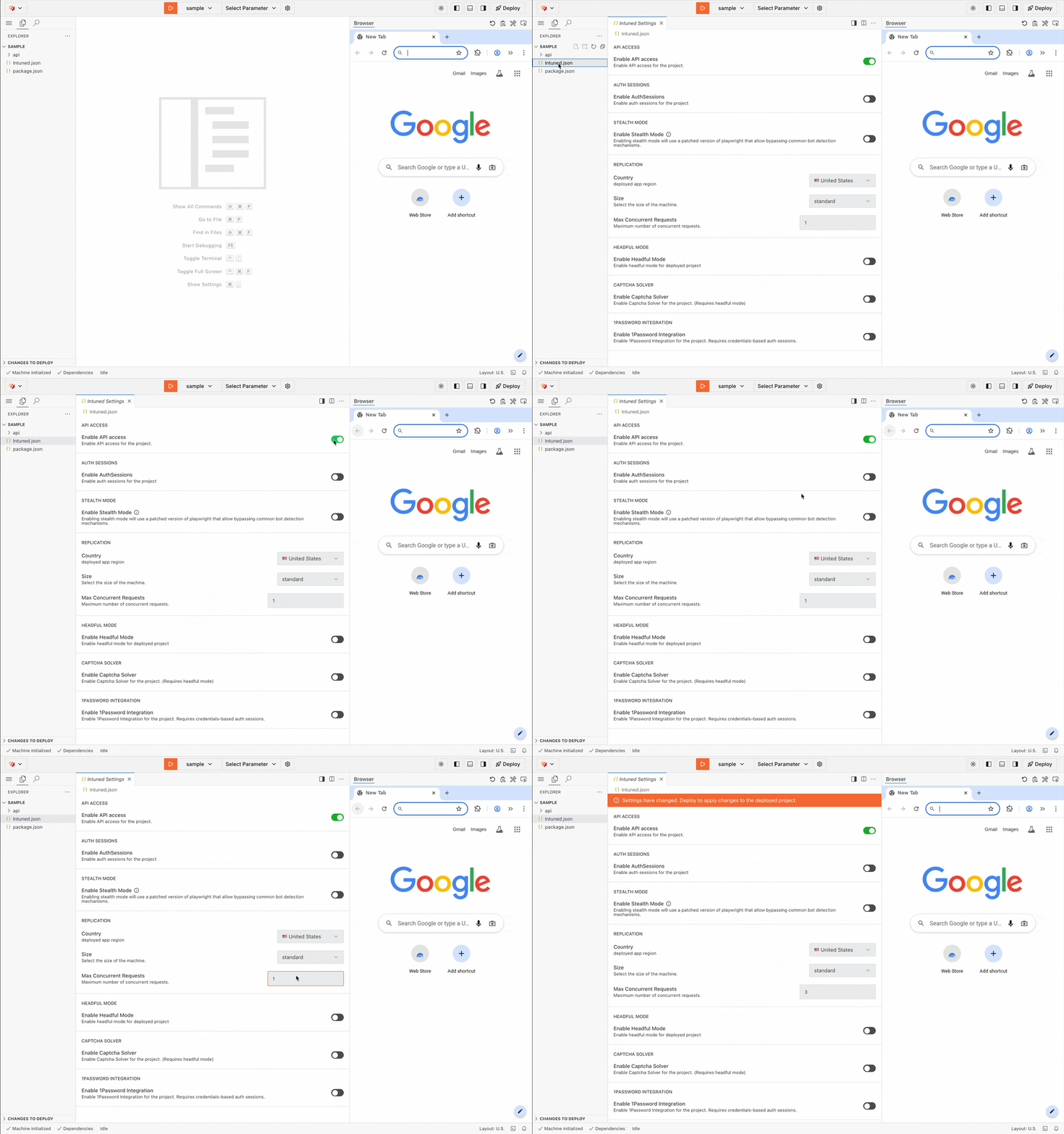 ```jsonc Intuned.json theme={null}
{
"apiAccess": {
"enabled": true
},
"replication": {
"maxConcurrentRequests": 3,
// ...
}
}
```
When you deploy your project, Intuned creates machines equal to your maximum concurrent requests setting. Each Run is picked up by one machine. If all machines are busy, the Run waits in a queue.
Machines are only active when processing Runs—you're not charged for idle time.
Your workspace has a limit on total deployed machines across all projects.
Contact support if you need to increase this limit.
### Triggering a Standalone Run
Before triggering a Standalone Run, make sure your project is deployed.
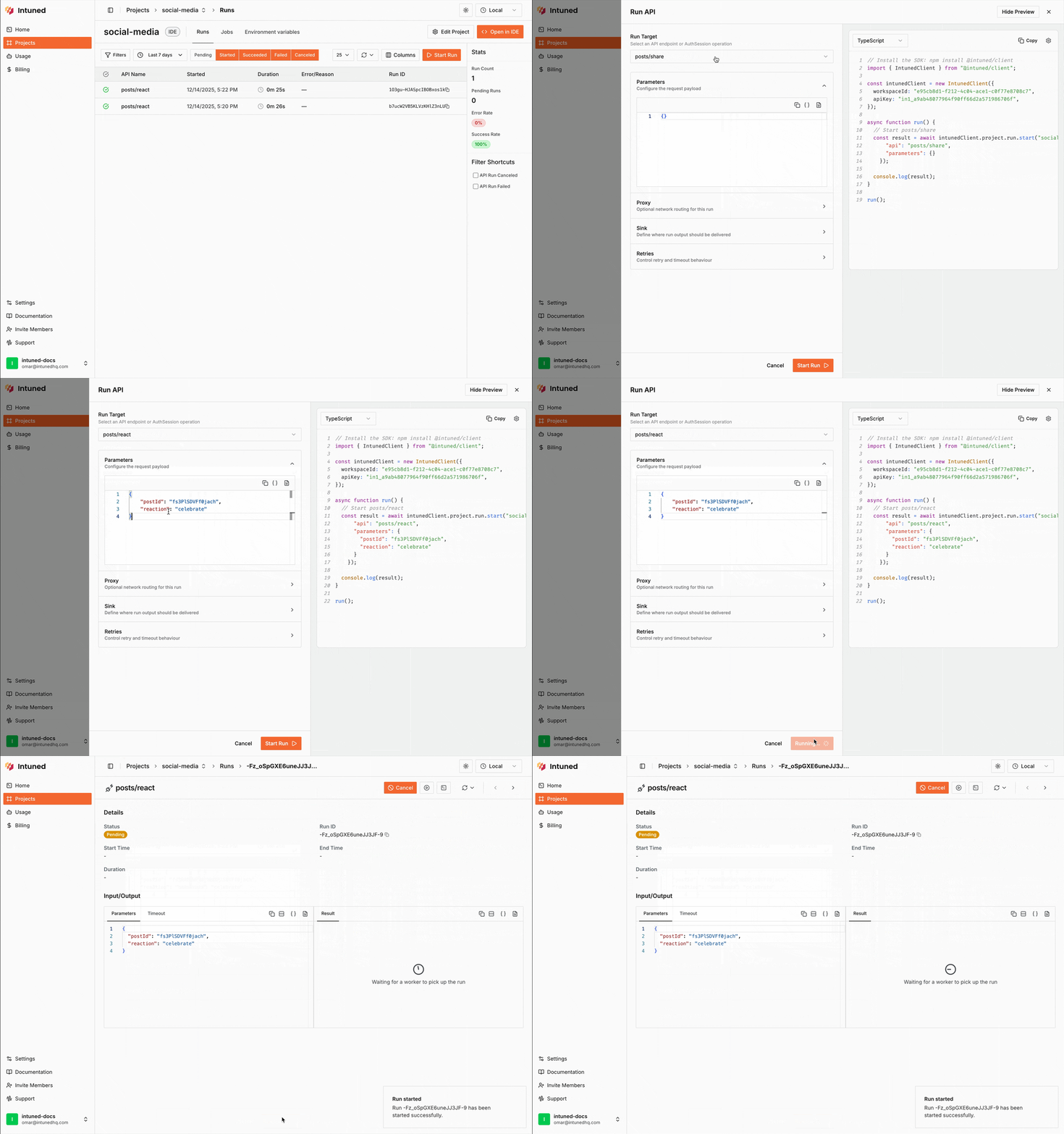
From the dashboard, go to **Your Project** > **Runs** > **Start Run**. Enter all the inputs for your Run and select "Start Run" to trigger it. Once triggered, you'll be redirected to the Run details page where you can monitor progress and view results.
```jsonc Intuned.json theme={null}
{
"apiAccess": {
"enabled": true
},
"replication": {
"maxConcurrentRequests": 3,
// ...
}
}
```
When you deploy your project, Intuned creates machines equal to your maximum concurrent requests setting. Each Run is picked up by one machine. If all machines are busy, the Run waits in a queue.
Machines are only active when processing Runs—you're not charged for idle time.
Your workspace has a limit on total deployed machines across all projects.
Contact support if you need to increase this limit.
### Triggering a Standalone Run
Before triggering a Standalone Run, make sure your project is deployed.
From the dashboard, go to **Your Project** > **Runs** > **Start Run**. Enter all the inputs for your Run and select "Start Run" to trigger it. Once triggered, you'll be redirected to the Run details page where you can monitor progress and view results.
 Call the [Run start endpoint](/client-apis/api-reference/projectsruns/run-api--start) with the API name and parameters. The response includes a Run ID that you can use to monitor progress and get results. Then use the [Run result endpoint](/client-apis/api-reference/projectsruns/run-api--result) with the Run ID to check status and get the result when complete.
```typescript Typescript theme={null}
const result = await intuned.projects.runs.start(projectName, {
api: "", // Name of the API to execute
parameters: {
// Parameters to pass to the API
},
retry: {
// (Optional) retry configuration
maximumAttempts: 3, // (Optional) Maximum number of Attempts for the Run. Default is 3
},
requestTimeout: 600, // (Optional) Timeout for an Attempt. Default is 600 seconds (10 minutes)
proxy: "", // (Optional) Proxy URL to use for the browser during the Run
saveTrace: true, // (Optional) Whether to save a browser trace for the Run. Default is true
authSession: {
// AuthSession configuration. Required for authenticated Projects
},
sink: {
// (Optional) Sink configuration to send Run results to external systems
},
});
console.log(`Started run ${result.runId}`); // Run ID
// Poll for results (or use sinks to receive results automatically—see "Get results without polling" below)
while (true) {
const runResult = await intuned.projects.runs.result(
projectName,
result.runId
);
if (runResult.status === "pending") {
await new Promise((resolve) => setTimeout(resolve, 5000)); // Wait before checking again
continue;
}
console.log(
`Run ${runResult.runId} finished with status ${runResult.status}`
);
// Process results
break;
}
```
```python Python theme={null}
from intuned_client import models
started_run = intuned.projects.runs.start(
project_name=project_name,
body=models.RunStartRequestBody(
api="", # Name of the API to execute
parameters={ # Parameters to pass to the API
},
retry={ # (Optional) retry configuration
"maximum_attempts": 3 # (Optional) Maximum number of Attempts for the Run. Default is 3
},
request_timeout=600, # (Optional) Timeout for an Attempt. Default is 600 seconds (10 minutes)
proxy="", # (Optional) Proxy URL to use for the browser during the Run
save_trace=True, # (Optional) Whether to save a browser trace for the Run. Default is true
auth_session={ # AuthSession configuration. Required for authenticated Projects
},
sink={ # (Optional) Sink configuration to send Run results to external systems
},
),
)
print(f"Started run {started_run.run_id}") # Run ID
# Poll for results (or use sinks to receive results automatically—see "Get results without polling" below)
while True:
run_result = client.projects.runs.result(
project_name=project_name,
run_id=started_run.run_id,
)
if run_result.status == "pending":
time.sleep(5) # Wait before checking again
continue
print(f"Run {run_result.run_id} finished with status {run_result.status}")
# Process results
break
```
Run from your project directory (where Intuned Settings is located), or specify the project explicitly with `-p `. API access must be enabled in your project settings — see [Project configuration](#project-configuration) above.
Pass the Run configuration as a JSON string or a path to a JSON file:
```bash theme={null}
intuned platform runs start '{"api": "my-awesome-api", "parameters": {"param1": "value1"}}'
```
With retry and timeout options:
```bash theme={null}
intuned platform runs start '{"api": "my-awesome-api", "parameters": {"param1": "value1"}, "retry": {"maximumAttempts": 3}, "requestTimeout": 600}'
```
Using a file:
```bash theme={null}
intuned platform runs start @run-config.json
```
The command returns a Run ID. Use it to check status and results:
```bash theme={null}
# List recent runs (filter by status, API name, etc.)
intuned platform runs list --filter status=pending
# Get details for a specific run
intuned platform runs get
```
See [Runs Start](/main/05-references/cli/platform#runs-start) and [Runs Get](/main/05-references/cli/platform#runs-get) for all options.
#### Get results without polling
Intuned supports **webhook** and **S3** sinks to deliver Run results automatically when complete.
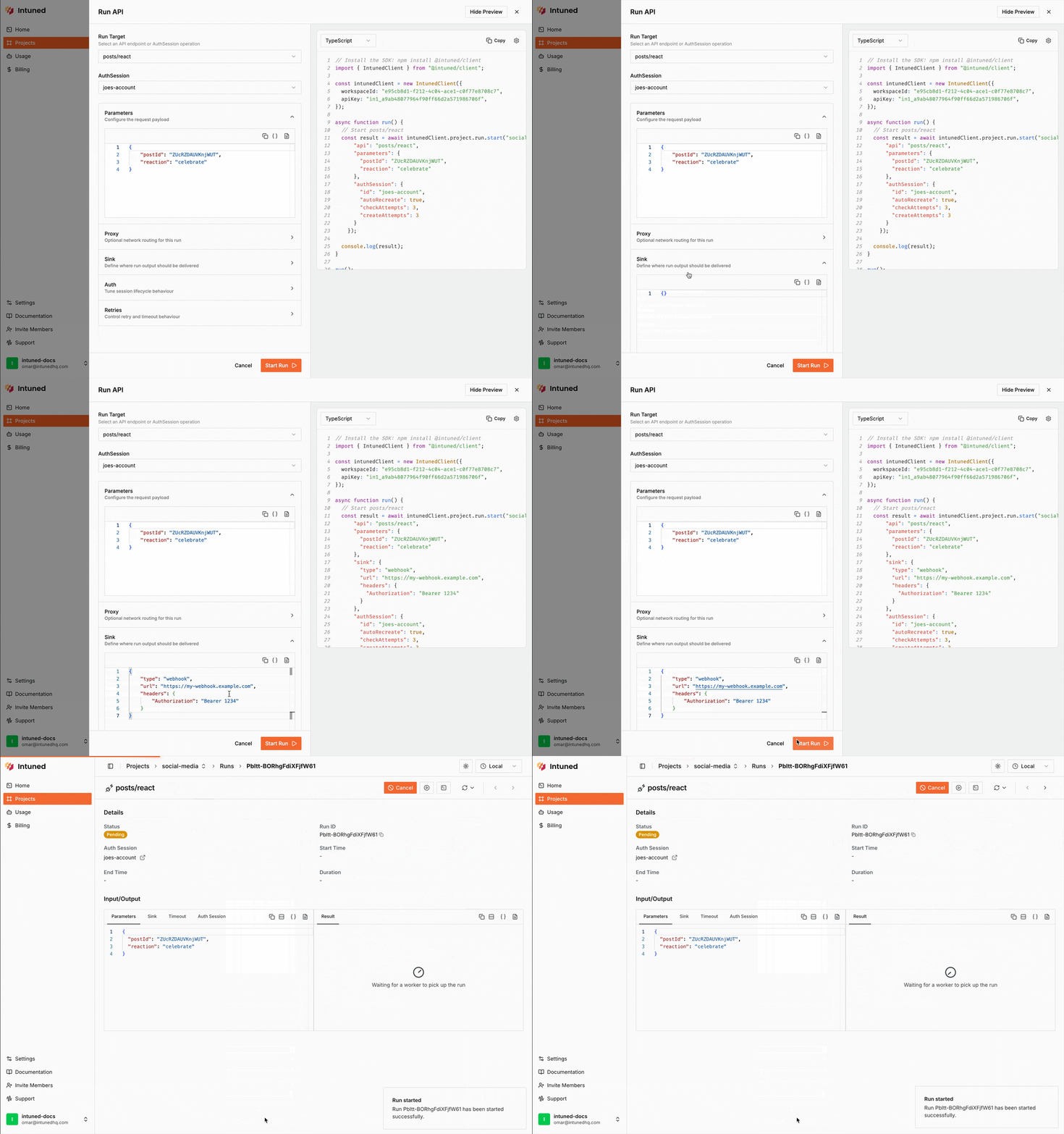
While you have the Run Playground open to start a Run, select the **Sink** tab to configure webhook or S3 sinks for result delivery.
```jsonc Webhook theme={null}
{
"type": "webhook",
"url": "",
"headers": { // (Optional) Additional headers to include in the webhook request. Useful for authentication
//...
},
"skipOnFail": false // (Optional) Whether to skip sending the webhook if the Run failed. Default is false
}
```
```jsonc S3 theme={null}
{
"type": "s3",
// S3-compatible bucket configuration
"bucket": "",
"accessKeyId": "",
"secretAccessKey": "",
"region": "",
"prefix": "", // (Optional) Prefix to add to the object key
"endpoint": "", // (Optional) Custom S3 endpoint for non-AWS providers (e.g., R2)
"forcePathStyle": false, // (Optional) Whether to force path-style URLs. Enable it for S3-compatible providers that require it (e.g., Supabase Storage)
"skipOnFail": false // (Optional) Whether to skip sending the webhook if the Run failed. Default is false
}
```
Call the [Run start endpoint](/client-apis/api-reference/projectsruns/run-api--start) with the API name and parameters. The response includes a Run ID that you can use to monitor progress and get results. Then use the [Run result endpoint](/client-apis/api-reference/projectsruns/run-api--result) with the Run ID to check status and get the result when complete.
```typescript Typescript theme={null}
const result = await intuned.projects.runs.start(projectName, {
api: "", // Name of the API to execute
parameters: {
// Parameters to pass to the API
},
retry: {
// (Optional) retry configuration
maximumAttempts: 3, // (Optional) Maximum number of Attempts for the Run. Default is 3
},
requestTimeout: 600, // (Optional) Timeout for an Attempt. Default is 600 seconds (10 minutes)
proxy: "", // (Optional) Proxy URL to use for the browser during the Run
saveTrace: true, // (Optional) Whether to save a browser trace for the Run. Default is true
authSession: {
// AuthSession configuration. Required for authenticated Projects
},
sink: {
// (Optional) Sink configuration to send Run results to external systems
},
});
console.log(`Started run ${result.runId}`); // Run ID
// Poll for results (or use sinks to receive results automatically—see "Get results without polling" below)
while (true) {
const runResult = await intuned.projects.runs.result(
projectName,
result.runId
);
if (runResult.status === "pending") {
await new Promise((resolve) => setTimeout(resolve, 5000)); // Wait before checking again
continue;
}
console.log(
`Run ${runResult.runId} finished with status ${runResult.status}`
);
// Process results
break;
}
```
```python Python theme={null}
from intuned_client import models
started_run = intuned.projects.runs.start(
project_name=project_name,
body=models.RunStartRequestBody(
api="", # Name of the API to execute
parameters={ # Parameters to pass to the API
},
retry={ # (Optional) retry configuration
"maximum_attempts": 3 # (Optional) Maximum number of Attempts for the Run. Default is 3
},
request_timeout=600, # (Optional) Timeout for an Attempt. Default is 600 seconds (10 minutes)
proxy="", # (Optional) Proxy URL to use for the browser during the Run
save_trace=True, # (Optional) Whether to save a browser trace for the Run. Default is true
auth_session={ # AuthSession configuration. Required for authenticated Projects
},
sink={ # (Optional) Sink configuration to send Run results to external systems
},
),
)
print(f"Started run {started_run.run_id}") # Run ID
# Poll for results (or use sinks to receive results automatically—see "Get results without polling" below)
while True:
run_result = client.projects.runs.result(
project_name=project_name,
run_id=started_run.run_id,
)
if run_result.status == "pending":
time.sleep(5) # Wait before checking again
continue
print(f"Run {run_result.run_id} finished with status {run_result.status}")
# Process results
break
```
Run from your project directory (where Intuned Settings is located), or specify the project explicitly with `-p `. API access must be enabled in your project settings — see [Project configuration](#project-configuration) above.
Pass the Run configuration as a JSON string or a path to a JSON file:
```bash theme={null}
intuned platform runs start '{"api": "my-awesome-api", "parameters": {"param1": "value1"}}'
```
With retry and timeout options:
```bash theme={null}
intuned platform runs start '{"api": "my-awesome-api", "parameters": {"param1": "value1"}, "retry": {"maximumAttempts": 3}, "requestTimeout": 600}'
```
Using a file:
```bash theme={null}
intuned platform runs start @run-config.json
```
The command returns a Run ID. Use it to check status and results:
```bash theme={null}
# List recent runs (filter by status, API name, etc.)
intuned platform runs list --filter status=pending
# Get details for a specific run
intuned platform runs get
```
See [Runs Start](/main/05-references/cli/platform#runs-start) and [Runs Get](/main/05-references/cli/platform#runs-get) for all options.
#### Get results without polling
Intuned supports **webhook** and **S3** sinks to deliver Run results automatically when complete.
While you have the Run Playground open to start a Run, select the **Sink** tab to configure webhook or S3 sinks for result delivery.
```jsonc Webhook theme={null}
{
"type": "webhook",
"url": "",
"headers": { // (Optional) Additional headers to include in the webhook request. Useful for authentication
//...
},
"skipOnFail": false // (Optional) Whether to skip sending the webhook if the Run failed. Default is false
}
```
```jsonc S3 theme={null}
{
"type": "s3",
// S3-compatible bucket configuration
"bucket": "",
"accessKeyId": "",
"secretAccessKey": "",
"region": "",
"prefix": "", // (Optional) Prefix to add to the object key
"endpoint": "", // (Optional) Custom S3 endpoint for non-AWS providers (e.g., R2)
"forcePathStyle": false, // (Optional) Whether to force path-style URLs. Enable it for S3-compatible providers that require it (e.g., Supabase Storage)
"skipOnFail": false // (Optional) Whether to skip sending the webhook if the Run failed. Default is false
}
```
 ```typescript Typescript - webhook theme={null}
await client.projects.runs.start(
projectName,
{
sink: {
type: "webhook",
url: "",
headers: { // (Optional) Additional headers to include in the webhook request. Useful for authentication
//...
},
skipOnFail: false, // (Optional) Whether to skip sending the webhook if the Run failed. Default is false
},
// ...
}
)
```
```typescript Typescript - S3 theme={null}
client.projects.runs.start(projectName, {
sink: {
type: "s3",
// S3-compatible bucket configuration
bucket: "",
accessKeyId: "",
secretAccessKey: "",
region: "",
prefix: "", // (Optional) Prefix to add to the object key
endpoint: "", // (Optional) Custom S3 endpoint for non-AWS providers (e.g., R2)
forcePathStyle: false, // (Optional) Whether to force path-style URLs. Enable it for S3-compatible providers that require it (e.g., Supabase Storage)
skipOnFail: false, // (Optional) Whether to skip sending the webhook if the Run failed. Default is false
},
api: "",
parameters: {},
});
```
```python Python - webhook theme={null}
from intuned_client import models
client.projects.runs.start(
project_name=project_name,
body=models.RunStartRequestBody(
api="",
parameters={},
sink={
"type": "webhook",
"url": "",
"headers": { # (Optional) Additional headers to include in the webhook request. Useful for authentication
# ...
},
"skip_on_fail": False, # (Optional) Whether to skip sending the webhook if the Run failed. Default is false
},
# ...
),
)
```
```python Python - S3 theme={null}
from intuned_client import models
client.projects.runs.start(
project_name=project_name,
body=models.RunStartRequestBody(
api="",
parameters={},
sink={
"type": "s3",
# S3-compatible bucket configuration
"bucket": "",
"access_key_id": "",
"secret_access_key": "",
"region": "",
"prefix": "", # (Optional) Prefix to add to the object key
"endpoint": "", # (Optional) Custom S3 endpoint for non-AWS providers (e.g., R2)
"force_path_style": False, # (Optional) Whether to force path-style URLs. Enable it for S3-compatible providers that require it (e.g., Supabase Storage)
"skip_on_fail": False, # (Optional) Whether to skip sending the webhook if the Run failed. Default is false
},
# ...
),
)
```
Run from your project directory (where Intuned Settings is located), or specify the project explicitly with `-p `.
Include `sink` in the run configuration JSON:
```bash theme={null}
# Webhook sink
intuned platform runs start '{
"api": "my-awesome-api",
"parameters": {},
"sink": {
"type": "webhook",
"url": ""
}
}'
```
```bash theme={null}
# S3 sink
intuned platform runs start '{
"api": "my-awesome-api",
"parameters": {},
"sink": {
"type": "s3",
"bucket": "",
"accessKeyId": "",
"secretAccessKey": "",
"region": ""
}
}'
```
### AuthSession Support
For authenticated Projects, each Run must specify an AuthSession to use. Before each Attempt runs, Intuned automatically validates the AuthSession and can recreate it if needed. This ensures your automation code never runs with an invalid session.
Runs use `authSession` (camelCase) in TypeScript and the REST API. This is
different from Jobs, which use `auth_session` (snake\_case) in all languages.
Python SDK uses `auth_session` for both.
Before triggering a Run, you need an AuthSession created. Check out
[AuthSessions - Create an
AuthSession](./auth-sessions#4-create-an-authsession).
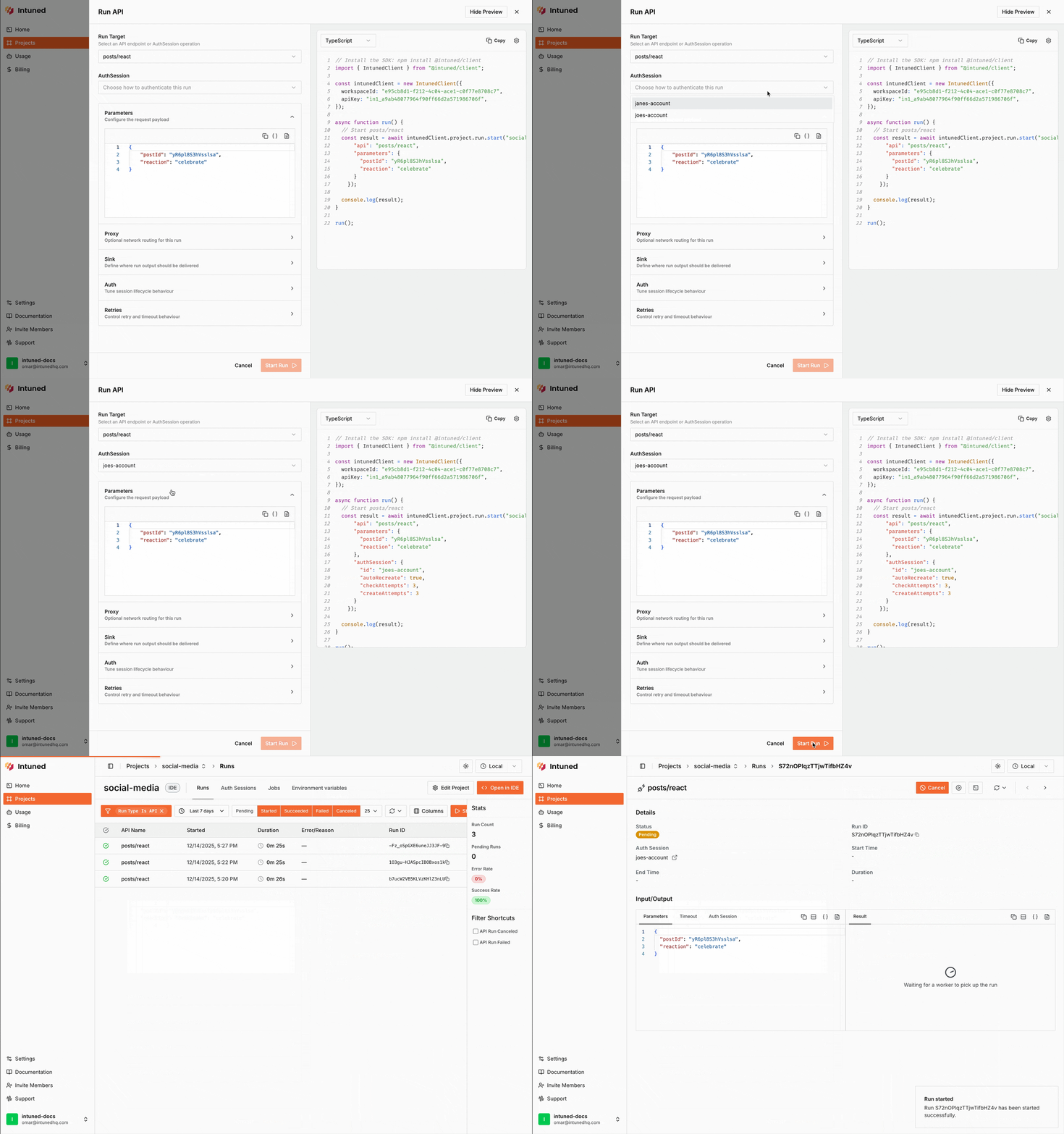
While you have the Run Playground open to start a Run, select the AuthSession to use in the **Authentication** section and configure it.
```typescript Typescript - webhook theme={null}
await client.projects.runs.start(
projectName,
{
sink: {
type: "webhook",
url: "",
headers: { // (Optional) Additional headers to include in the webhook request. Useful for authentication
//...
},
skipOnFail: false, // (Optional) Whether to skip sending the webhook if the Run failed. Default is false
},
// ...
}
)
```
```typescript Typescript - S3 theme={null}
client.projects.runs.start(projectName, {
sink: {
type: "s3",
// S3-compatible bucket configuration
bucket: "",
accessKeyId: "",
secretAccessKey: "",
region: "",
prefix: "", // (Optional) Prefix to add to the object key
endpoint: "", // (Optional) Custom S3 endpoint for non-AWS providers (e.g., R2)
forcePathStyle: false, // (Optional) Whether to force path-style URLs. Enable it for S3-compatible providers that require it (e.g., Supabase Storage)
skipOnFail: false, // (Optional) Whether to skip sending the webhook if the Run failed. Default is false
},
api: "",
parameters: {},
});
```
```python Python - webhook theme={null}
from intuned_client import models
client.projects.runs.start(
project_name=project_name,
body=models.RunStartRequestBody(
api="",
parameters={},
sink={
"type": "webhook",
"url": "",
"headers": { # (Optional) Additional headers to include in the webhook request. Useful for authentication
# ...
},
"skip_on_fail": False, # (Optional) Whether to skip sending the webhook if the Run failed. Default is false
},
# ...
),
)
```
```python Python - S3 theme={null}
from intuned_client import models
client.projects.runs.start(
project_name=project_name,
body=models.RunStartRequestBody(
api="",
parameters={},
sink={
"type": "s3",
# S3-compatible bucket configuration
"bucket": "",
"access_key_id": "",
"secret_access_key": "",
"region": "",
"prefix": "", # (Optional) Prefix to add to the object key
"endpoint": "", # (Optional) Custom S3 endpoint for non-AWS providers (e.g., R2)
"force_path_style": False, # (Optional) Whether to force path-style URLs. Enable it for S3-compatible providers that require it (e.g., Supabase Storage)
"skip_on_fail": False, # (Optional) Whether to skip sending the webhook if the Run failed. Default is false
},
# ...
),
)
```
Run from your project directory (where Intuned Settings is located), or specify the project explicitly with `-p `.
Include `sink` in the run configuration JSON:
```bash theme={null}
# Webhook sink
intuned platform runs start '{
"api": "my-awesome-api",
"parameters": {},
"sink": {
"type": "webhook",
"url": ""
}
}'
```
```bash theme={null}
# S3 sink
intuned platform runs start '{
"api": "my-awesome-api",
"parameters": {},
"sink": {
"type": "s3",
"bucket": "",
"accessKeyId": "",
"secretAccessKey": "",
"region": ""
}
}'
```
### AuthSession Support
For authenticated Projects, each Run must specify an AuthSession to use. Before each Attempt runs, Intuned automatically validates the AuthSession and can recreate it if needed. This ensures your automation code never runs with an invalid session.
Runs use `authSession` (camelCase) in TypeScript and the REST API. This is
different from Jobs, which use `auth_session` (snake\_case) in all languages.
Python SDK uses `auth_session` for both.
Before triggering a Run, you need an AuthSession created. Check out
[AuthSessions - Create an
AuthSession](./auth-sessions#4-create-an-authsession).
While you have the Run Playground open to start a Run, select the AuthSession to use in the **Authentication** section and configure it.
 Specify the AuthSession to use in the run configuration:
```typescript Typescript theme={null}
await intuned.projects.runs.start(
projectName,
{
authSession: {
id: "", // Auth session ID to use for the Run
autoRecreate: true, // (Optional) Whether to automatically recreate the auth session if initial check fails. Default is true
checkAttempts: 3, // (Optional) Number of attempts to check for session validity. Default is 3
createAttempts: 3, // (Optional) Number of attempts to create a new session if needed. Default is 3
},
// ...
}
)
```
```python Python theme={null}
from intuned_client import models
client.projects.runs.start(
project_name=project_name,
body=models.RunStartRequestBody(
api="",
parameters={},
auth_session={
"id": "", # Auth session ID to use for the Run
"auto_recreate": True, # (Optional) Whether to automatically recreate the auth session if initial check fails. Default is true
"check_attempts": 3, # (Optional) Number of attempts to check for session validity. Default is 3
"create_attempts": 3, # (Optional) Number of attempts to create a new session if needed. Default is 3
},
# ...
),
)
```
Intuned supports different types of AuthSessions. Check out [AuthSessions -
AuthSession types](./auth-sessions#authsession-types) for more information.
Run from your project directory (where Intuned Settings is located), or specify the project explicitly with `-p `.
Include `authSession` in the run configuration JSON:
```bash theme={null}
intuned platform runs start '{
"api": "my-awesome-api",
"parameters": {},
"authSession": {
"id": ""
}
}'
```
Each Attempt will produce an **AuthSession Validate** Run before it executes to ensure the session is valid.
### Execution model
When you start a Standalone Run, it executes a single API with the parameters you specify.
Browser automations can sometimes fail due to temporary issues (network problems, element not found, timeouts). To handle this, Runs support automatic retries through multiple Attempts. The Run will try one or more Attempts until it succeeds or runs out of retries.
Each Run produces a **result** or **error** based on the final Attempt's outcome. Each Attempt has its own **result** or **error**, along with detailed logs and a browser trace for debugging.
The Run starts in a `Pending` state, transitions to `Started` when an Attempt begins, and finally to `Success`, `Failed`, or `Canceled` based on the outcome.
For more details about Runs and Attempts, see [Intuned in depth: Runs and Attempts](../01-learn/deep-dives/intuned-indepth#runs-and-attempts).
### Monitoring
Intuned tracks every Run and its Attempts, giving you full visibility into your automation executions. From the dashboard, you can view Run records, inspect individual Attempts, and access detailed logs and browser traces for debugging.
For more details, see [Monitoring and traces](./observability-monitoring-logs).
## Best practices
* Choose an appropriate **maximum concurrent requests** value based on your expected load. While you're not charged for idle compute time, setting a reasonable limit helps manage resource usage effectively.
* Set **request timeouts** to reasonable values to ensure that failed Attempts are detected quickly, allowing for faster retries and reducing overall execution time.
* Use [**sinks** (webhook or S3)](#using-sinks) to receive Run results automatically, reducing the need for polling and improving efficiency.
* If your use case involves batch or scheduled executions, consider transitioning to [**Jobs**](./jobs-batched-executions) for better management and scalability.
* **Set appropriate retry attempts.** Increase retries for websites with flaky behavior or network issues to improve success rates.
## Limitations
* **Workspace machine limit**: Your workspace has a limit on total deployed machines across all projects. If you need more capacity, contact support to increase this limit.
* **Sink delivery is at-least-once**: Results sent to sinks may be delivered multiple times in rare failure scenarios. Make sure your webhook or processing logic handles duplicate deliveries idempotently.
## FAQs
Standalone Runs execute a single API immediately when you call the endpoint. Jobs orchestrate multiple API executions together with scheduling, retries, and concurrency management. Use Standalone Runs for one-off or user-triggered executions; use Jobs for batch processing and recurring automations.
{" "}
Each Run can have multiple Attempts. If an Attempt fails, Intuned
automatically retries up to your configured `maximumAttempts` (default is 3).
Each Attempt has its own logs and browser trace for debugging. The Run
succeeds if any Attempt succeeds, and fails only after all Attempts are
exhausted.
{" "}
Yes. Use the Run cancel endpoint with the Run ID to cancel a pending or
running Run. The Run status changes to `Canceled`.
Each Attempt has a configurable `requestTimeout` (default 600 seconds / 10 minutes). If an Attempt exceeds this timeout, it fails and triggers a retry if attempts remain. For long-running automations, increase the timeout or use `extendTimeout` within Jobs.
## Related resources
Authenticated browser automations
Programmatic access to Standalone Runs
Webhook and S3 result delivery
Debug and monitor Run executions
Specify the AuthSession to use in the run configuration:
```typescript Typescript theme={null}
await intuned.projects.runs.start(
projectName,
{
authSession: {
id: "", // Auth session ID to use for the Run
autoRecreate: true, // (Optional) Whether to automatically recreate the auth session if initial check fails. Default is true
checkAttempts: 3, // (Optional) Number of attempts to check for session validity. Default is 3
createAttempts: 3, // (Optional) Number of attempts to create a new session if needed. Default is 3
},
// ...
}
)
```
```python Python theme={null}
from intuned_client import models
client.projects.runs.start(
project_name=project_name,
body=models.RunStartRequestBody(
api="",
parameters={},
auth_session={
"id": "", # Auth session ID to use for the Run
"auto_recreate": True, # (Optional) Whether to automatically recreate the auth session if initial check fails. Default is true
"check_attempts": 3, # (Optional) Number of attempts to check for session validity. Default is 3
"create_attempts": 3, # (Optional) Number of attempts to create a new session if needed. Default is 3
},
# ...
),
)
```
Intuned supports different types of AuthSessions. Check out [AuthSessions -
AuthSession types](./auth-sessions#authsession-types) for more information.
Run from your project directory (where Intuned Settings is located), or specify the project explicitly with `-p `.
Include `authSession` in the run configuration JSON:
```bash theme={null}
intuned platform runs start '{
"api": "my-awesome-api",
"parameters": {},
"authSession": {
"id": ""
}
}'
```
Each Attempt will produce an **AuthSession Validate** Run before it executes to ensure the session is valid.
### Execution model
When you start a Standalone Run, it executes a single API with the parameters you specify.
Browser automations can sometimes fail due to temporary issues (network problems, element not found, timeouts). To handle this, Runs support automatic retries through multiple Attempts. The Run will try one or more Attempts until it succeeds or runs out of retries.
Each Run produces a **result** or **error** based on the final Attempt's outcome. Each Attempt has its own **result** or **error**, along with detailed logs and a browser trace for debugging.
The Run starts in a `Pending` state, transitions to `Started` when an Attempt begins, and finally to `Success`, `Failed`, or `Canceled` based on the outcome.
For more details about Runs and Attempts, see [Intuned in depth: Runs and Attempts](../01-learn/deep-dives/intuned-indepth#runs-and-attempts).
### Monitoring
Intuned tracks every Run and its Attempts, giving you full visibility into your automation executions. From the dashboard, you can view Run records, inspect individual Attempts, and access detailed logs and browser traces for debugging.
For more details, see [Monitoring and traces](./observability-monitoring-logs).
## Best practices
* Choose an appropriate **maximum concurrent requests** value based on your expected load. While you're not charged for idle compute time, setting a reasonable limit helps manage resource usage effectively.
* Set **request timeouts** to reasonable values to ensure that failed Attempts are detected quickly, allowing for faster retries and reducing overall execution time.
* Use [**sinks** (webhook or S3)](#using-sinks) to receive Run results automatically, reducing the need for polling and improving efficiency.
* If your use case involves batch or scheduled executions, consider transitioning to [**Jobs**](./jobs-batched-executions) for better management and scalability.
* **Set appropriate retry attempts.** Increase retries for websites with flaky behavior or network issues to improve success rates.
## Limitations
* **Workspace machine limit**: Your workspace has a limit on total deployed machines across all projects. If you need more capacity, contact support to increase this limit.
* **Sink delivery is at-least-once**: Results sent to sinks may be delivered multiple times in rare failure scenarios. Make sure your webhook or processing logic handles duplicate deliveries idempotently.
## FAQs
Standalone Runs execute a single API immediately when you call the endpoint. Jobs orchestrate multiple API executions together with scheduling, retries, and concurrency management. Use Standalone Runs for one-off or user-triggered executions; use Jobs for batch processing and recurring automations.
{" "}
Each Run can have multiple Attempts. If an Attempt fails, Intuned
automatically retries up to your configured `maximumAttempts` (default is 3).
Each Attempt has its own logs and browser trace for debugging. The Run
succeeds if any Attempt succeeds, and fails only after all Attempts are
exhausted.
{" "}
Yes. Use the Run cancel endpoint with the Run ID to cancel a pending or
running Run. The Run status changes to `Canceled`.
Each Attempt has a configurable `requestTimeout` (default 600 seconds / 10 minutes). If an Attempt exceeds this timeout, it fails and triggers a retry if attempts remain. For long-running automations, increase the timeout or use `extendTimeout` within Jobs.
## Related resources
Authenticated browser automations
Programmatic access to Standalone Runs
Webhook and S3 result delivery
Debug and monitor Run executions