> ## Documentation Index
> Fetch the complete documentation index at: https://intunedhq.com/docs/llms.txt
> Use this file to discover all available pages before exploring further.
# Self-healing projects
Self-healing projects are an experimental feature. We welcome [feedback](/main/06-resources/help-and-support).
## What are self-healing projects?
Enable self-healing on any project to close the loop between monitoring and fixing. Intuned watches your runs, detects when something breaks, and the agent investigates, writes a fix, and can merge and deploy it — all without manual intervention. The level of autonomy is fully configurable — you control how much the agent does on its own. See [autonomy levels](#autonomy-levels).
## How to enable it
1. Go to your project's overview page.
2. Select **Edit Project**.
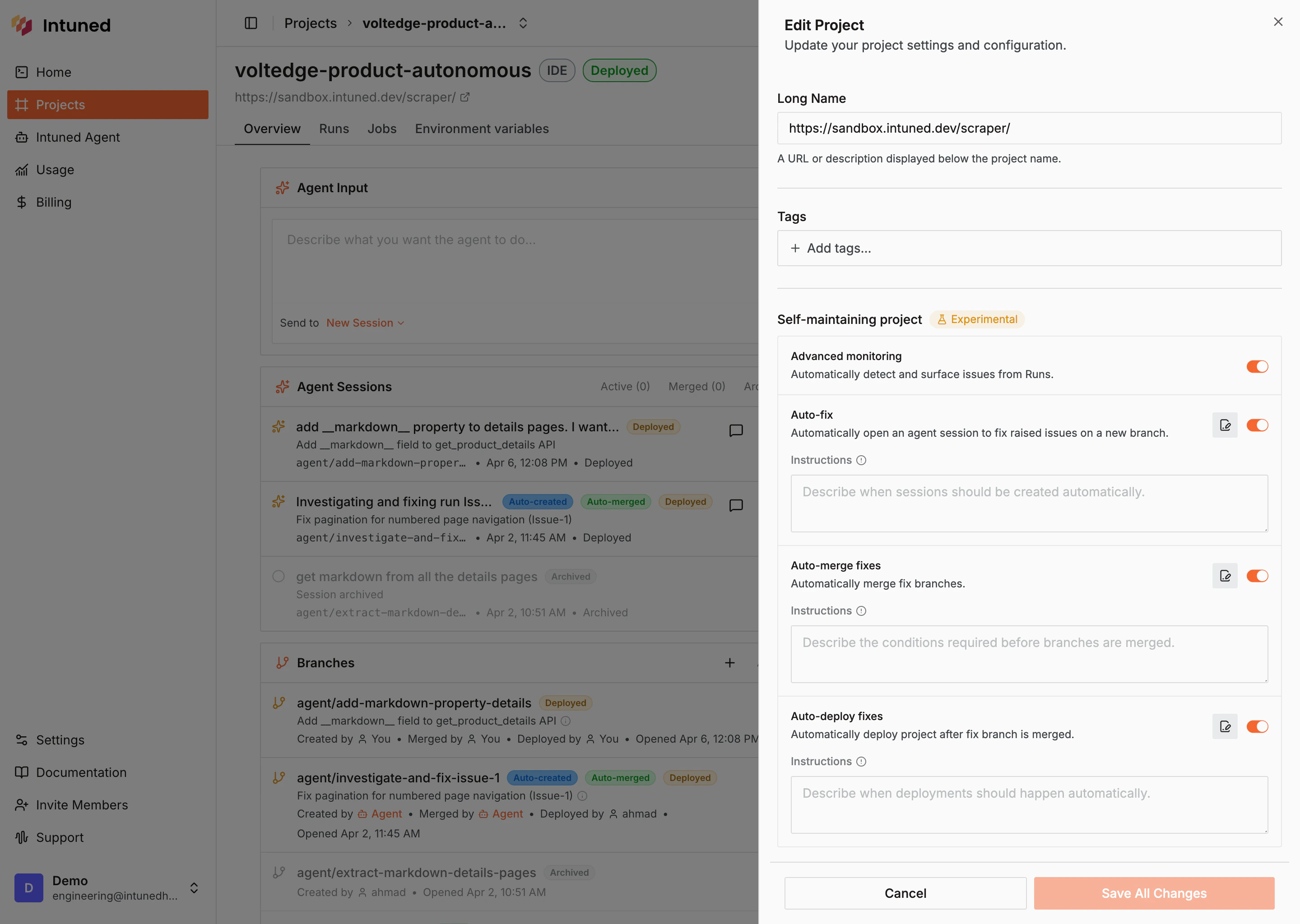
3. Under **Self-healing project**, toggle the autonomy levels you want.
 ## How it works
After each job run or standalone run, Intuned captures metrics — success rate, failure count, run count, and result size — and checks them against anomaly detection rules and historical data.
If a rule triggers, an anomaly is created. The agent investigates each anomaly — comparing healthy and failed runs, reading traces and logs — and decides whether it's a real issue or a false positive.
After the agent validates that anomalies point to real problems — by analyzing run results, past data, and traces — confirmed issues with the same root cause are grouped and surfaced in the [Issues panel](#issues-panel).
If **Auto-fix** is enabled, the agent opens a session on a new branch to diagnose and fix the issue.
If **Auto-merge fixes** and **Auto-deploy fixes** are enabled, the agent merges the fix and deploys the project automatically.
It may take up to 6 hours for issues to surface. This batching window reduces AI credit costs. The window is configurable, and we're working on making detection more real-time. The exact detection logic is an internal detail and may change as we improve accuracy — we welcome [feedback](/main/06-resources/help-and-support).
### Anomaly detection
Intuned monitors metrics after each run to detect changes that could indicate a problem — a website updates its layout, response sizes shift, data patterns deviate from recent runs. When an anomaly is detected, the agent doesn't surface it immediately. It investigates first — comparing healthy and failed runs, analyzing traces and logs — and only promotes it to a real issue if it confirms something is broken. False positives are dismissed automatically.
## Autonomy levels
Self-healing projects have four toggles, each adding a layer of autonomy. Enable only the ones you're comfortable with — each level includes everything above it.
We recommend starting with **Advanced monitoring** on all projects to surface issues early. Advanced monitoring and higher autonomy levels consume additional AI credits. See [Plans and billing](/main/05-references/plans-and-billing) for details.
| Toggle | What it does | Instructions |
| ----------------------- | ------------------------------------------------------------------------ | ----------------------------------------------------------- |
| **Advanced monitoring** | Automatically detect and surface issues from runs | — |
| **Auto-fix** | Automatically open an agent session to fix raised issues on a new branch | Describe when sessions should be created automatically |
| **Auto-merge fixes** | Automatically merge fix branches | Describe the conditions required before branches are merged |
| **Auto-deploy fixes** | Automatically deploy the project after a fix branch is merged | Describe when deployments should happen automatically |
Auto-fix, auto-merge, and auto-deploy each accept optional **instructions** — free-text guidance the agent follows when performing that action.
Automatically create remediation sessions for OPEN issues and keep the branch tightly scoped to the surfaced problem.
Auto-merge only complete remediation branches that have a clear work summary and no waiting-for-user state.
Auto-deploy only after an auto-merge succeeds; stop if deployment logs surface a failure or if human approval is still required.
## Issues panel
## How it works
After each job run or standalone run, Intuned captures metrics — success rate, failure count, run count, and result size — and checks them against anomaly detection rules and historical data.
If a rule triggers, an anomaly is created. The agent investigates each anomaly — comparing healthy and failed runs, reading traces and logs — and decides whether it's a real issue or a false positive.
After the agent validates that anomalies point to real problems — by analyzing run results, past data, and traces — confirmed issues with the same root cause are grouped and surfaced in the [Issues panel](#issues-panel).
If **Auto-fix** is enabled, the agent opens a session on a new branch to diagnose and fix the issue.
If **Auto-merge fixes** and **Auto-deploy fixes** are enabled, the agent merges the fix and deploys the project automatically.
It may take up to 6 hours for issues to surface. This batching window reduces AI credit costs. The window is configurable, and we're working on making detection more real-time. The exact detection logic is an internal detail and may change as we improve accuracy — we welcome [feedback](/main/06-resources/help-and-support).
### Anomaly detection
Intuned monitors metrics after each run to detect changes that could indicate a problem — a website updates its layout, response sizes shift, data patterns deviate from recent runs. When an anomaly is detected, the agent doesn't surface it immediately. It investigates first — comparing healthy and failed runs, analyzing traces and logs — and only promotes it to a real issue if it confirms something is broken. False positives are dismissed automatically.
## Autonomy levels
Self-healing projects have four toggles, each adding a layer of autonomy. Enable only the ones you're comfortable with — each level includes everything above it.
We recommend starting with **Advanced monitoring** on all projects to surface issues early. Advanced monitoring and higher autonomy levels consume additional AI credits. See [Plans and billing](/main/05-references/plans-and-billing) for details.
| Toggle | What it does | Instructions |
| ----------------------- | ------------------------------------------------------------------------ | ----------------------------------------------------------- |
| **Advanced monitoring** | Automatically detect and surface issues from runs | — |
| **Auto-fix** | Automatically open an agent session to fix raised issues on a new branch | Describe when sessions should be created automatically |
| **Auto-merge fixes** | Automatically merge fix branches | Describe the conditions required before branches are merged |
| **Auto-deploy fixes** | Automatically deploy the project after a fix branch is merged | Describe when deployments should happen automatically |
Auto-fix, auto-merge, and auto-deploy each accept optional **instructions** — free-text guidance the agent follows when performing that action.
Automatically create remediation sessions for OPEN issues and keep the branch tightly scoped to the surfaced problem.
Auto-merge only complete remediation branches that have a clear work summary and no waiting-for-user state.
Auto-deploy only after an auto-merge succeeds; stop if deployment logs surface a failure or if human approval is still required.
## Issues panel
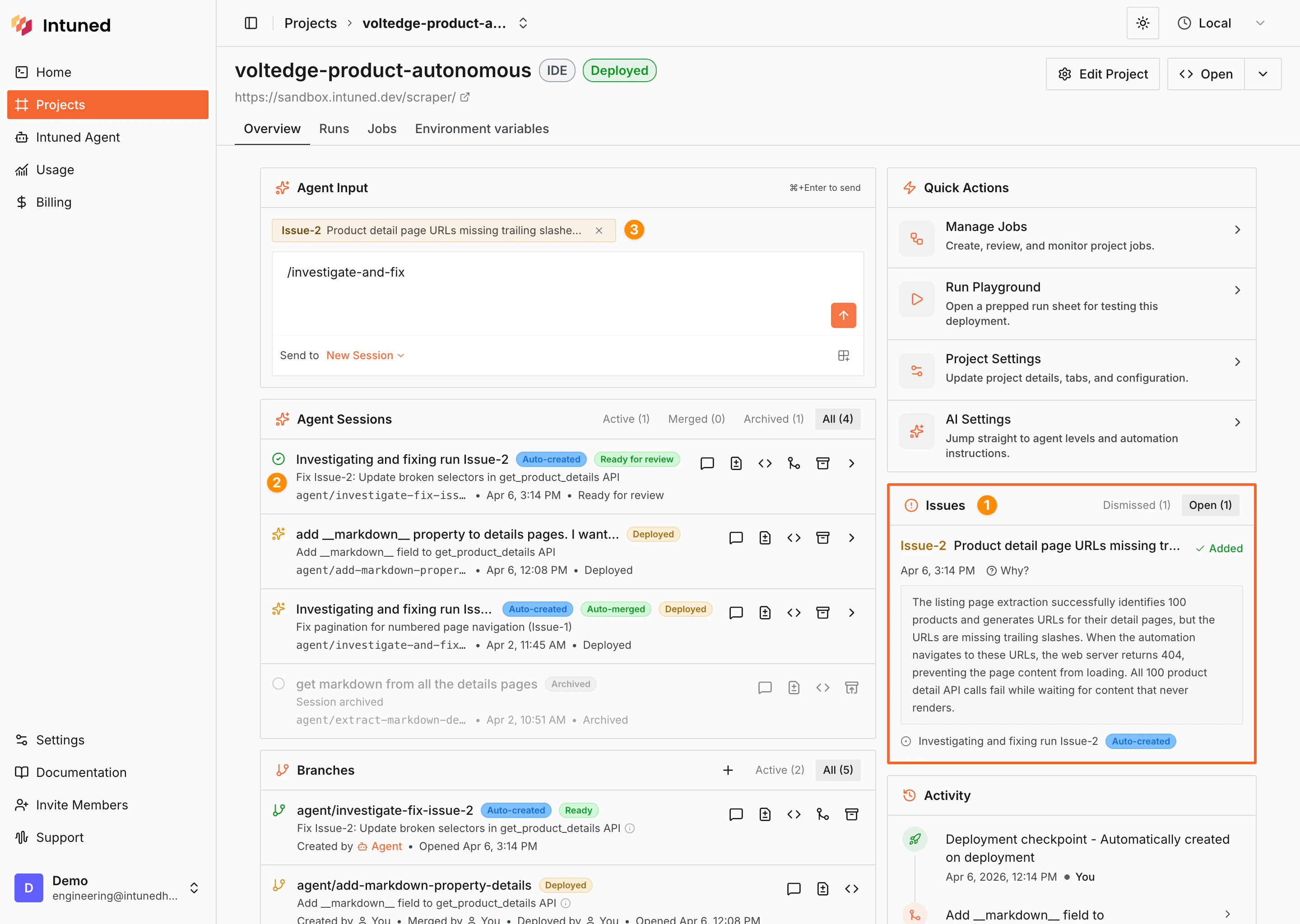 1. **Issues panel** — Open issues appear on the right side of the project overview. Each issue shows a title, timestamp, and a description of the root cause. Dismiss false positives or select an issue for details.
2. **Agent session** — If Auto-fix is enabled, the agent automatically opens a session to fix the issue. The session appears in the Agent Sessions list linked to the issue.
3. **Attach an issue to a message** — Reference an issue directly in the agent input to start a conversation about it. The agent loads the issue context and begins investigating.
## Related resources
Workflows, prompt examples, and the agent interface
What the agent can do and where to find it
Scheduled and batched executions the agent monitors
Run traces, logs, and observability
1. **Issues panel** — Open issues appear on the right side of the project overview. Each issue shows a title, timestamp, and a description of the root cause. Dismiss false positives or select an issue for details.
2. **Agent session** — If Auto-fix is enabled, the agent automatically opens a session to fix the issue. The session appears in the Agent Sessions list linked to the issue.
3. **Attach an issue to a message** — Reference an issue directly in the agent input to start a conversation about it. The agent loads the issue context and begins investigating.
## Related resources
Workflows, prompt examples, and the agent interface
What the agent can do and where to find it
Scheduled and batched executions the agent monitors
Run traces, logs, and observability