> ## Documentation Index
> Fetch the complete documentation index at: https://intunedhq.com/docs/llms.txt
> Use this file to discover all available pages before exploring further.
# Using the agent
## Creating a new project
Start a new conversation at [app.intuned.io/agent](https://app.intuned.io/agent) to build a project from scratch.
Tell the agent what to build — include the target URL and the data you want
or the action to automate. Use a **template** to pre-fill your prompt, or a
**recipe** to add capabilities.
The agent explores the site and may ask clarifying questions (usually
multiple choice) before presenting a plan. Review the proposed schema, APIs,
and approach — then **Approve** or **Suggest Changes**.
The agent writes code, installs dependencies, and runs tests against the
live site. This typically takes 30–60 minutes. You can close your browser —
the agent continues in the background.
Review the generated code in the **Code** panel and test results in the
**Artifacts** panel. Select **Merge Branch** to deploy — choose **Merge &
Deploy** or **Merge only**. You can also send a follow-up message to request
further changes before merging.
### Prompt examples
Create a scraper for [https://www.energy.ca.gov/funding-opportunities/solicitations](https://www.energy.ca.gov/funding-opportunities/solicitations)
For each solicitation, extract:
* title
* solicitation number
* status
* posted date
* closing date
* description
Download every attachment and include the files in the output.
Create an RPA project for [https://sandbox.intuned.dev/consultations-auth/book](https://sandbox.intuned.dev/consultations-auth/book)
This is an authenticated website. Set up AuthSessions so the automation runs with authenticated browser state.
Create these APIs:
1. book-consultation — book a new consultation
2. check-consultation-status — check the status of an existing consultation
3. confirm-consultation — confirm a pending consultation
4. get-my-consultations — list all my consultations (add API parameters so the caller can filter by status or date range)
Create a crawler that can crawl any documentation site and extract structured page content.
Test it on these sites:
* [https://intunedhq.com/docs](https://intunedhq.com/docs)
* [https://react.dev](https://react.dev)
* [https://docs.anthropic.com](https://docs.anthropic.com)
For each page, extract:
* Page title
* Section headings
* Body content (as markdown)
* Links to child pages
Crawl internal links up to a configurable depth.
Create an AI-powered job board crawler.
The crawler should:
1. Start from a job board listing page, extract all job links, and crawl each one
2. For known boards like Lever, extract structured data with deterministic selectors (title, location, department, team, commitment, workplace type, description, apply URL)
3. For other boards (Greenhouse, custom), fall back to AI extraction using the same schema
4. Deduplicate URLs across payloads using persistentStore
5. Support configurable max\_depth and max\_pages
## Editing an existing project
Open the project you want to edit from the [projects page](https://app.intuned.io/projects), then start a new agent conversation from the project overview.
Open the project you want to edit from the [projects
page](https://app.intuned.io/projects), then start a new agent conversation
from the project overview.
Describe what you want to change — the agent figures out the details. Use a
**template** for common edits, or a **recipe** to add capabilities.
For larger changes, the agent presents a plan for your review. It may ask
clarifying questions (usually multiple choice). **Approve** or **Suggest
Changes**. For smaller changes, the agent starts building directly.
The agent implements the changes, runs tests, and validates the results
against the live site. You can close your browser — the agent continues in
the background.
Review the changes and select **Merge**. You'll see an editable summary
before confirming. Choose **Merge** to apply, or **Merge and deploy** to
apply and deploy in one step.
### Prompt examples
API name: get-solicitations
What should change in the result:
* Add a `categories` array where each item has name and URL
* Change `price` to an object with `amount` (number) and `currency` (string)
Test on all the API parameters.
API name: get-products
Field or entity with wrong data:
* `price` is returning the discounted price instead of the original price
Current output:
* price: 29.99
Expected output:
* price: 49.99
Related run IDs:
* run\_abc123
Check last failed runs to find the runs failing with timeout error and fix the issue.
Run all APIs with their default test parameters and verify the outputs are correct. Flag any failures, incorrect data, or missing fields.
## Fix with AI
Navigate to a failed run in the dashboard and select **Fix with AI**.
Open your project from the [projects page](https://app.intuned.io/projects)
and go to the **Runs** tab. Select a run with an error.
Select **Fix with AI** from the failed run. The agent opens a new
conversation with the run context already loaded and starts diagnosing the
issue.
The agent diagnoses the issue using trace analysis and run logs, then fixes
the code and validates the result. You can close your browser — the agent
continues in the background.
Review the fix and select **Merge**. You'll see an editable summary before
confirming. Choose **Merge** to apply, or **Merge and deploy** to apply and
deploy in one step.
### What it can fix
* **Failed runs** — broken selectors, changed page structure, missing elements
* **Wrong data** — incorrect extraction logic, wrong fields, missing data
* **Timeouts** — slow steps, unnecessary waits, performance bottlenecks
## Intuned Agent interface
The agent runs in a multi-panel interface. The main conversation is on the left, with tabbed panels on the right for code, browser, and artifacts.
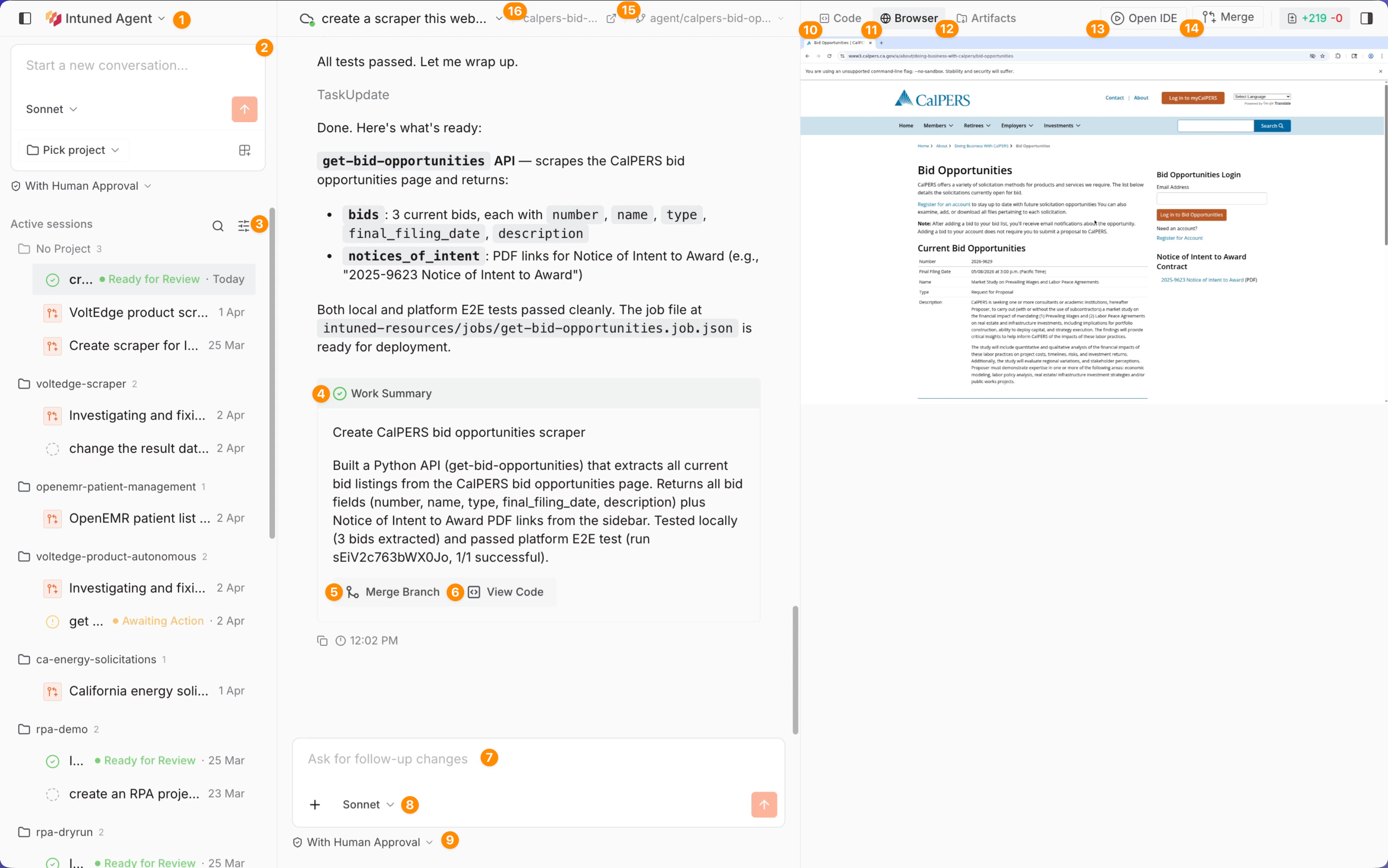 1. **Home** — Return to Intuned home.
2. **New conversation** — Start a new agent session — select a model, pick a project, and choose templates or recipes.
3. **Conversation list** — All your conversations grouped by project, with status indicators and timestamps.
4. **Work summary** — When the agent makes meaningful changes to the project, it adds a summary to the branch. This summary becomes the checkpoint message when you merge.
5. **Merge branch** — Merge the agent's changes into your project. Shows an editable summary before confirming — choose **Merge** to apply, or **Merge and deploy** to apply and deploy in one step. Same action available in the header.
6. **View code** — View the complete project code with diff highlighting. Shows additions and deletions so you can review exactly what the agent changed.
7. **Message input** — Send a new message to the agent. You can queue messages while the agent is working — queued messages are sent automatically after the current turn finishes and the agent stops.
8. **Model selector** — Change which Claude model the agent uses: **Sonnet** (fast and intelligent), **Opus** (most intelligent), or **Haiku** (fastest). Takes effect when you send a message.
9. **Permission mode** — Control how much autonomy the agent has:
* **With human approval** (default) — asks for input before taking actions.
* **Autonomous** — acts without approval, ideal for background tasks.
10. **Code panel** — View the project file tree with all changes the agent has made. Diffs are highlighted inline.
11. **Browser panel** — A live view of the browser the agent controls. Watch navigation, clicks, form fills, and data extraction in real time.
12. **Artifacts panel** — While the agent is running, it runs APIs and triggers test jobs. Check the results here — including parameters, responses, errors, and Playwright traces.
13. **Open in IDE** — Opens the branch in the online IDE for direct code editing.
14. **Merge code** — Same merge action as #5, accessible from the header for quick access.
15. **Branch name** — The name of the agent's working branch for this conversation.
16. **Project link** — Link to the project this conversation is associated with.
## Troubleshooting
| Issue | What to do |
| ------------------------------------ | ------------------------------------------------------------------------------------------------------------------------------------------------------------------------------ |
| **Agent seems stuck during testing** | Platform test jobs can take a while. Check the **Artifacts panel** every few minutes for updated results — the agent polls for completion and continues once the job finishes. |
| **Session timed out** | Agent sessions have an 8-hour maximum. If your task hits this limit, type "continue" and the agent resumes where it left off. |
For other issues, [contact Intuned support](/main/06-resources/help-and-support).
## Related resources
What the agent can do and where to find it
Automated detection, fixing, and redeployment
Single API executions and how to debug them
Scheduled and batched executions
Authenticated browser automations
Bot detection, CAPTCHA solving, and IP rotation
1. **Home** — Return to Intuned home.
2. **New conversation** — Start a new agent session — select a model, pick a project, and choose templates or recipes.
3. **Conversation list** — All your conversations grouped by project, with status indicators and timestamps.
4. **Work summary** — When the agent makes meaningful changes to the project, it adds a summary to the branch. This summary becomes the checkpoint message when you merge.
5. **Merge branch** — Merge the agent's changes into your project. Shows an editable summary before confirming — choose **Merge** to apply, or **Merge and deploy** to apply and deploy in one step. Same action available in the header.
6. **View code** — View the complete project code with diff highlighting. Shows additions and deletions so you can review exactly what the agent changed.
7. **Message input** — Send a new message to the agent. You can queue messages while the agent is working — queued messages are sent automatically after the current turn finishes and the agent stops.
8. **Model selector** — Change which Claude model the agent uses: **Sonnet** (fast and intelligent), **Opus** (most intelligent), or **Haiku** (fastest). Takes effect when you send a message.
9. **Permission mode** — Control how much autonomy the agent has:
* **With human approval** (default) — asks for input before taking actions.
* **Autonomous** — acts without approval, ideal for background tasks.
10. **Code panel** — View the project file tree with all changes the agent has made. Diffs are highlighted inline.
11. **Browser panel** — A live view of the browser the agent controls. Watch navigation, clicks, form fills, and data extraction in real time.
12. **Artifacts panel** — While the agent is running, it runs APIs and triggers test jobs. Check the results here — including parameters, responses, errors, and Playwright traces.
13. **Open in IDE** — Opens the branch in the online IDE for direct code editing.
14. **Merge code** — Same merge action as #5, accessible from the header for quick access.
15. **Branch name** — The name of the agent's working branch for this conversation.
16. **Project link** — Link to the project this conversation is associated with.
## Troubleshooting
| Issue | What to do |
| ------------------------------------ | ------------------------------------------------------------------------------------------------------------------------------------------------------------------------------ |
| **Agent seems stuck during testing** | Platform test jobs can take a while. Check the **Artifacts panel** every few minutes for updated results — the agent polls for completion and continues once the job finishes. |
| **Session timed out** | Agent sessions have an 8-hour maximum. If your task hits this limit, type "continue" and the agent resumes where it left off. |
For other issues, [contact Intuned support](/main/06-resources/help-and-support).
## Related resources
What the agent can do and where to find it
Automated detection, fixing, and redeployment
Single API executions and how to debug them
Scheduled and batched executions
Authenticated browser automations
Bot detection, CAPTCHA solving, and IP rotation