> ## Documentation Index
> Fetch the complete documentation index at: https://intunedhq.com/docs/llms.txt
> Use this file to discover all available pages before exploring further.
# How to manage projects
## What is a project?
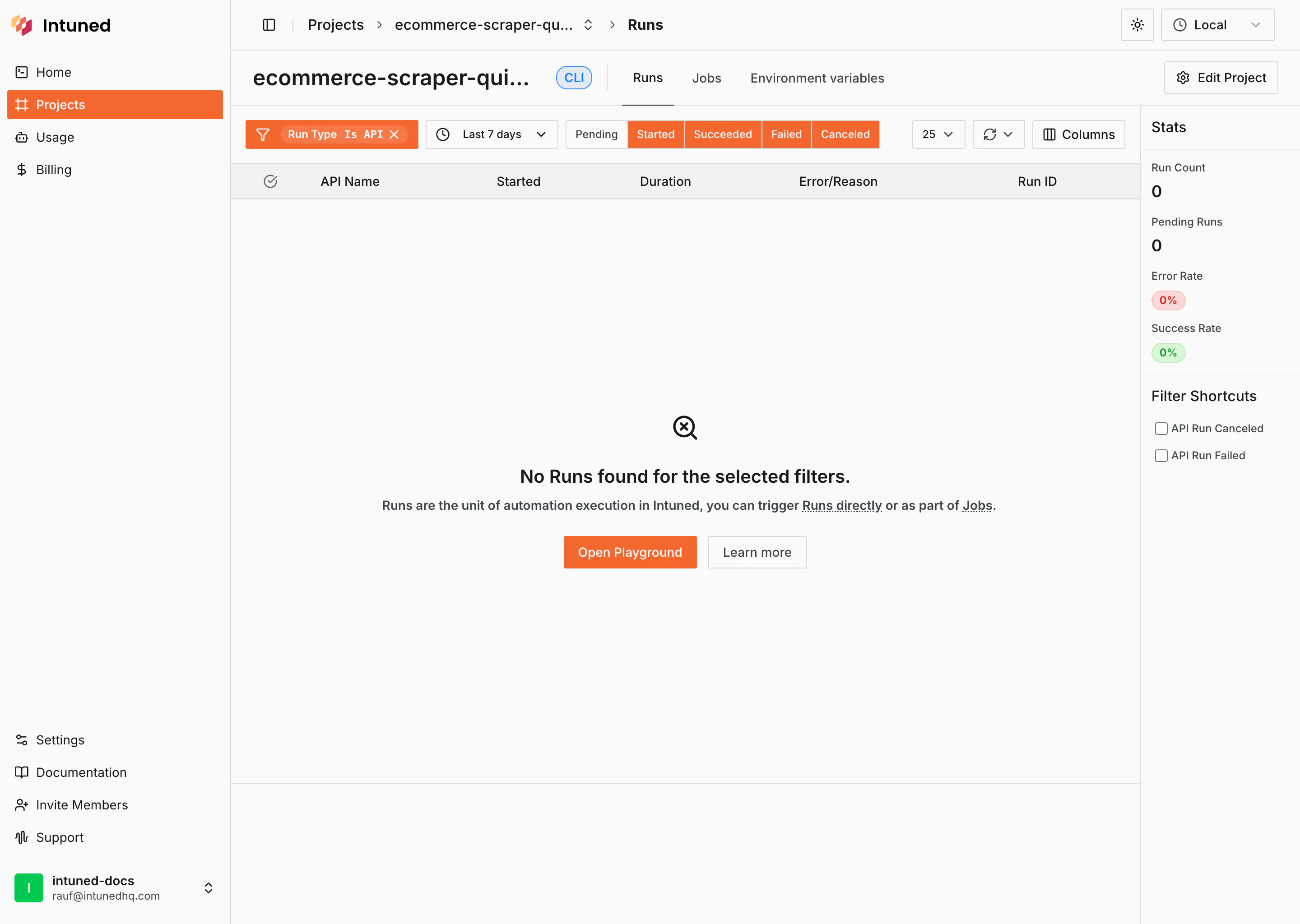
A Project is both your automation code (browser automation APIs written in Python/TypeScript using Playwright) and your runtime environment where all execution data lives (Run records, Jobs, browser traces, logs, and auth sessions).
Find all your projects on the [Projects page](https://app.intuned.io/projects) in the dashboard.
## Managing projects
### Creating a new project
Create a new Python or TypeScript project from the [Projects page](https://app.intuned.io/projects) or the [Home page](https://app.intuned.io). Choose between creating a [Connected project](/main/02-features/local-development-cli) or a [Hosted project](/main/02-features/online-ide).
### Renaming a project
Change your project's name using the **Edit Project** button in the header of your project page.
Renaming a project may affect your integrations since the project name is part
of the URL used to trigger Runs via API.
### Duplicating a project
Duplicate a project directly from the projects table. The duplicated project's name will include " - copy" and a timestamp to differentiate it from the original.
### Undeploying a project
Undeploy a project directly from the projects table.
Undeploying a project will pause all active Jobs and API access to this
project will be restricted.
### Deleting a project
Delete a project directly from the projects table. Deleting a project is irreversible and removes all associated data including Runs, Jobs, browser traces, logs, and AuthSessions.
## Deployed vs undeployed projects
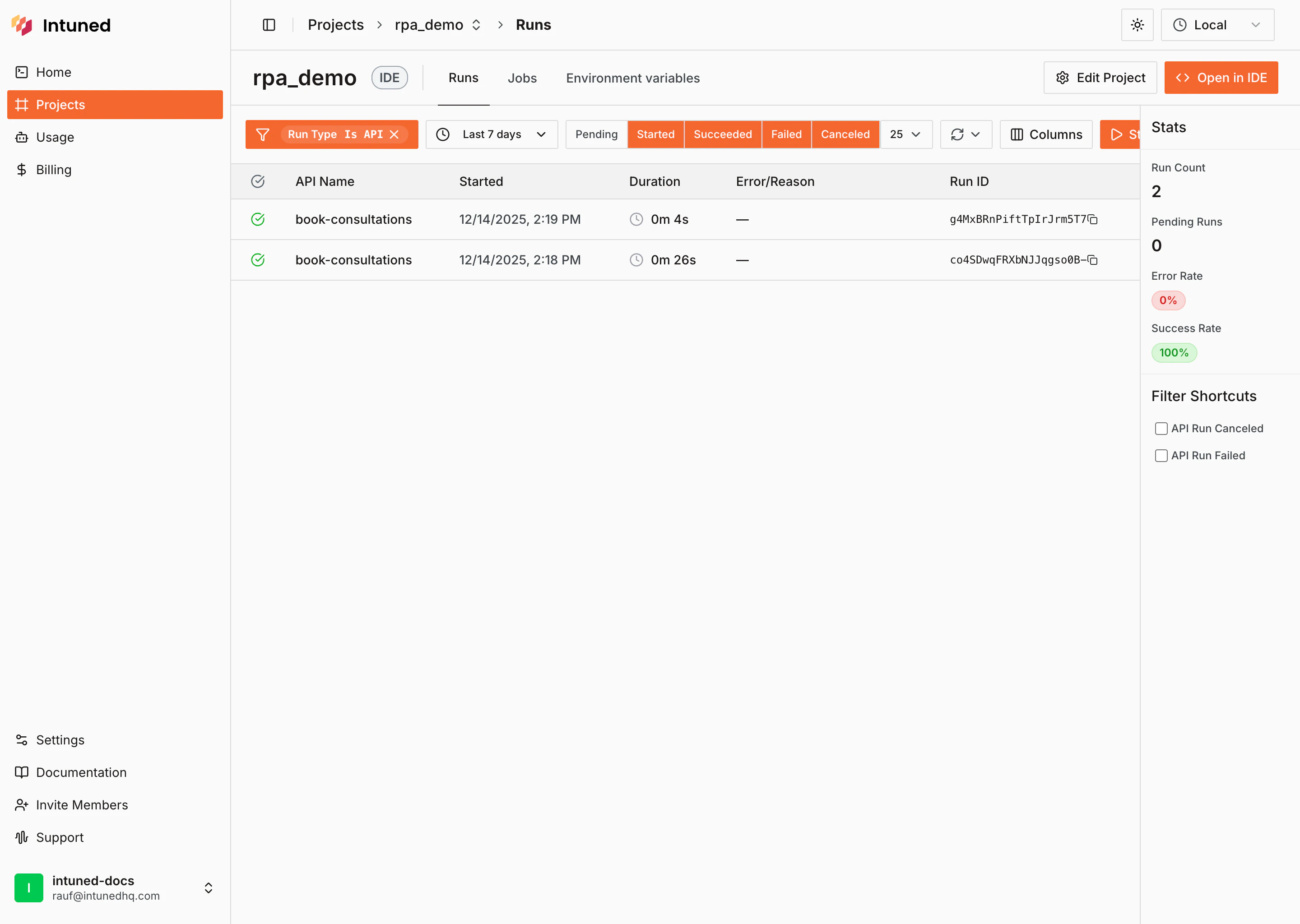
**Deployed projects** can be consumed via [Runs](/main/02-features/runs-single-executions) or [Jobs](/main/02-features/jobs-batched-executions). You can trigger your automation APIs, schedule Jobs, and view execution history from the project page.
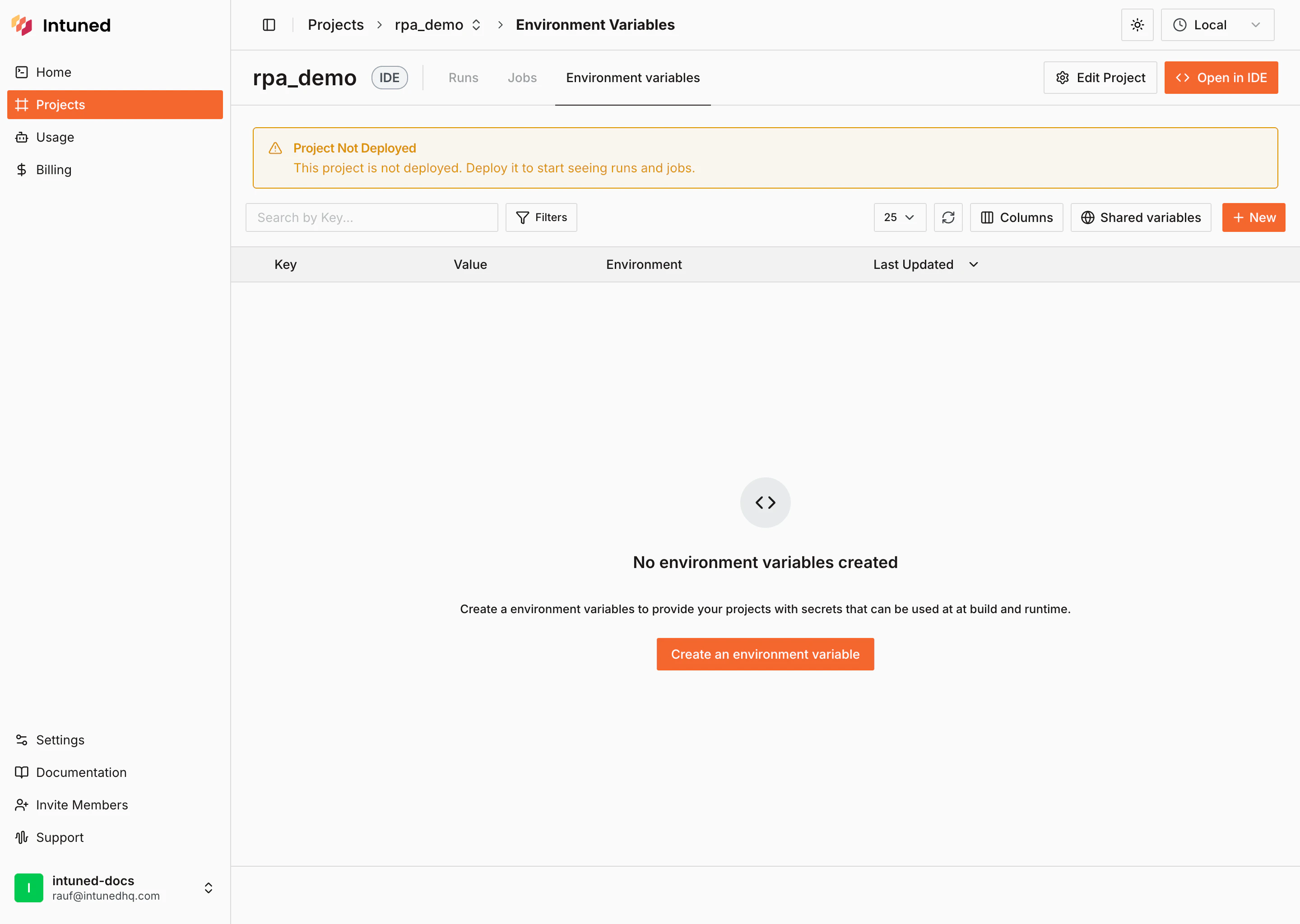
 **Undeployed projects** cannot be consumed. You can edit your code and prepare it for deployment, but you won't be able to trigger Runs or Jobs until the project is deployed.
 ## Connected vs Hosted projects
[Connected projects](/main/02-features/local-development-cli) use the local CLI so you can iterate and manage your code locally on your machine, then deploy to Intuned when ready. [Hosted projects](/main/02-features/online-ide) use the online IDE so you can edit and manage code directly in the browser. Hosted projects display an **Open in IDE** button on the project page.
## Connected vs Hosted projects
[Connected projects](/main/02-features/local-development-cli) use the local CLI so you can iterate and manage your code locally on your machine, then deploy to Intuned when ready. [Hosted projects](/main/02-features/online-ide) use the online IDE so you can edit and manage code directly in the browser. Hosted projects display an **Open in IDE** button on the project page.