> ## Documentation Index
> Fetch the complete documentation index at: https://intunedhq.com/docs/llms.txt
> Use this file to discover all available pages before exploring further.
# How to manage your workspace
## What is a workspace?
A workspace is your team's shared environment in Intuned for collaborating on browser automation projects. Each team should have its own workspace to keep projects and resources organized.
Intuned generates a unique workspace ID, which is required to call API endpoints. This ID cannot be changed. Find your workspace ID in [Workspace Settings](https://app.intuned.io/settings/workspace).
## Create a workspace
When you sign up for Intuned, a workspace is automatically created for you.
### Create additional workspaces
In some cases, you may need an additional workspace—for example, if you're part of multiple teams or need different teams to access separate sets of automations. To create additional workspaces, [contact support](mailto:support@intunedhq.com).
## Rename a workspace
You can rename your workspace by going to the [Workspace Settings](https://app.intuned.io/settings/workspace) page and updating the workspace name.
## Delete a workspace
You can delete a specific workspace by contacting [support](mailto:support@intunedhq.com).
Deleting a workspace is a permanent action and cannot be undone. All projects and resources associated with the workspace will be permanently deleted.
## Manage billing
To manage billing and view usage for your workspace, check out the [Billing](https://app.intuned.io/billing) and [Usage](https://app.intuned.io/usage) pages in the Intuned app.
This includes:
* Viewing and updating your plan
* Viewing invoices
* Managing payment methods
* Opening usage details
You can learn more about billing and usage [here](/main/02-features/usage-pricing-monitoring-alerting).
## Switch between workspaces
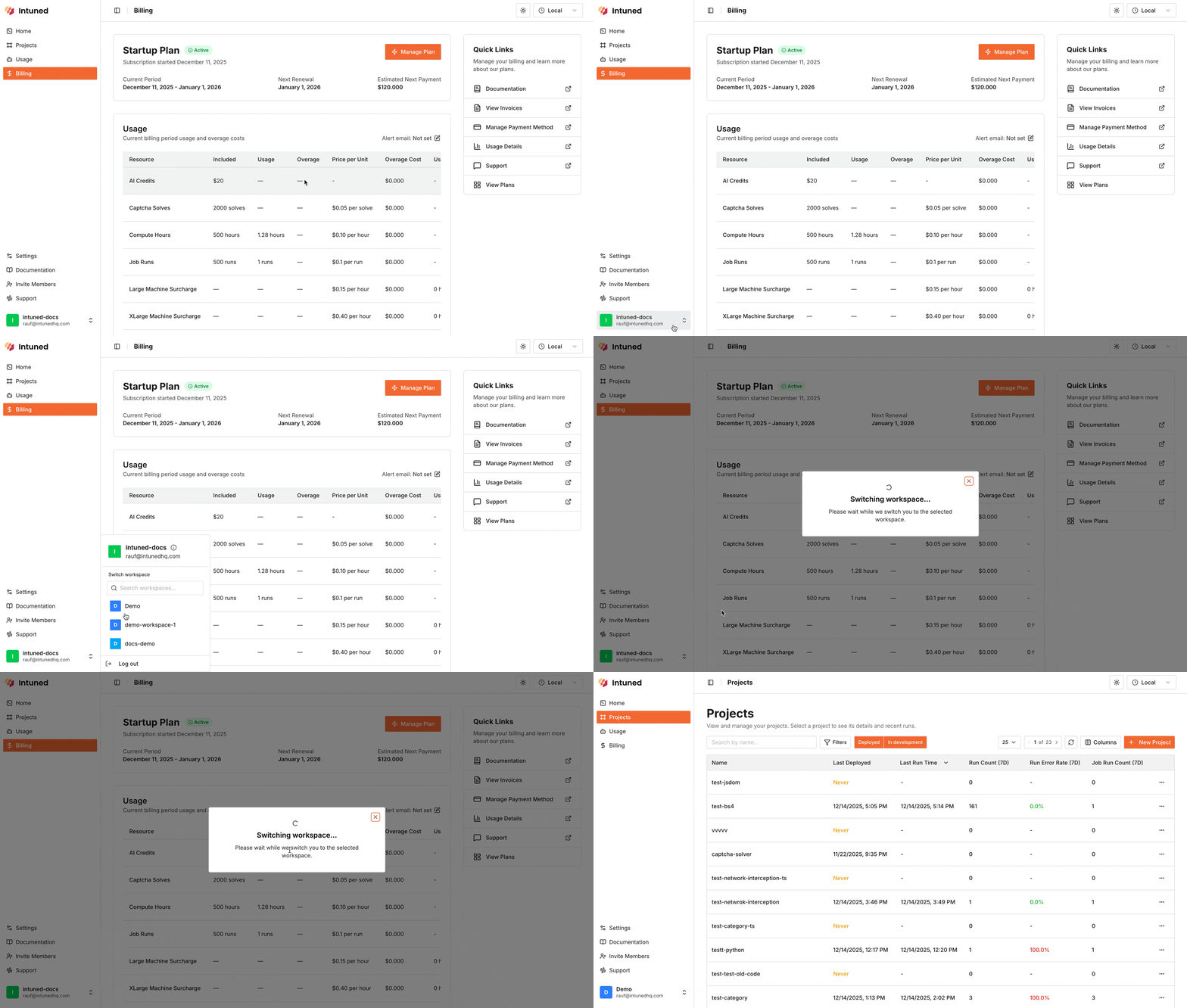
You can switch between multiple workspaces using the workspace switcher in the Intuned app. This allows you to easily manage and access different workspaces without needing to log out and log back in.
 ## Related resources
Invite, remove, and manage members of your workspace
Organize your browser automations into projects
Create and manage API keys for secure access to your workspace resources
## Related resources
Invite, remove, and manage members of your workspace
Organize your browser automations into projects
Create and manage API keys for secure access to your workspace resources