> ## Documentation Index
> Fetch the complete documentation index at: https://intunedhq.com/docs/llms.txt
> Use this file to discover all available pages before exploring further.
# Supabase
## Overview
By the end of this guide, you'll have an Intuned project with a scraping Job that sends data to Supabase for processing and storage. You'll:
1. Set up Supabase Storage or an Edge Function endpoint for Intuned.
2. Configure a Job with a Supabase-compatible sink.
3. Trigger a Job and verify data lands in your database.
## Prerequisites
Before you begin, ensure you have the following:
* A [Supabase project](https://supabase.com/dashboard)
* An [Intuned account](https://app.intuned.io)
* The e-commerce scraper project from the [quick start](/main/00-getting-started/quickstarts/scraper) deployed to your workspace.
This guide assumes you have a basic understanding of Intuned Projects and Jobs. If you're new to Intuned, start with the [getting started guide](/main/00-getting-started/introduction).
## When to use Supabase integration
Scrapers built on Intuned typically run via Jobs on a schedule. When a JobRun completes, you want that data sent somewhere for processing or persistence.The Supabase integration delivers scraped data to your Supabase database.
While this guide focuses on scraping, Supabase integration works for any Intuned Job—delivering Run results from any automation.
## Choose your approach
This guide covers two approaches for connecting Intuned with Supabase:
| Consideration | Supabase Storage | Webhook |
| ------------------ | ------------------------------------ | ------------------------------------ |
| Delivery guarantee | Intuned guarantees file delivery | Your endpoint must handle failures |
| Reprocessing | Re-trigger database webhooks anytime | Not possible without re-running Jobs |
| Complexity | Requires storage + webhook setup | Simpler setup |
| Debugging | Inspect files in storage + logs | Check Edge Function logs |
**Recommendation:** Use Supabase Storage for production workloads. Intuned guarantees results are written to your bucket, and you can always reprocess by re-triggering the database webhook.
## Guide
### Create a products table
Both approaches require a table to store the scraped data. In your Supabase [SQL editor](https://supabase.com/main/guides/database/overview#the-sql-editor), run:
```sql theme={null}
create table products (
id serial primary key,
name text unique not null,
price numeric not null,
url text,
sku text,
intuned_run_id text not null,
created_at timestamptz default now()
);
```
### Set up the integration
**Best for:** Reliability and reprocessing capability
Intuned writes results to Supabase Storage, then a database trigger invokes an Edge Function to process each file. This approach guarantees data delivery and lets you reprocess files if needed.
1. Go to your [Supabase dashboard](https://supabase.com/dashboard)
2. Select **Storage** from the sidebar
3. Select **New bucket**
4. Name it `ecommerce-ingest`
5. Keep it as a private bucket
See [Supabase Storage quickstart](https://supabase.com/main/guides/storage/quickstart#create-a-bucket) for details.
1. In Storage, select **S3** under Configuration
2. Turn on **S3 protocol connection**
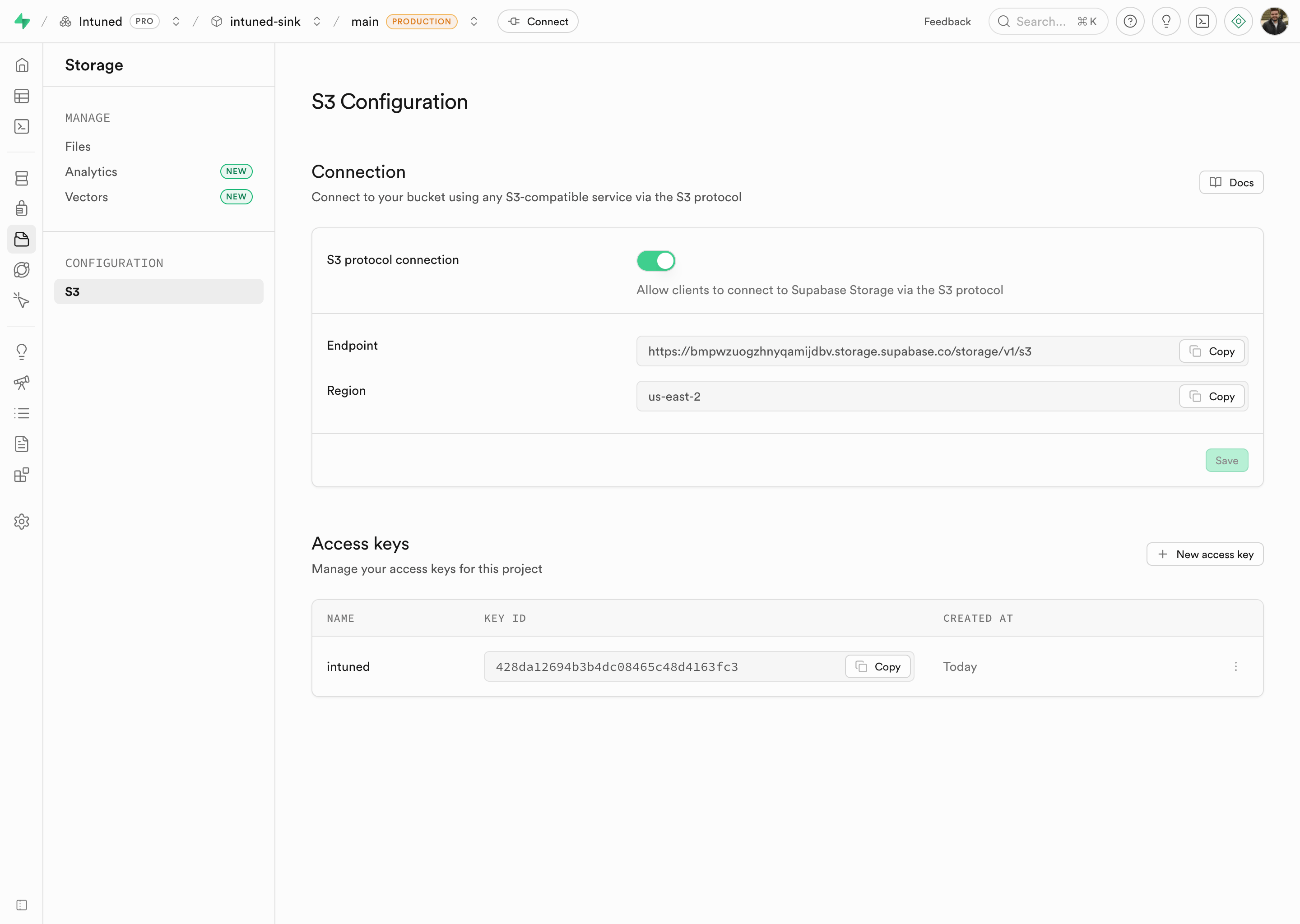 Note your **Endpoint** and **Region** values.
1. In the S3 Configuration page, select **New access key**
2. Copy both the **Access key ID** and **Secret access key**
Note your **Endpoint** and **Region** values.
1. In the S3 Configuration page, select **New access key**
2. Copy both the **Access key ID** and **Secret access key**
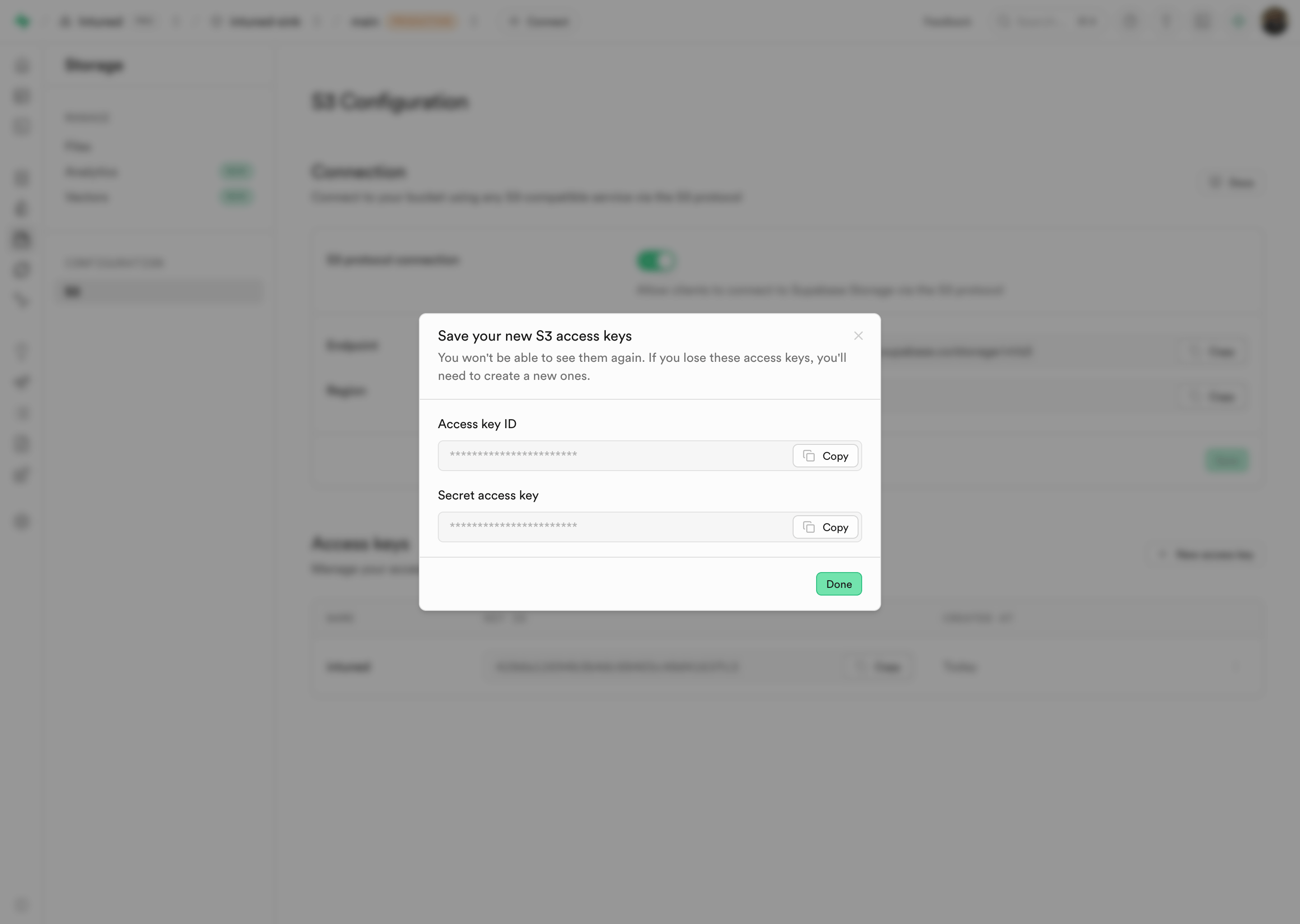 Save these credentials securely. The secret key won't be shown again.
See [Supabase S3 authentication](https://supabase.com/main/guides/storage/s3/authentication) for more details.
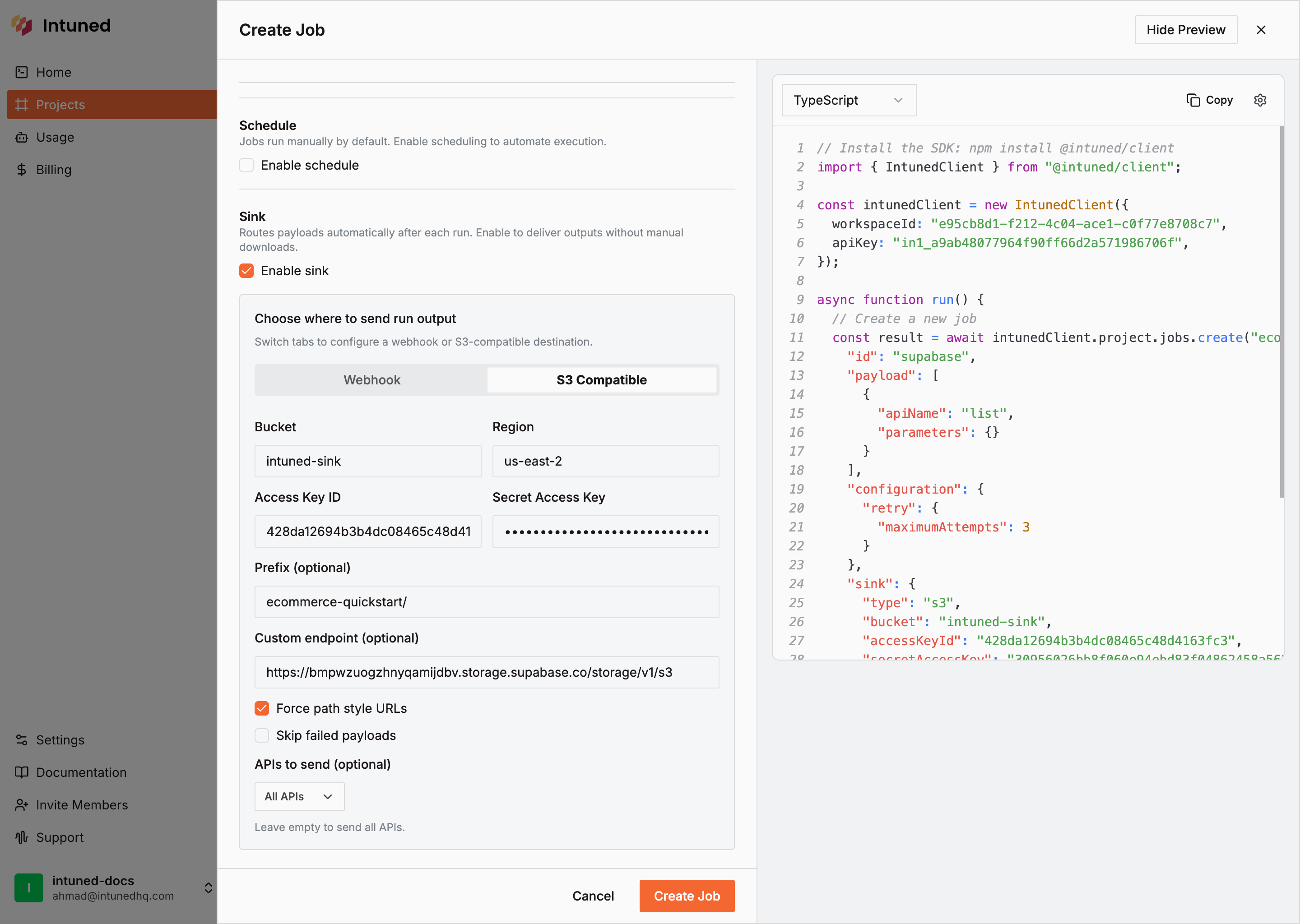
1. Go to [app.intuned.io](https://app.intuned.io)
2. Open your `ecommerce-scraper-quickstart` project
3. Select the **Jobs** tab
4. Select **Create Job**
5. Fill in the Job ID and payloads
6. Enable **Sink**
7. Select **S3 Compatible**
8. Enter your Supabase Storage credentials:
* **Bucket**: `ecommerce-ingest`
* **Region**: Your region (e.g., `us-east-2`)
* **Access Key ID**: Your S3 access key
* **Secret Access Key**: Your S3 secret key
* **Prefix**: `ecommerce-quickstart/supabase-bucket/` (optional)
* **Custom endpoint**: Your Supabase Storage endpoint
9. Select **Force path-style URLs**
10. Select **Create Job**
Save these credentials securely. The secret key won't be shown again.
See [Supabase S3 authentication](https://supabase.com/main/guides/storage/s3/authentication) for more details.
1. Go to [app.intuned.io](https://app.intuned.io)
2. Open your `ecommerce-scraper-quickstart` project
3. Select the **Jobs** tab
4. Select **Create Job**
5. Fill in the Job ID and payloads
6. Enable **Sink**
7. Select **S3 Compatible**
8. Enter your Supabase Storage credentials:
* **Bucket**: `ecommerce-ingest`
* **Region**: Your region (e.g., `us-east-2`)
* **Access Key ID**: Your S3 access key
* **Secret Access Key**: Your S3 secret key
* **Prefix**: `ecommerce-quickstart/supabase-bucket/` (optional)
* **Custom endpoint**: Your Supabase Storage endpoint
9. Select **Force path-style URLs**
10. Select **Create Job**
 ```typescript theme={null}
import { IntunedClient } from "@intuned/client";
const intunedClient = new IntunedClient({
workspaceId: "your-workspace-id",
apiKey: process.env["INTUNED_API_KEY"] ?? "",
});
async function createJobWithSupabaseStorage() {
const result = await intunedClient.projects.jobs.create(
"ecommerce-scraper-quickstart",
{
id: "supabase-storage",
payload: [
{
apiName: "list",
parameters: {},
},
],
configuration: {
retry: {
maximumAttempts: 3,
},
},
sink: {
type: "s3",
bucket: "ecommerce-ingest",
region: "us-east-2",
accessKeyId: process.env["SUPABASE_S3_ACCESS_KEY_ID"]!,
secretAccessKey: process.env["SUPABASE_S3_SECRET_ACCESS_KEY"]!,
prefix: "ecommerce-quickstart/supabase-bucket/",
endpoint: "https://your-project.supabase.co/storage/v1/s3",
forcePathStyle: true,
},
}
);
console.log(result);
}
createJobWithSupabaseStorage();
```
Store your Supabase S3 credentials in environment variables rather than hardcoding them.
```python theme={null}
from intuned_client import IntunedClient
from intuned_client import models
import os
with IntunedClient(
workspace_id="your-workspace-id",
api_key=os.getenv("INTUNED_API_KEY", ""),
) as ic_client:
result = ic_client.projects.jobs.create(
project_name="ecommerce-scraper-quickstart",
body=models.JobsCreateRequestBody(
id="supabase-storage",
payload=[
{
"apiName": "list",
"parameters": {},
},
],
configuration={
"retry": {
"maximumAttempts": 3,
},
},
sink={
"type": "s3",
"bucket": "ecommerce-ingest",
"region": "us-east-2",
"accessKeyId": os.getenv("SUPABASE_S3_ACCESS_KEY_ID"),
"secretAccessKey": os.getenv("SUPABASE_S3_SECRET_ACCESS_KEY"),
"prefix": "ecommerce-quickstart/supabase-bucket/",
"endpoint": "https://your-project.supabase.co/storage/v1/s3",
"forcePathStyle": True,
},
),
)
print(result)
```
Store your Supabase S3 credentials in environment variables rather than hardcoding them.
For advanced S3 sink options, see the [AWS S3 integration](/main/04-integrations/s3/s3-job-sink#configuration-options).
1. In the Jobs tab, find your Job
2. Select **Actions** > **Trigger**
```typescript theme={null}
import { IntunedClient } from "@intuned/client";
const intunedClient = new IntunedClient({
workspaceId: "your-workspace-id",
apiKey: process.env["INTUNED_API_KEY"] ?? "",
});
async function createJobWithSupabaseStorage() {
const result = await intunedClient.projects.jobs.create(
"ecommerce-scraper-quickstart",
{
id: "supabase-storage",
payload: [
{
apiName: "list",
parameters: {},
},
],
configuration: {
retry: {
maximumAttempts: 3,
},
},
sink: {
type: "s3",
bucket: "ecommerce-ingest",
region: "us-east-2",
accessKeyId: process.env["SUPABASE_S3_ACCESS_KEY_ID"]!,
secretAccessKey: process.env["SUPABASE_S3_SECRET_ACCESS_KEY"]!,
prefix: "ecommerce-quickstart/supabase-bucket/",
endpoint: "https://your-project.supabase.co/storage/v1/s3",
forcePathStyle: true,
},
}
);
console.log(result);
}
createJobWithSupabaseStorage();
```
Store your Supabase S3 credentials in environment variables rather than hardcoding them.
```python theme={null}
from intuned_client import IntunedClient
from intuned_client import models
import os
with IntunedClient(
workspace_id="your-workspace-id",
api_key=os.getenv("INTUNED_API_KEY", ""),
) as ic_client:
result = ic_client.projects.jobs.create(
project_name="ecommerce-scraper-quickstart",
body=models.JobsCreateRequestBody(
id="supabase-storage",
payload=[
{
"apiName": "list",
"parameters": {},
},
],
configuration={
"retry": {
"maximumAttempts": 3,
},
},
sink={
"type": "s3",
"bucket": "ecommerce-ingest",
"region": "us-east-2",
"accessKeyId": os.getenv("SUPABASE_S3_ACCESS_KEY_ID"),
"secretAccessKey": os.getenv("SUPABASE_S3_SECRET_ACCESS_KEY"),
"prefix": "ecommerce-quickstart/supabase-bucket/",
"endpoint": "https://your-project.supabase.co/storage/v1/s3",
"forcePathStyle": True,
},
),
)
print(result)
```
Store your Supabase S3 credentials in environment variables rather than hardcoding them.
For advanced S3 sink options, see the [AWS S3 integration](/main/04-integrations/s3/s3-job-sink#configuration-options).
1. In the Jobs tab, find your Job
2. Select **Actions** > **Trigger**
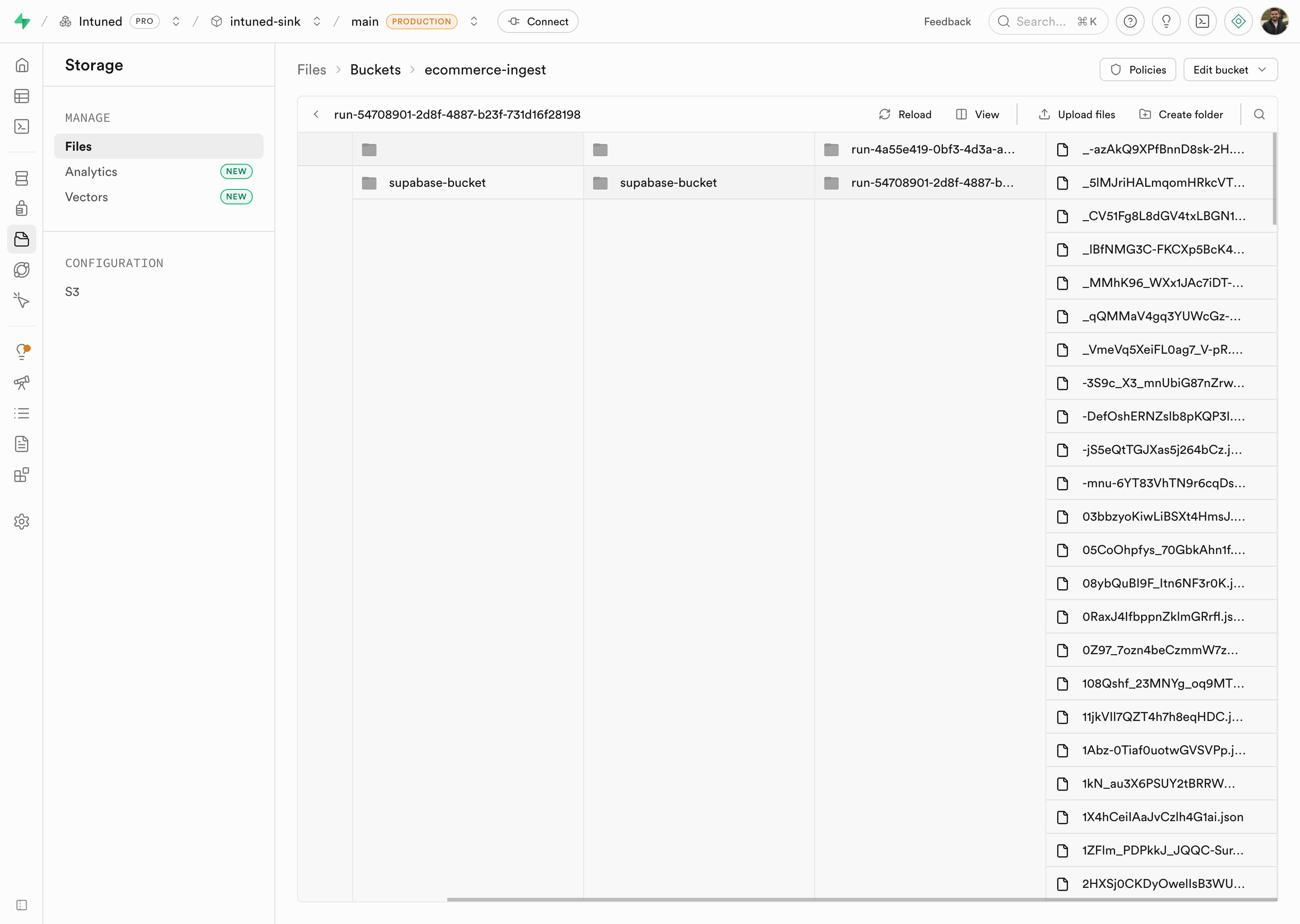
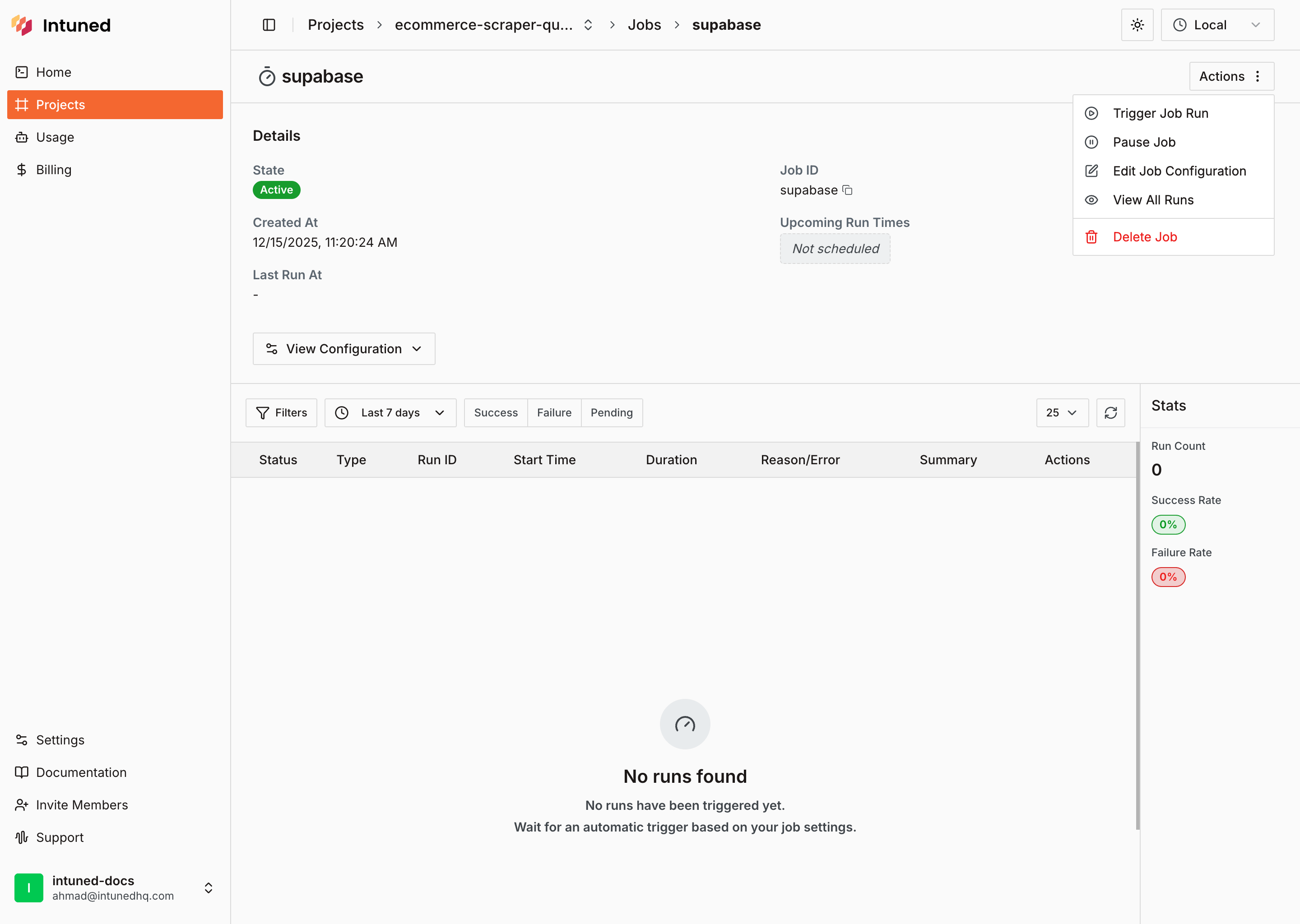 Results appear in your Supabase Storage bucket as JSON files.
 ```typescript theme={null}
import { IntunedClient } from "@intuned/client";
const intunedClient = new IntunedClient({
workspaceId: "your-workspace-id",
apiKey: process.env["INTUNED_API_KEY"] ?? "",
});
async function run() {
const result = await intunedClient.projects.jobs.trigger(
"ecommerce-scraper-quickstart",
"supabase-storage"
);
console.log(result);
}
run();
```
```python theme={null}
from intuned_client import IntunedClient
import os
with IntunedClient(
workspace_id="your-workspace-id",
api_key=os.getenv("INTUNED_API_KEY", ""),
) as ic_client:
result = ic_client.projects.jobs.trigger(
project_name="ecommerce-scraper-quickstart",
job_id="supabase-storage"
)
print(result)
```
Create an Edge Function that processes files when they're added to storage.
1. Go to **Edge Functions** in your [Supabase dashboard](https://supabase.com/dashboard)
2. Select **Create a new function**
3. Name it `intuned-ingest-bucket`
```typescript theme={null}
import { IntunedClient } from "@intuned/client";
const intunedClient = new IntunedClient({
workspaceId: "your-workspace-id",
apiKey: process.env["INTUNED_API_KEY"] ?? "",
});
async function run() {
const result = await intunedClient.projects.jobs.trigger(
"ecommerce-scraper-quickstart",
"supabase-storage"
);
console.log(result);
}
run();
```
```python theme={null}
from intuned_client import IntunedClient
import os
with IntunedClient(
workspace_id="your-workspace-id",
api_key=os.getenv("INTUNED_API_KEY", ""),
) as ic_client:
result = ic_client.projects.jobs.trigger(
project_name="ecommerce-scraper-quickstart",
job_id="supabase-storage"
)
print(result)
```
Create an Edge Function that processes files when they're added to storage.
1. Go to **Edge Functions** in your [Supabase dashboard](https://supabase.com/dashboard)
2. Select **Create a new function**
3. Name it `intuned-ingest-bucket`
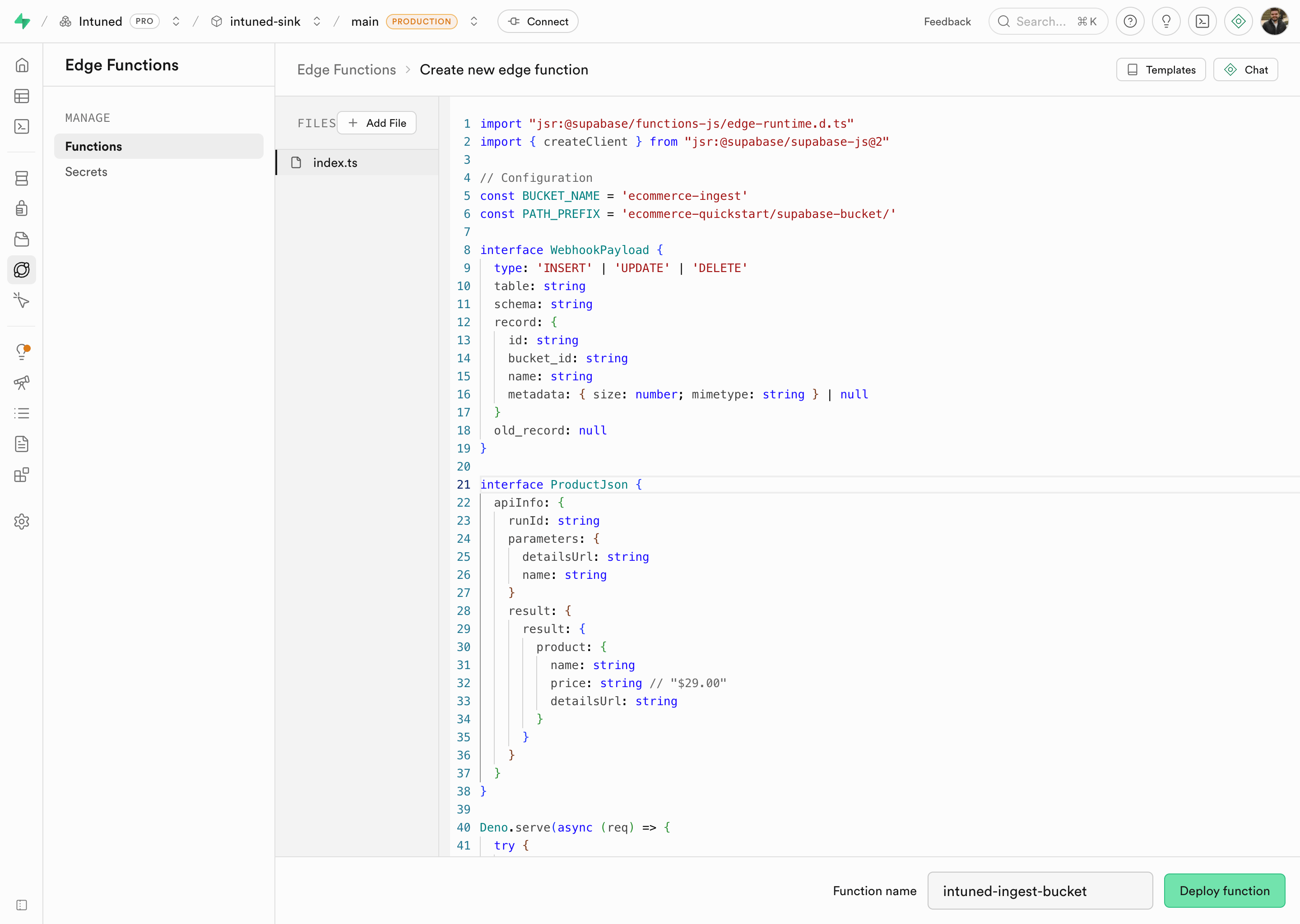 Replace the default code with:
```typescript theme={null}
import "jsr:@supabase/functions-js/edge-runtime.d.ts";
import { createClient } from "jsr:@supabase/supabase-js@2";
const BUCKET_NAME = "ecommerce-ingest";
const PATH_PREFIX = "ecommerce-quickstart/supabase-bucket/";
interface WebhookPayload {
type: "INSERT" | "UPDATE" | "DELETE";
table: string;
schema: string;
record: {
id: string;
bucket_id: string;
name: string;
metadata: { size: number; mimetype: string } | null;
};
old_record: null;
}
Deno.serve(async (req: Request) => {
const payload: WebhookPayload = await req.json();
const { record } = payload;
// Skip RLS test inserts (no metadata)
if (!record.metadata) {
return new Response(
JSON.stringify({ processed: false, reason: "no metadata" }),
{ status: 200 }
);
}
// Only process JSON files in the correct bucket and path
if (
record.bucket_id !== BUCKET_NAME ||
!record.name.startsWith(PATH_PREFIX) ||
!record.name.endsWith(".json")
) {
return new Response(
JSON.stringify({ processed: false, reason: "path mismatch" }),
{ status: 200 }
);
}
const supabase = createClient(
Deno.env.get("SUPABASE_URL")!,
Deno.env.get("SUPABASE_SERVICE_ROLE_KEY")!
);
// Download the JSON file
const { data: fileData, error: downloadError } = await supabase.storage
.from(record.bucket_id)
.download(record.name);
if (downloadError) {
console.error("Download error:", downloadError);
return new Response(
JSON.stringify({ error: downloadError.message }),
{ status: 500 }
);
}
const jsonContent = JSON.parse(await fileData.text());
const result = jsonContent.apiInfo.result.result;
// Transform the product data
const product = {
name: result.product.name,
price: parseFloat(result.product.price.replace(/[^0-9.]/g, "")) || 0,
url: result.product.detailsUrl,
sku: result.product.sku,
intuned_run_id: jsonContent.apiInfo.runId,
};
const { error } = await supabase
.from("products")
.upsert([product], { onConflict: "name" });
if (error) {
console.error("Insert error:", error);
return new Response(
JSON.stringify({ error: error.message }),
{ status: 500 }
);
}
return new Response(
JSON.stringify({ processed: true, inserted: 1 }),
{ status: 200 }
);
});
```
Select **Deploy function** to save.
See [Supabase Edge Functions](https://supabase.com/main/guides/functions) for more details.
Set up a database webhook to trigger your Edge Function when files are added to storage.
1. Go to **Database** > **Webhooks** in your [Supabase dashboard](https://supabase.com/dashboard)
2. If prompted, select **Enable Webhooks**
3. Select **Create a new hook**
4. Configure the webhook:
* **Name**: `intuned-bucket-trigger`
* **Table**: Select `storage.objects` from the dropdown
* **Events**: Select **Insert**
* **Type**: Select **Supabase Edge Functions**
* **Edge Function**: Select `intuned-ingest-bucket`
5. Select **Create webhook**
See [Supabase database webhooks](https://supabase.com/main/guides/database/webhooks) for more details.
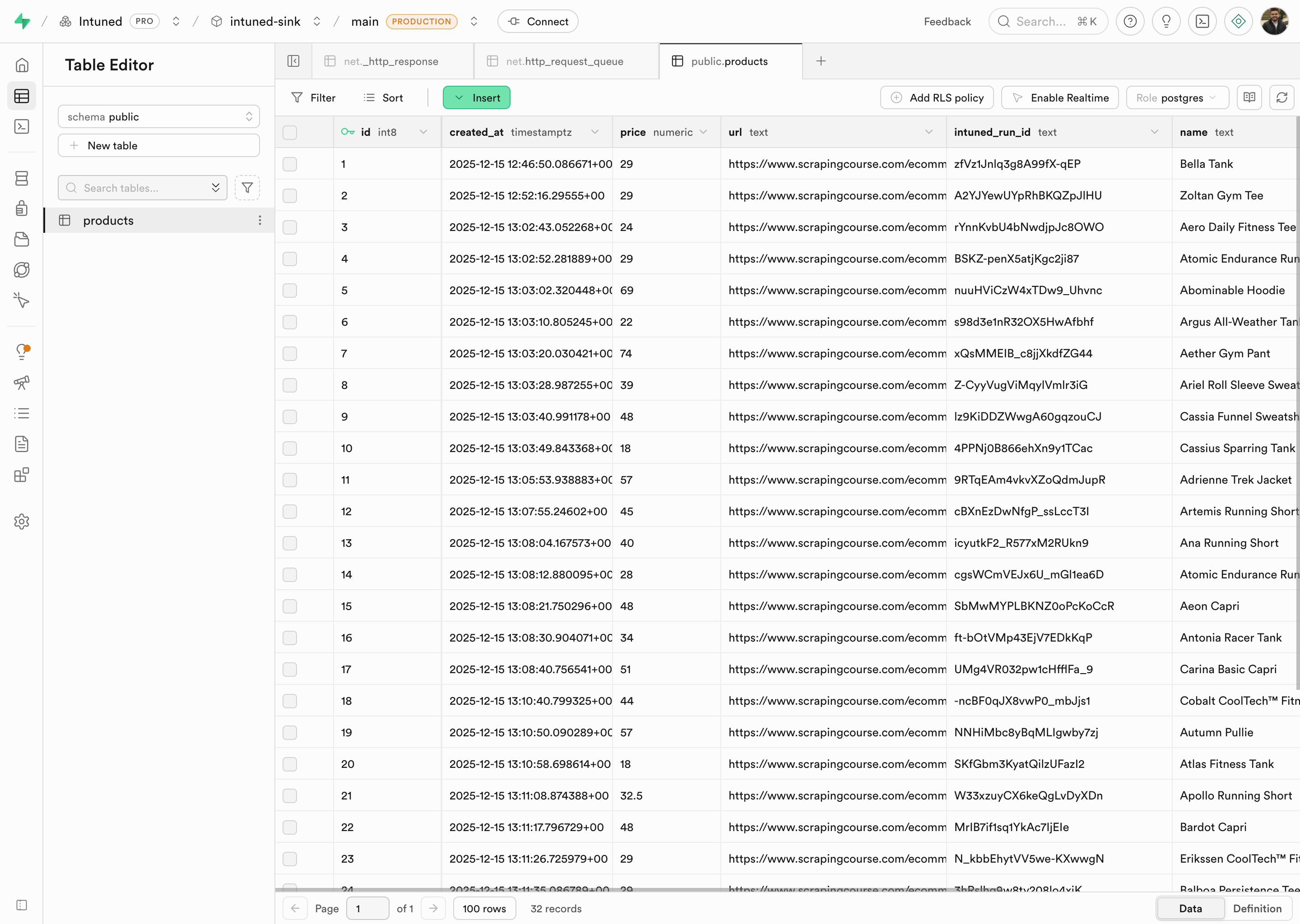
After triggering the Job, check your Supabase products table. As files are written to storage, the database webhook fires and your Edge Function processes each one.
Replace the default code with:
```typescript theme={null}
import "jsr:@supabase/functions-js/edge-runtime.d.ts";
import { createClient } from "jsr:@supabase/supabase-js@2";
const BUCKET_NAME = "ecommerce-ingest";
const PATH_PREFIX = "ecommerce-quickstart/supabase-bucket/";
interface WebhookPayload {
type: "INSERT" | "UPDATE" | "DELETE";
table: string;
schema: string;
record: {
id: string;
bucket_id: string;
name: string;
metadata: { size: number; mimetype: string } | null;
};
old_record: null;
}
Deno.serve(async (req: Request) => {
const payload: WebhookPayload = await req.json();
const { record } = payload;
// Skip RLS test inserts (no metadata)
if (!record.metadata) {
return new Response(
JSON.stringify({ processed: false, reason: "no metadata" }),
{ status: 200 }
);
}
// Only process JSON files in the correct bucket and path
if (
record.bucket_id !== BUCKET_NAME ||
!record.name.startsWith(PATH_PREFIX) ||
!record.name.endsWith(".json")
) {
return new Response(
JSON.stringify({ processed: false, reason: "path mismatch" }),
{ status: 200 }
);
}
const supabase = createClient(
Deno.env.get("SUPABASE_URL")!,
Deno.env.get("SUPABASE_SERVICE_ROLE_KEY")!
);
// Download the JSON file
const { data: fileData, error: downloadError } = await supabase.storage
.from(record.bucket_id)
.download(record.name);
if (downloadError) {
console.error("Download error:", downloadError);
return new Response(
JSON.stringify({ error: downloadError.message }),
{ status: 500 }
);
}
const jsonContent = JSON.parse(await fileData.text());
const result = jsonContent.apiInfo.result.result;
// Transform the product data
const product = {
name: result.product.name,
price: parseFloat(result.product.price.replace(/[^0-9.]/g, "")) || 0,
url: result.product.detailsUrl,
sku: result.product.sku,
intuned_run_id: jsonContent.apiInfo.runId,
};
const { error } = await supabase
.from("products")
.upsert([product], { onConflict: "name" });
if (error) {
console.error("Insert error:", error);
return new Response(
JSON.stringify({ error: error.message }),
{ status: 500 }
);
}
return new Response(
JSON.stringify({ processed: true, inserted: 1 }),
{ status: 200 }
);
});
```
Select **Deploy function** to save.
See [Supabase Edge Functions](https://supabase.com/main/guides/functions) for more details.
Set up a database webhook to trigger your Edge Function when files are added to storage.
1. Go to **Database** > **Webhooks** in your [Supabase dashboard](https://supabase.com/dashboard)
2. If prompted, select **Enable Webhooks**
3. Select **Create a new hook**
4. Configure the webhook:
* **Name**: `intuned-bucket-trigger`
* **Table**: Select `storage.objects` from the dropdown
* **Events**: Select **Insert**
* **Type**: Select **Supabase Edge Functions**
* **Edge Function**: Select `intuned-ingest-bucket`
5. Select **Create webhook**
See [Supabase database webhooks](https://supabase.com/main/guides/database/webhooks) for more details.
After triggering the Job, check your Supabase products table. As files are written to storage, the database webhook fires and your Edge Function processes each one.
 **Best for:** Real-time processing with simple setup
Data flows directly from Intuned to your Edge Function, which inserts it into your database. Simpler to set up, but you'll need to handle failures in your Edge Function.
For more webhook options, see the [Webhook integration](/main/04-integrations/webhook).
1. Go to your [Supabase dashboard](https://supabase.com/dashboard)
2. Select **Edge Functions** from the sidebar
3. Select **Create a new function**
4. Name it `intuned-ingest`
Replace the default code with:
```typescript theme={null}
import "jsr:@supabase/functions-js/edge-runtime.d.ts";
import { createClient } from "jsr:@supabase/supabase-js@2";
Deno.serve(async (req: Request) => {
const payload = await req.json();
const result = payload.apiInfo.result.result;
// Transform the product data
const product = {
name: result.product.name,
price: parseFloat(result.product.price.replace(/[^0-9.]/g, "")) || 0,
url: result.product.detailsUrl,
sku: result.product.sku,
intuned_run_id: payload.apiInfo.runId,
};
// Insert into database
const supabase = createClient(
Deno.env.get("SUPABASE_URL")!,
Deno.env.get("SUPABASE_SERVICE_ROLE_KEY")!
);
const { error } = await supabase
.from("products")
.upsert([product], { onConflict: "name" });
if (error) {
console.error("Insert error:", error);
return new Response(
JSON.stringify({ error: error.message }),
{ status: 500 }
);
}
return new Response(
JSON.stringify({ received: true, inserted: 1 }),
{ status: 200 }
);
});
```
Select **Deploy function** to save.
See [Supabase Edge Functions](https://supabase.com/main/guides/functions) for more details.
After deployment, go to the **Details** tab of your Edge Function. You'll need the **Endpoint URL** and **anon key** for the Intuned configuration.
**Best for:** Real-time processing with simple setup
Data flows directly from Intuned to your Edge Function, which inserts it into your database. Simpler to set up, but you'll need to handle failures in your Edge Function.
For more webhook options, see the [Webhook integration](/main/04-integrations/webhook).
1. Go to your [Supabase dashboard](https://supabase.com/dashboard)
2. Select **Edge Functions** from the sidebar
3. Select **Create a new function**
4. Name it `intuned-ingest`
Replace the default code with:
```typescript theme={null}
import "jsr:@supabase/functions-js/edge-runtime.d.ts";
import { createClient } from "jsr:@supabase/supabase-js@2";
Deno.serve(async (req: Request) => {
const payload = await req.json();
const result = payload.apiInfo.result.result;
// Transform the product data
const product = {
name: result.product.name,
price: parseFloat(result.product.price.replace(/[^0-9.]/g, "")) || 0,
url: result.product.detailsUrl,
sku: result.product.sku,
intuned_run_id: payload.apiInfo.runId,
};
// Insert into database
const supabase = createClient(
Deno.env.get("SUPABASE_URL")!,
Deno.env.get("SUPABASE_SERVICE_ROLE_KEY")!
);
const { error } = await supabase
.from("products")
.upsert([product], { onConflict: "name" });
if (error) {
console.error("Insert error:", error);
return new Response(
JSON.stringify({ error: error.message }),
{ status: 500 }
);
}
return new Response(
JSON.stringify({ received: true, inserted: 1 }),
{ status: 200 }
);
});
```
Select **Deploy function** to save.
See [Supabase Edge Functions](https://supabase.com/main/guides/functions) for more details.
After deployment, go to the **Details** tab of your Edge Function. You'll need the **Endpoint URL** and **anon key** for the Intuned configuration.
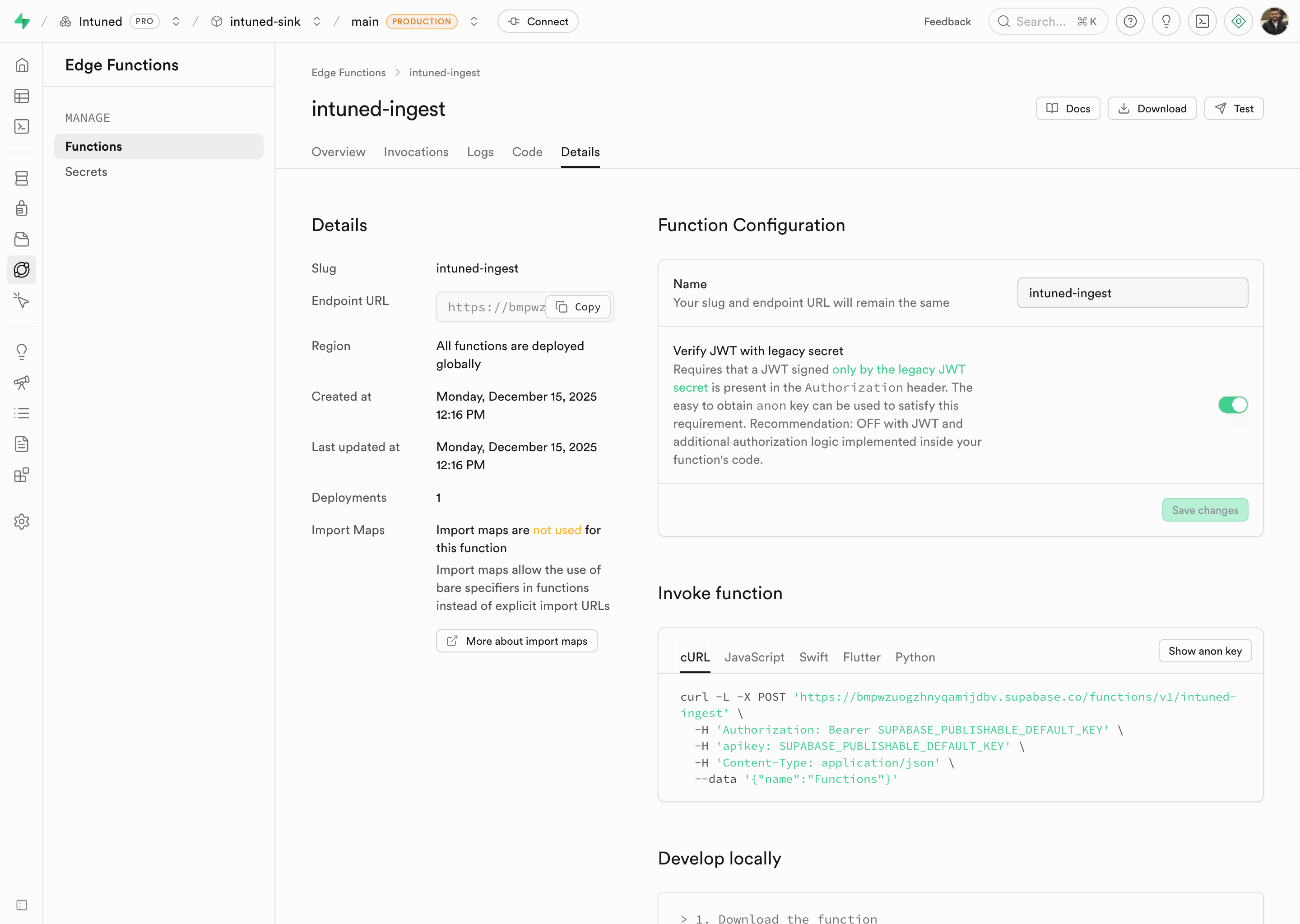 Select **Show anon key** to reveal the key value.
Make sure **Verify JWT with legacy secret** is turned off in the Function Configuration section. This setting should be disabled for the webhook to work correctly.
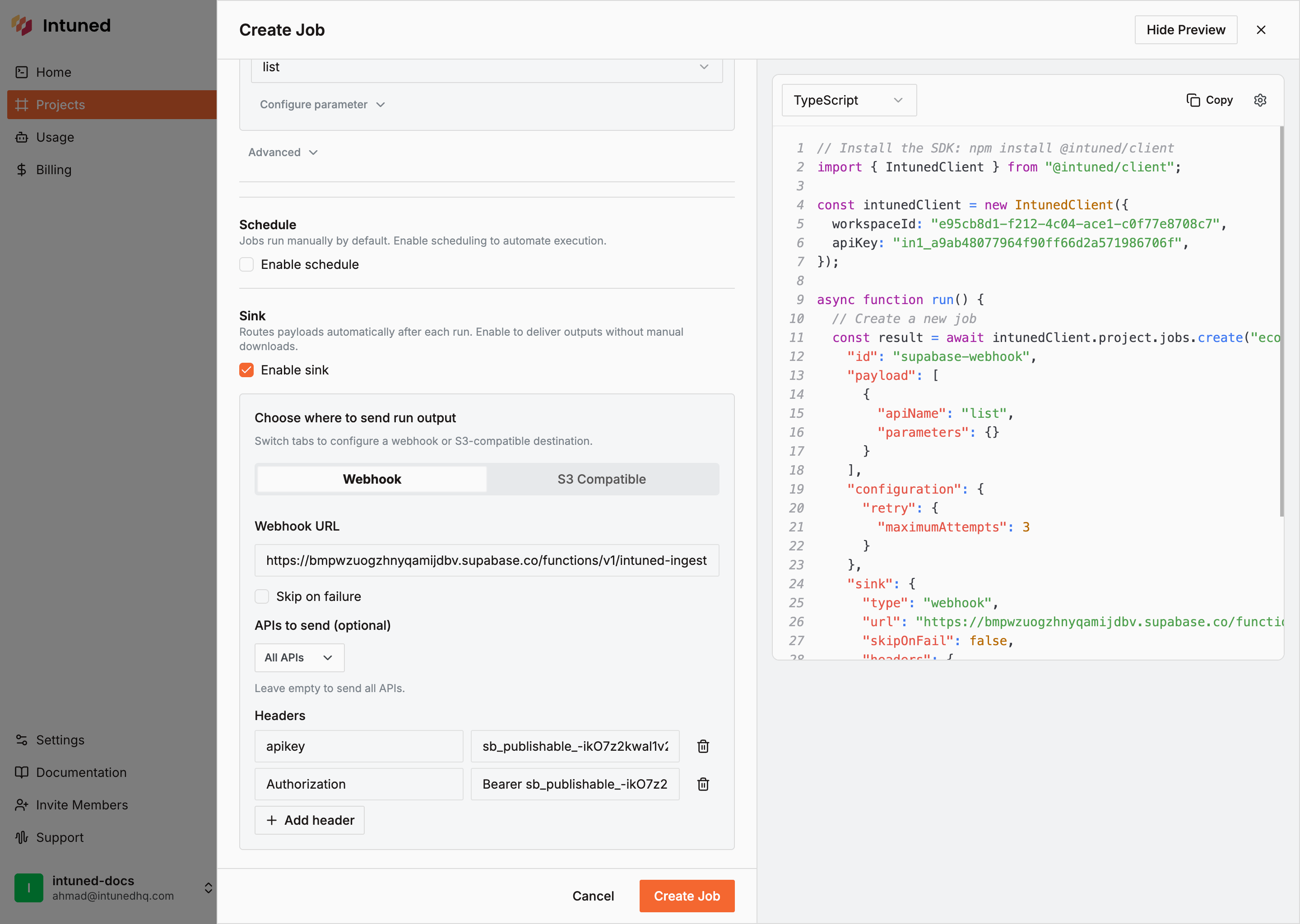
1. Go to [app.intuned.io](https://app.intuned.io)
2. Open your `ecommerce-scraper-quickstart` project
3. Select the **Jobs** tab
4. Select **Create Job**
5. Fill in the Job ID and payloads
6. Enable **Sink**
7. Select **Webhook**
8. Enter your Edge Function URL
9. Add the required headers:
* `apikey`: Your Supabase anon key
* `Authorization`: `Bearer `
10. Select **Create Job**
Select **Show anon key** to reveal the key value.
Make sure **Verify JWT with legacy secret** is turned off in the Function Configuration section. This setting should be disabled for the webhook to work correctly.
1. Go to [app.intuned.io](https://app.intuned.io)
2. Open your `ecommerce-scraper-quickstart` project
3. Select the **Jobs** tab
4. Select **Create Job**
5. Fill in the Job ID and payloads
6. Enable **Sink**
7. Select **Webhook**
8. Enter your Edge Function URL
9. Add the required headers:
* `apikey`: Your Supabase anon key
* `Authorization`: `Bearer `
10. Select **Create Job**
 ```typescript theme={null}
import { IntunedClient } from "@intuned/client";
const intunedClient = new IntunedClient({
workspaceId: "your-workspace-id",
apiKey: process.env["INTUNED_API_KEY"] ?? "",
});
async function createJobWithWebhook() {
const result = await intunedClient.projects.jobs.create(
"ecommerce-scraper-quickstart",
{
id: "supabase-webhook",
payload: [
{
apiName: "list",
parameters: {},
},
],
configuration: {
retry: {
maximumAttempts: 3,
},
},
sink: {
type: "webhook",
url: "https://your-project.supabase.co/functions/v1/intuned-ingest",
headers: {
apikey: process.env["SUPABASE_ANON_KEY"]!,
Authorization: `Bearer ${process.env["SUPABASE_ANON_KEY"]}`,
},
},
}
);
console.log(result);
}
createJobWithWebhook();
```
Store your Supabase anon key in environment variables rather than hardcoding it.
```python theme={null}
from intuned_client import IntunedClient
from intuned_client import models
import os
with IntunedClient(
workspace_id="your-workspace-id",
api_key=os.getenv("INTUNED_API_KEY", ""),
) as ic_client:
supabase_anon_key = os.getenv("SUPABASE_ANON_KEY")
result = ic_client.projects.jobs.create(
project_name="ecommerce-scraper-quickstart",
body=models.JobsCreateRequestBody(
id="supabase-webhook",
payload=[
{
"apiName": "list",
"parameters": {},
},
],
configuration={
"retry": {
"maximumAttempts": 3,
},
},
sink={
"type": "webhook",
"url": "https://your-project.supabase.co/functions/v1/intuned-ingest",
"headers": {
"apikey": supabase_anon_key,
"Authorization": f"Bearer {supabase_anon_key}",
},
},
),
)
print(result)
```
Store your Supabase anon key in environment variables rather than hardcoding it.
For advanced webhook options like retry handling and authentication, see the [Webhook integration](/main/04-integrations/webhook).
1. In the Jobs tab, find your Job
2. Select **Actions** > **Trigger**
```typescript theme={null}
import { IntunedClient } from "@intuned/client";
const intunedClient = new IntunedClient({
workspaceId: "your-workspace-id",
apiKey: process.env["INTUNED_API_KEY"] ?? "",
});
async function run() {
const result = await intunedClient.projects.jobs.trigger(
"ecommerce-scraper-quickstart",
"supabase-webhook"
);
console.log(result);
}
run();
```
```python theme={null}
from intuned_client import IntunedClient
import os
with IntunedClient(
workspace_id="your-workspace-id",
api_key=os.getenv("INTUNED_API_KEY", ""),
) as ic_client:
result = ic_client.projects.jobs.trigger(
project_name="ecommerce-scraper-quickstart",
job_id="supabase-webhook"
)
print(result)
```
After triggering the Job, check your Supabase products table. As each Run completes, Intuned sends the results to your Edge Function, which inserts them into your database.
## Data format
Intuned sends Run results as JSON. The payload structure includes metadata about the Run and the extracted data:
```json theme={null}
{
"apiInfo": {
"runId": "run_abc123",
"apiName": "list",
"result": {
"status": "success",
"result": {
"product": {
"name": "Example Product",
"price": "$29.99",
"detailsUrl": "https://example.com/product",
"sku": "SKU-12345"
}
}
}
}
}
```
Your Edge Function code extracts the nested `result` object and transforms it for your database schema.
## Troubleshooting
### Edge Function not receiving data
**Cause:** The Edge Function isn't receiving webhook requests from Intuned. Common reasons include incorrect endpoint URL, missing authentication headers, or the function not being deployed.
**Solution:** Verify the endpoint URL matches your Edge Function URL exactly. Check that `apikey` and `Authorization` headers are set correctly with your Supabase anon key. Confirm the function is deployed in your Supabase dashboard. Ensure **Verify JWT with legacy secret** is turned off.
### Files not appearing in storage
**Cause:** Intuned can't write files to your Supabase Storage bucket. This typically happens with incorrect S3 credentials, missing path-style URL configuration, or wrong bucket name.
**Solution:** Regenerate S3 access keys in Supabase and update your Job configuration. Enable **Force path-style URLs** in the Job sink settings. Verify the bucket name and endpoint match your Supabase project exactly.
### Database webhook not triggering
**Cause:** The database webhook isn't firing when files are added to storage. The webhook may be configured for the wrong table or event type.
**Solution:** Verify the webhook targets the `storage.objects` table. Ensure the **Insert** event is selected. Check Edge Function logs for errors. Make sure the Edge Function is selected as the webhook target.
### Data not inserting into products table
**Cause:** The Edge Function is receiving data but can't insert it into your database. Common issues include table schema mismatch, unique constraint violations, or missing database permissions.
**Solution:** Verify your products table matches the schema from the "Create a products table" step. Check if products with the same name already exist (the `upsert` should handle this, but verify the `onConflict` clause). Ensure the Edge Function uses the service role key for database access.
### Job paused with sink error
**Cause:** For S3-compatible sinks, Intuned automatically pauses the Job when it fails to write data to storage.
**Solution:** Check the Job status in the Intuned dashboard (shows as "Paused"). Fix the underlying credential or configuration issue. Update the Job configuration if needed, then select **Resume** from the dashboard. The Job continues from where it paused.
## Related resources
Advanced S3 sink configuration and best practices
Advanced webhook configuration and data processing patterns
Set up scheduled and batched Job executions
Official Supabase Edge Functions documentation
```typescript theme={null}
import { IntunedClient } from "@intuned/client";
const intunedClient = new IntunedClient({
workspaceId: "your-workspace-id",
apiKey: process.env["INTUNED_API_KEY"] ?? "",
});
async function createJobWithWebhook() {
const result = await intunedClient.projects.jobs.create(
"ecommerce-scraper-quickstart",
{
id: "supabase-webhook",
payload: [
{
apiName: "list",
parameters: {},
},
],
configuration: {
retry: {
maximumAttempts: 3,
},
},
sink: {
type: "webhook",
url: "https://your-project.supabase.co/functions/v1/intuned-ingest",
headers: {
apikey: process.env["SUPABASE_ANON_KEY"]!,
Authorization: `Bearer ${process.env["SUPABASE_ANON_KEY"]}`,
},
},
}
);
console.log(result);
}
createJobWithWebhook();
```
Store your Supabase anon key in environment variables rather than hardcoding it.
```python theme={null}
from intuned_client import IntunedClient
from intuned_client import models
import os
with IntunedClient(
workspace_id="your-workspace-id",
api_key=os.getenv("INTUNED_API_KEY", ""),
) as ic_client:
supabase_anon_key = os.getenv("SUPABASE_ANON_KEY")
result = ic_client.projects.jobs.create(
project_name="ecommerce-scraper-quickstart",
body=models.JobsCreateRequestBody(
id="supabase-webhook",
payload=[
{
"apiName": "list",
"parameters": {},
},
],
configuration={
"retry": {
"maximumAttempts": 3,
},
},
sink={
"type": "webhook",
"url": "https://your-project.supabase.co/functions/v1/intuned-ingest",
"headers": {
"apikey": supabase_anon_key,
"Authorization": f"Bearer {supabase_anon_key}",
},
},
),
)
print(result)
```
Store your Supabase anon key in environment variables rather than hardcoding it.
For advanced webhook options like retry handling and authentication, see the [Webhook integration](/main/04-integrations/webhook).
1. In the Jobs tab, find your Job
2. Select **Actions** > **Trigger**
```typescript theme={null}
import { IntunedClient } from "@intuned/client";
const intunedClient = new IntunedClient({
workspaceId: "your-workspace-id",
apiKey: process.env["INTUNED_API_KEY"] ?? "",
});
async function run() {
const result = await intunedClient.projects.jobs.trigger(
"ecommerce-scraper-quickstart",
"supabase-webhook"
);
console.log(result);
}
run();
```
```python theme={null}
from intuned_client import IntunedClient
import os
with IntunedClient(
workspace_id="your-workspace-id",
api_key=os.getenv("INTUNED_API_KEY", ""),
) as ic_client:
result = ic_client.projects.jobs.trigger(
project_name="ecommerce-scraper-quickstart",
job_id="supabase-webhook"
)
print(result)
```
After triggering the Job, check your Supabase products table. As each Run completes, Intuned sends the results to your Edge Function, which inserts them into your database.
## Data format
Intuned sends Run results as JSON. The payload structure includes metadata about the Run and the extracted data:
```json theme={null}
{
"apiInfo": {
"runId": "run_abc123",
"apiName": "list",
"result": {
"status": "success",
"result": {
"product": {
"name": "Example Product",
"price": "$29.99",
"detailsUrl": "https://example.com/product",
"sku": "SKU-12345"
}
}
}
}
}
```
Your Edge Function code extracts the nested `result` object and transforms it for your database schema.
## Troubleshooting
### Edge Function not receiving data
**Cause:** The Edge Function isn't receiving webhook requests from Intuned. Common reasons include incorrect endpoint URL, missing authentication headers, or the function not being deployed.
**Solution:** Verify the endpoint URL matches your Edge Function URL exactly. Check that `apikey` and `Authorization` headers are set correctly with your Supabase anon key. Confirm the function is deployed in your Supabase dashboard. Ensure **Verify JWT with legacy secret** is turned off.
### Files not appearing in storage
**Cause:** Intuned can't write files to your Supabase Storage bucket. This typically happens with incorrect S3 credentials, missing path-style URL configuration, or wrong bucket name.
**Solution:** Regenerate S3 access keys in Supabase and update your Job configuration. Enable **Force path-style URLs** in the Job sink settings. Verify the bucket name and endpoint match your Supabase project exactly.
### Database webhook not triggering
**Cause:** The database webhook isn't firing when files are added to storage. The webhook may be configured for the wrong table or event type.
**Solution:** Verify the webhook targets the `storage.objects` table. Ensure the **Insert** event is selected. Check Edge Function logs for errors. Make sure the Edge Function is selected as the webhook target.
### Data not inserting into products table
**Cause:** The Edge Function is receiving data but can't insert it into your database. Common issues include table schema mismatch, unique constraint violations, or missing database permissions.
**Solution:** Verify your products table matches the schema from the "Create a products table" step. Check if products with the same name already exist (the `upsert` should handle this, but verify the `onConflict` clause). Ensure the Edge Function uses the service role key for database access.
### Job paused with sink error
**Cause:** For S3-compatible sinks, Intuned automatically pauses the Job when it fails to write data to storage.
**Solution:** Check the Job status in the Intuned dashboard (shows as "Paused"). Fix the underlying credential or configuration issue. Update the Job configuration if needed, then select **Resume** from the dashboard. The Job continues from where it paused.
## Related resources
Advanced S3 sink configuration and best practices
Advanced webhook configuration and data processing patterns
Set up scheduled and batched Job executions
Official Supabase Edge Functions documentation