

Overview
Environment variables let you pass sensitive information—API keys, passwords, authentication tokens—to your Projects without exposing them in your code. Use them to authenticate with external services, configure different settings for development versus production, or share configuration across multiple Projects.How it works
Environment variables are defined at either the Project level or workspace level. Variable hierarchy: Project-level variables take precedence over workspace-level variables. If you define the same key at both levels, the Project-level value is used. This lets you set workspace-wide defaults while allowing individual Projects to override specific values. Environment targeting: Each variable can target three contexts: Online IDE (development), deployed Projects (production), or both. Use different API keys or configuration for development versus production.Usage
Project-level environment variables
Project environment variables are scoped to a single project. Manage them via the dashboard athttps://app.intuned.io/projects/{project-id}/env-vars or with the CLI from your project directory.
Create an environment variable
- Dashboard
- CLI
Select New and provide a key, value, and optional description. Choose where to expose it: Online IDE, deployed Projects, or both.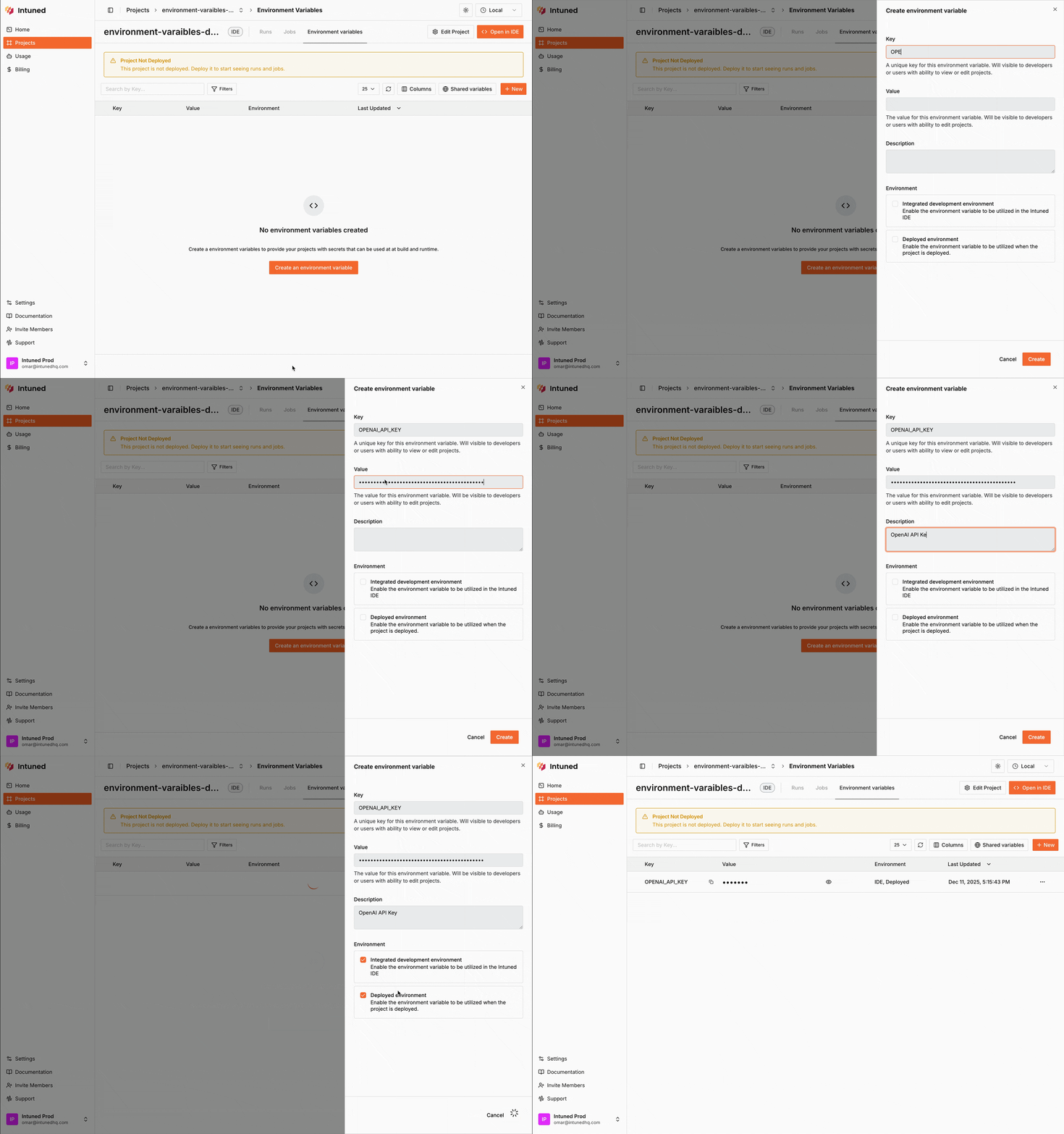
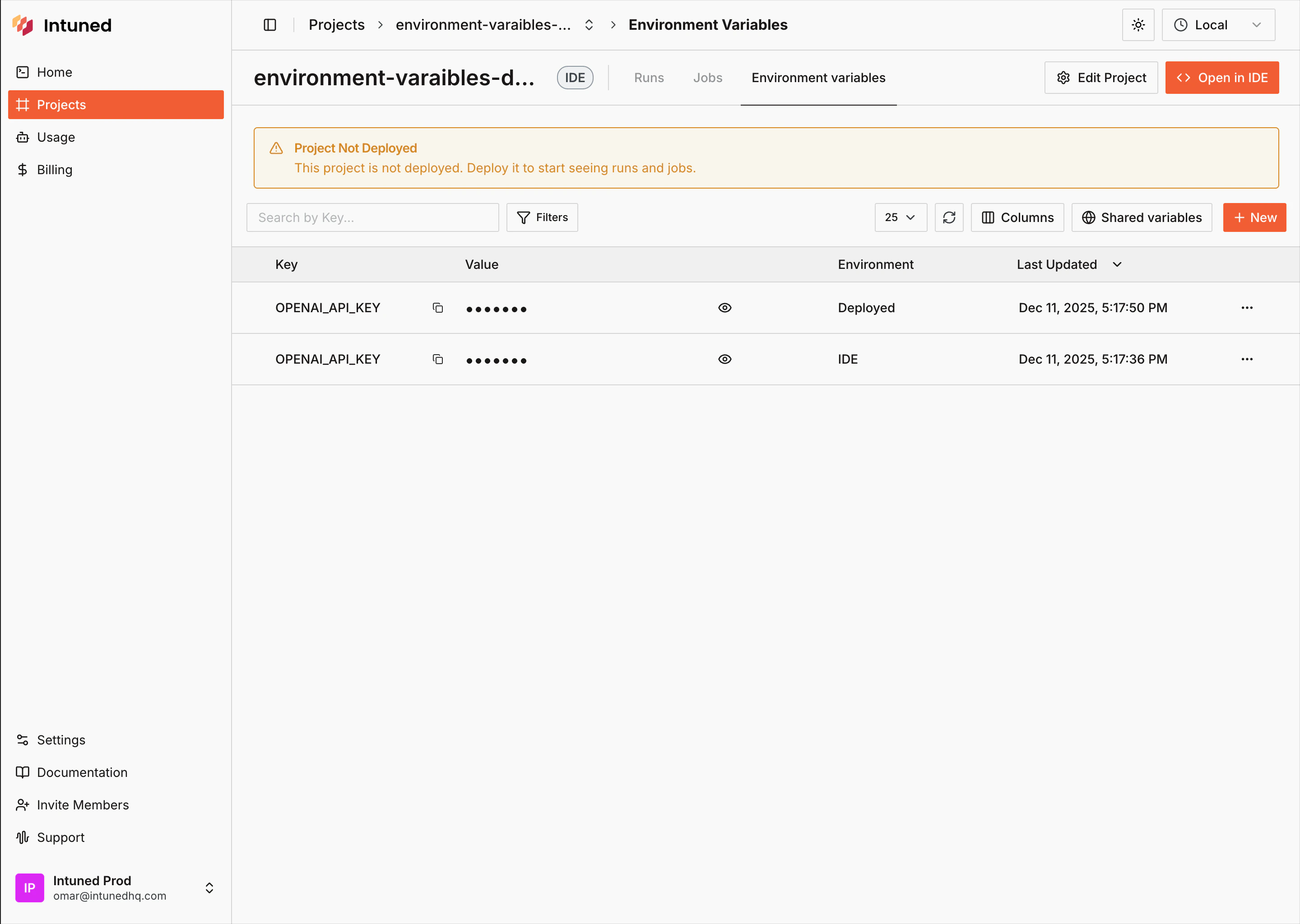
Deployed environment variables require redeployment to take effect. When developing locally via CLI, see Local development.
Edit an environment variable
- Dashboard
- CLI
Select … > Edit next to a variable to update its key, value, or environments.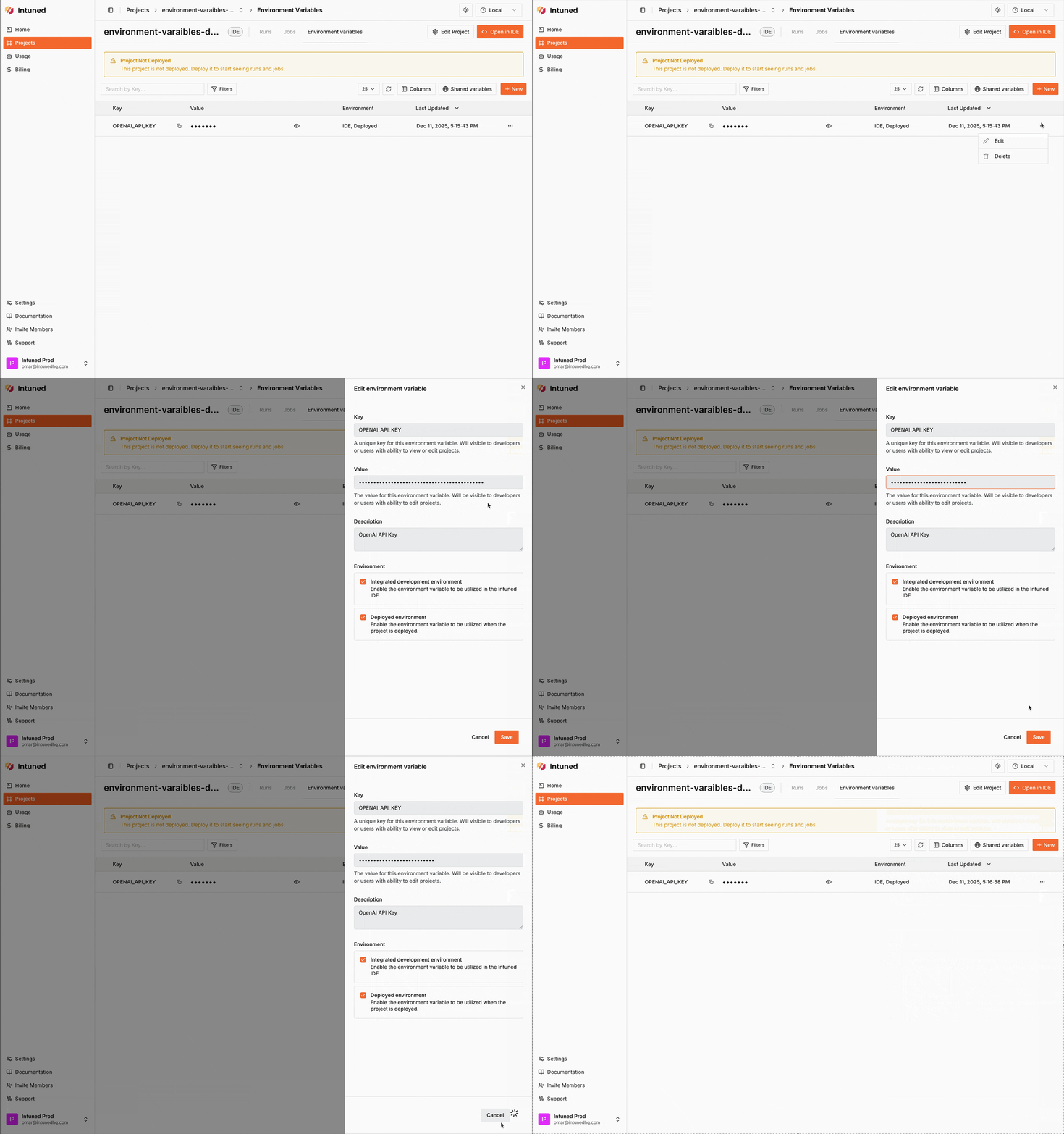
Delete an environment variable
- Dashboard
- CLI
Select … next to the variable you want to delete, then select Delete. Confirm when prompted.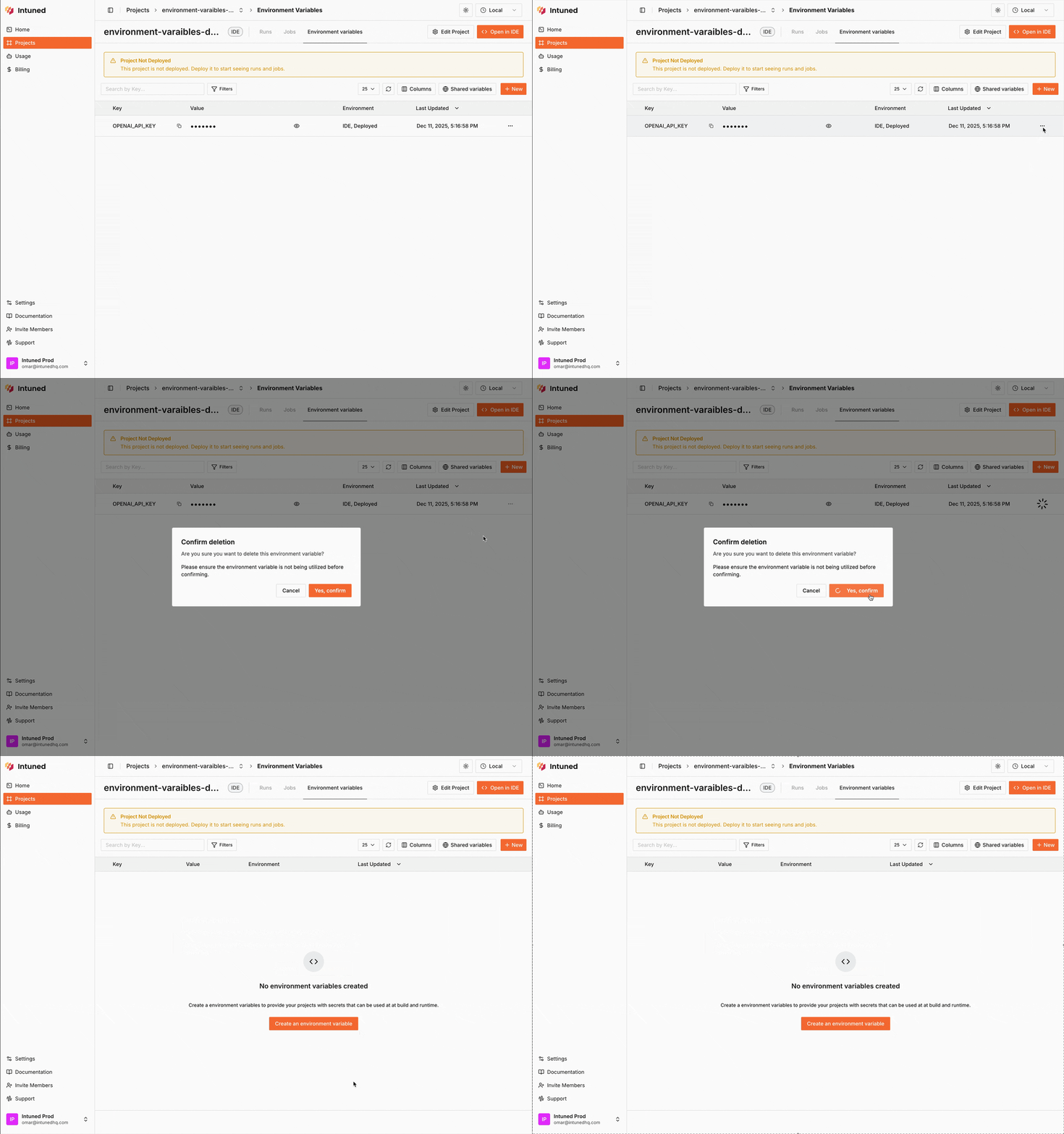
Workspace-level environment variables
Workspace environment variables are defined at the workspace level and exposed to all Projects in that workspace.- Dashboard
- CLI
Go to 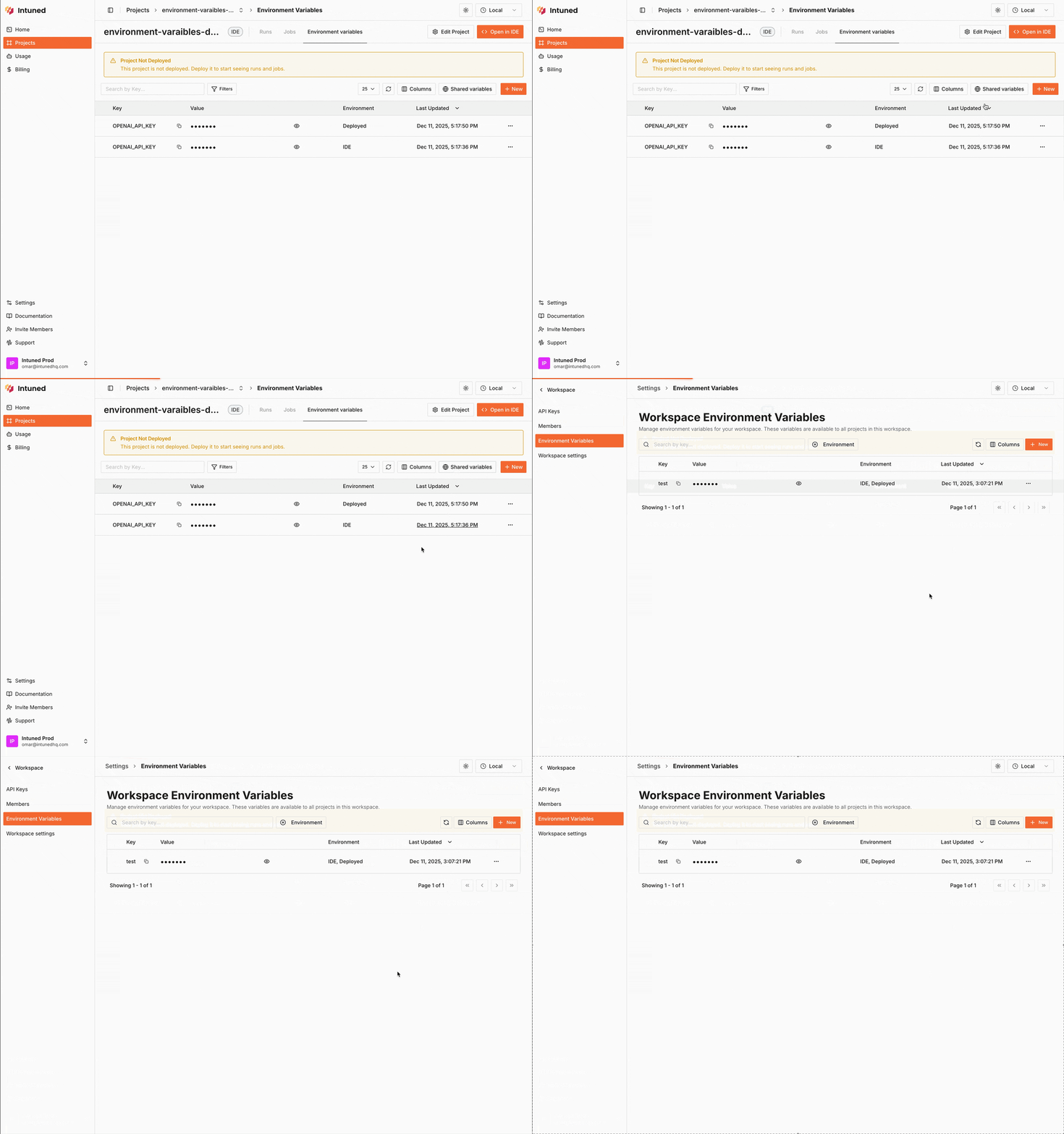
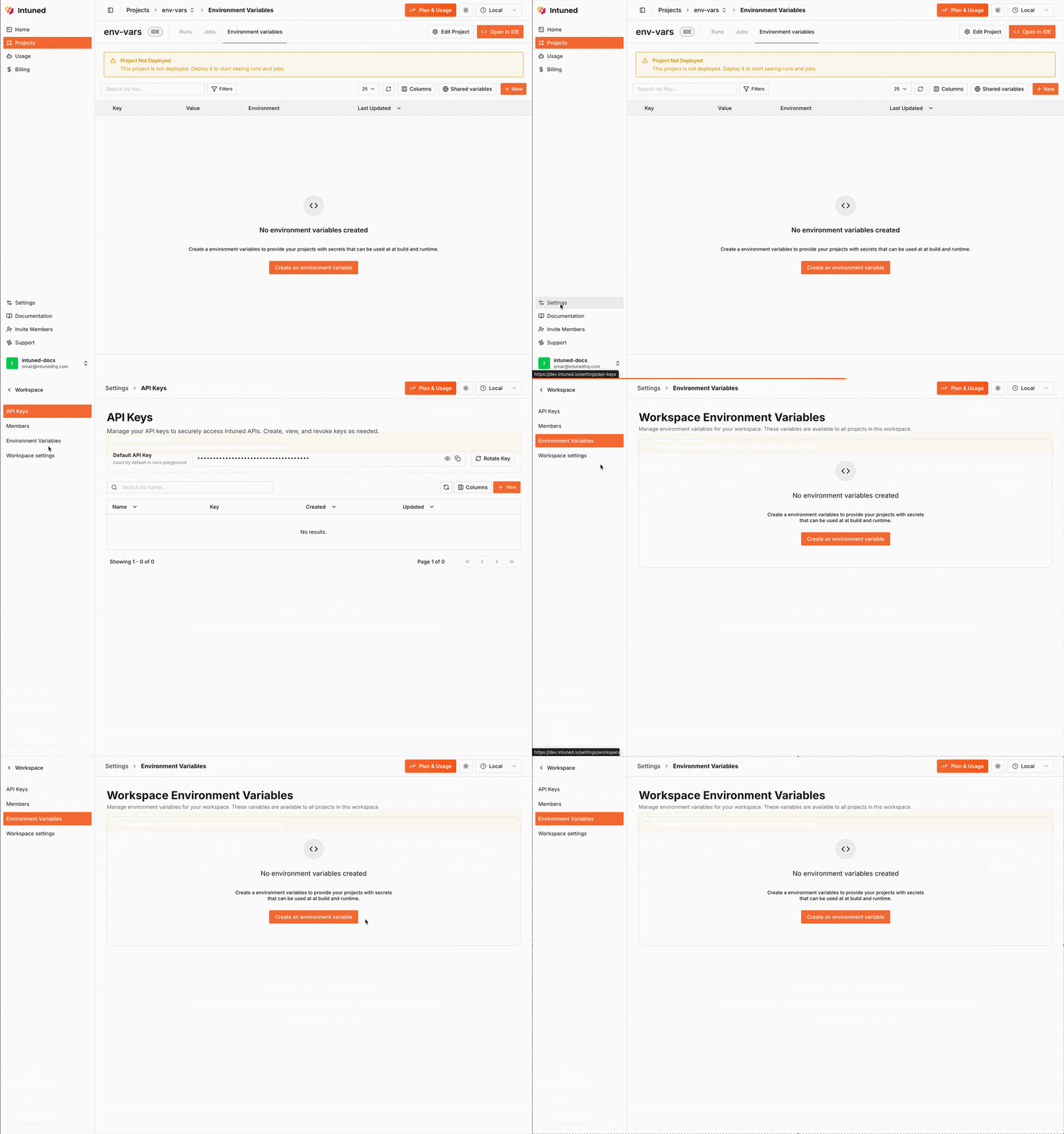
https://app.intuned.io/settings/env-vars to manage workspace-level variables.Access them from within a project by selecting Shared variables in the Environment Variables tab.Local development
When developing locally via CLI, the CLI reads.env files and system environment variables.
.env
.env files are for local development only and aren’t deployed. Before
deploying, configure your environment variables using the dashboard or CLI
commands above.Related resources
Online IDE
Develop on Intuned with zero config
CLI
Develop locally with your favorite IDE and tools