

Creating a new project
Start a new conversation at app.intuned.io/agent to build a project from scratch.Sped-up demo of creating a new scraper project with Intuned Agent.
- 1. Describe
- 2. Plan
- 3. Build
- 4. Deploy
Tell the agent what to build — include the target URL and the data you want
or the action to automate. Use a template to pre-fill your prompt, or a
recipe to add capabilities.
Prompt examples
Scraper
Scraper
Create a scraper for https://www.energy.ca.gov/funding-opportunities/solicitationsFor each solicitation, extract:
- title
- solicitation number
- status
- posted date
- closing date
- description
RPA / automation
RPA / automation
Create an RPA project for https://sandbox.intuned.dev/consultations-auth/bookThis is an authenticated website. Set up AuthSessions so the automation runs with authenticated browser state.Create these APIs:
- book-consultation — book a new consultation
- check-consultation-status — check the status of an existing consultation
- confirm-consultation — confirm a pending consultation
- get-my-consultations — list all my consultations (add API parameters so the caller can filter by status or date range)
Crawler
Crawler
Create a crawler that can crawl any documentation site and extract structured page content.Test it on these sites:For each page, extract:
- Page title
- Section headings
- Body content (as markdown)
- Links to child pages
AI-powered automation
AI-powered automation
Create an AI-powered job board crawler.The crawler should:
- Start from a job board listing page, extract all job links, and crawl each one
- For known boards like Lever, extract structured data with deterministic selectors (title, location, department, team, commitment, workplace type, description, apply URL)
- For other boards (Greenhouse, custom), fall back to AI extraction using the extract data helpers from the @intuned/browser package (e.g. extractData) with the same schema
- Deduplicate URLs across payloads using persistentStore
- Support configurable max_depth and max_pages
Editing an existing project
Open the project you want to edit from the projects page, then start a new agent conversation from the project overview.Sped-up demo of editing an existing project with Intuned Agent.
- 1. Open the project
- 2. Describe the change
- 3. Plan
- 4. Build
- 5. Merge
Open the project you want to edit from the projects
page, then start a new agent conversation
from the project overview.
Prompt examples
Update API result
Update API result
API name: get-solicitations
What should change in the result:
- Add a
categoriesarray where each item has name and URL - Change
priceto an object withamount(number) andcurrency(string)
Fix wrong data output
Fix wrong data output
API name: get-products
Field or entity with wrong data:
priceis returning the discounted price instead of the original price
- price: 29.99
- price: 49.99
- run_abc123
Fix timeout error
Fix timeout error
Check last failed runs to find the runs failing with timeout error and fix the issue.
QA this project
QA this project
Run all APIs with their default test parameters and verify the outputs are correct. Flag any failures, incorrect data, or missing fields.
Fix with AI
Navigate to a failed run in the dashboard and select Fix with AI.Sped-up demo of fixing a failed run with Fix with AI.
- 1. Find the failed run
- 2. Start a fix
- 3. Build
- 4. Merge
Open your project from the projects page
and go to the Runs tab. Select a run with an error.
What it can fix
- Failed runs — broken selectors, changed page structure, missing elements
- Wrong data — incorrect extraction logic, wrong fields, missing data
- Timeouts — slow steps, unnecessary waits, performance bottlenecks
Intuned Agent interface
The agent runs in a multi-panel interface. The main conversation is on the left, with tabbed panels on the right for code, browser, and artifacts.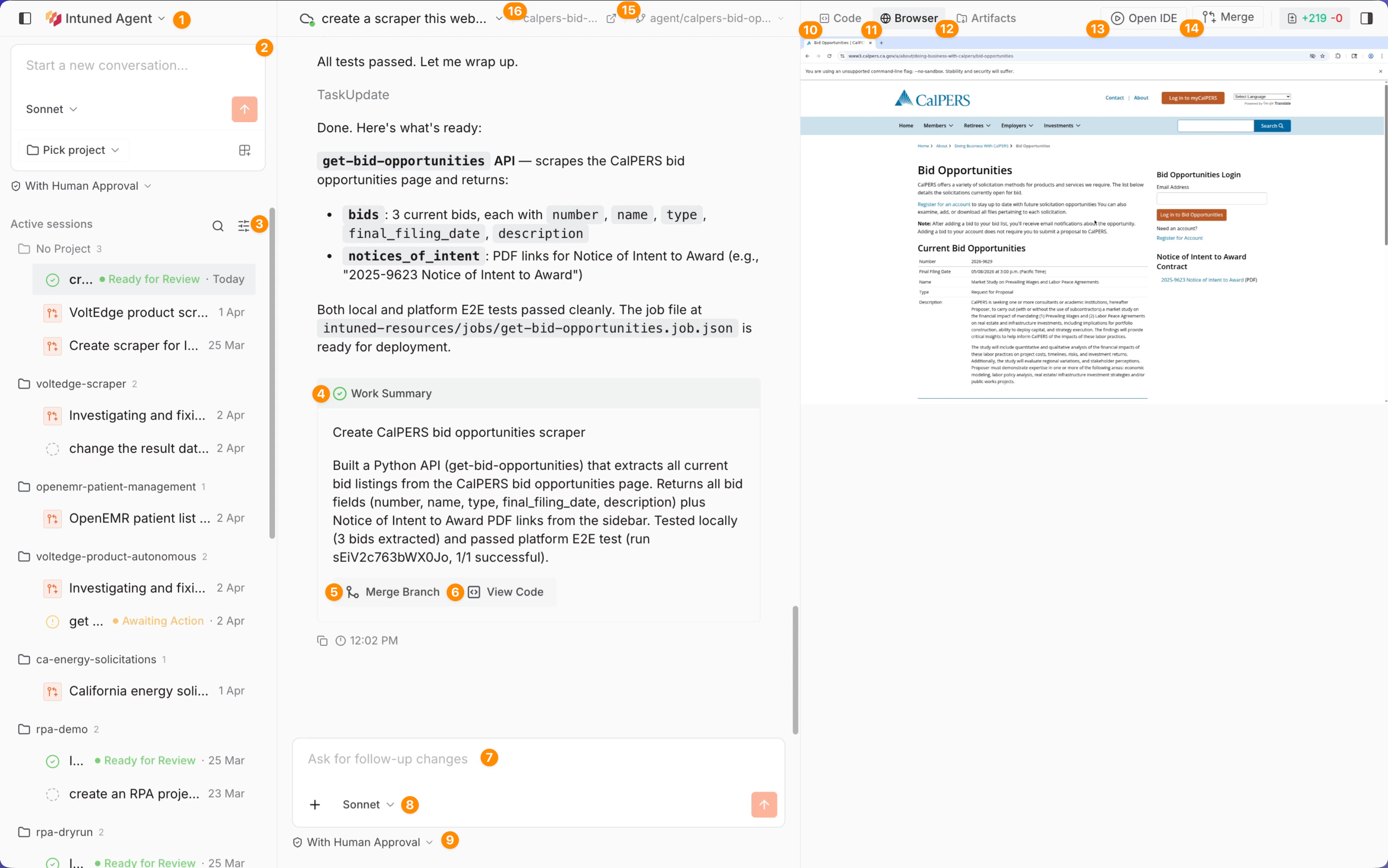
Check the numbered markers on the image below.
- Home — Return to Intuned home.
- New conversation — Start a new agent session — select a model, pick a project, and choose templates or recipes.
- Conversation list — All your conversations grouped by project, with status indicators and timestamps.
- Work summary — When the agent makes meaningful changes to the project, it adds a summary to the branch. This summary becomes the checkpoint message when you merge.
- Merge branch — Merge the agent’s changes into your project. Shows an editable summary before confirming — choose Merge to apply, or Merge and deploy to apply and deploy in one step. Same action available in the header.
- View code — View the complete project code with diff highlighting. Shows additions and deletions so you can review exactly what the agent changed.
- Message input — Send a new message to the agent. You can queue messages while the agent is working — queued messages are sent automatically after the current turn finishes and the agent stops.
- Model selector — Change which Claude model the agent uses: Sonnet (fast and intelligent), Opus (most intelligent), or Haiku (fastest). Takes effect when you send a message.
- Permission mode — Control how much autonomy the agent has:
- With human approval (default) — asks for input before taking actions.
- Autonomous — acts without approval, ideal for background tasks.
- Code panel — View the project file tree with all changes the agent has made. Diffs are highlighted inline.
- Browser panel — A live view of the browser the agent controls. Watch navigation, clicks, form fills, and data extraction in real time.
- Artifacts panel — While the agent is running, it runs APIs and triggers test jobs. Check the results here — including parameters, responses, errors, and Playwright traces.
- Open in IDE — Opens the branch in the online IDE for direct code editing.
- Merge code — Same merge action as #5, accessible from the header for quick access.
- Branch name — The name of the agent’s working branch for this conversation.
- Project link — Link to the project this conversation is associated with.
Troubleshooting
For other issues, contact Intuned support.
Related resources
Intuned Agent overview
What the agent can do and where to find it
Self-healing projects
Automated detection, fixing, and redeployment
External agent
Run the agent locally in your own coding agent
Runs
Single API executions and how to debug them
Jobs
Scheduled and batched executions
AuthSessions
Authenticated browser automations
Stealth, CAPTCHA, and proxies
Bot detection, CAPTCHA solving, and IP rotation