

Self-healing projects are an experimental feature. We welcome feedback.
What are self-healing projects?
Enable self-healing on any project to close the loop between monitoring and fixing. Intuned watches your runs, detects when something breaks, and the agent investigates, writes a fix, and can merge and deploy it — all without manual intervention. The level of autonomy is fully configurable — you control how much the agent does on its own. See autonomy levels.How to enable it
- Go to your project’s overview page.
- Select Edit Project.
- Under Self-healing project, toggle the autonomy levels you want.
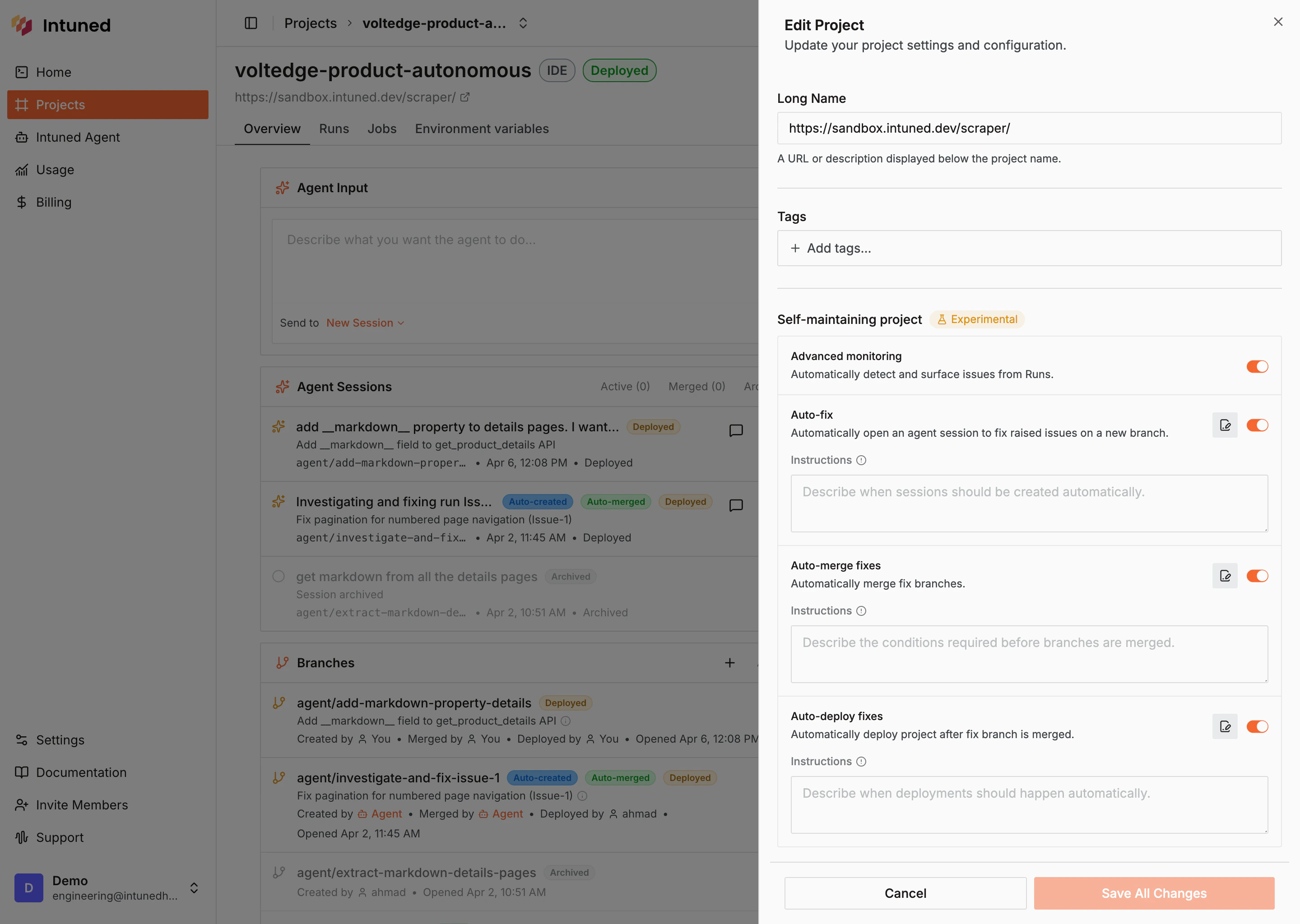
Self-healing settings in the Edit Project dialog.
How it works
1
A run completes
After each job run or standalone run, Intuned captures metrics — success rate, failure count, run count, and result size — and checks them against anomaly detection rules and historical data.
2
Anomalies are detected and triaged
If a rule triggers, an anomaly is created. The agent investigates each anomaly — comparing healthy and failed runs, reading traces and logs — and decides whether it’s a real issue or a false positive.
3
Issues are surfaced
After the agent validates that anomalies point to real problems — by analyzing run results, past data, and traces — confirmed issues with the same root cause are grouped and surfaced in the Issues panel.
4
Agent fixes the issue
If Auto-fix is enabled, the agent opens a session on a new branch to diagnose and fix the issue.
5
Fix is merged and deployed
If Auto-merge fixes and Auto-deploy fixes are enabled, the agent merges the fix and deploys the project automatically.
It may take up to 6 hours for issues to surface. This batching window reduces AI credit costs. The window is configurable, and we’re working on making detection more real-time. The exact detection logic is an internal detail and may change as we improve accuracy — we welcome feedback.
Anomaly detection
Intuned monitors metrics after each run to detect changes that could indicate a problem — a website updates its layout, response sizes shift, data patterns deviate from recent runs. When an anomaly is detected, the agent doesn’t surface it immediately. It investigates first — comparing healthy and failed runs, analyzing traces and logs — and only promotes it to a real issue if it confirms something is broken. False positives are dismissed automatically.Autonomy levels
Self-healing projects have four toggles, each adding a layer of autonomy. Enable only the ones you’re comfortable with — each level includes everything above it. We recommend starting with Advanced monitoring on all projects to surface issues early. Advanced monitoring and higher autonomy levels consume additional AI credits. See Plans and billing for details.
Auto-fix, auto-merge, and auto-deploy each accept optional instructions — free-text guidance the agent follows when performing that action.
Default auto-fix instructions
Default auto-fix instructions
Automatically create remediation sessions for OPEN issues and keep the branch tightly scoped to the surfaced problem.
Default auto-merge instructions
Default auto-merge instructions
Auto-merge only complete remediation branches that have a clear work summary and no waiting-for-user state.
Default auto-deploy instructions
Default auto-deploy instructions
Auto-deploy only after an auto-merge succeeds; stop if deployment logs surface a failure or if human approval is still required.
Issues panel
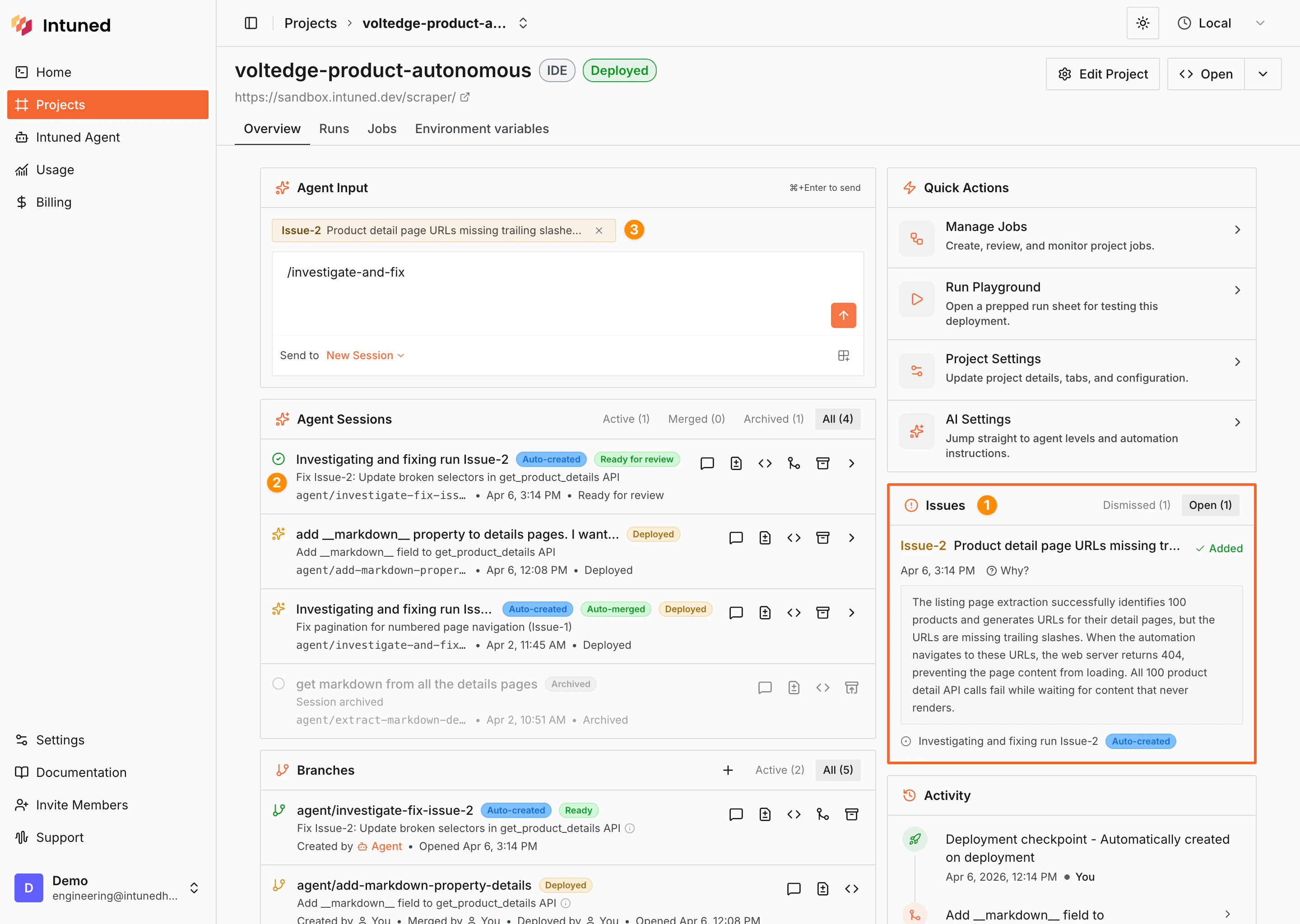
Check the numbered markers on the image below.
- Issues panel — Open issues appear on the right side of the project overview. Each issue shows a title, timestamp, and a description of the root cause. Dismiss false positives or select an issue for details.
- Agent session — If Auto-fix is enabled, the agent automatically opens a session to fix the issue. The session appears in the Agent Sessions list linked to the issue.
- Attach an issue to a message — Reference an issue directly in the agent input to start a conversation about it. The agent loads the issue context and begins investigating.
Related resources
Using the agent
Workflows, prompt examples, and the agent interface
Intuned Agent overview
What the agent can do and where to find it
Jobs
Scheduled and batched executions the agent monitors
Monitoring and traces
Run traces, logs, and observability