

Overview
Browser Use is a Python library for AI-powered browser automation. This guide walks you through deploying and running a Browser Use based project on Intuned. You’ll build a sample automation that purchases a product from an e-commerce site—without writing step-by-step Playwright code. The same patterns apply to any automation you build with the framework.This guide assumes you have a basic understanding of Intuned projects. If
you’re new to Intuned, start with the getting started
guide.
Browser Use is Python-only and doesn’t support TypeScript.
When to use AI automation
Intuned supports AI-powered browser automation frameworks like Browser Use, Stagehand, and others. Use AI automation when:- Pages are dynamic — Elements change position, structure, or content unpredictably
- You don’t know the exact page structure — Automating sites you haven’t mapped in detail
- You want natural language control — Describe what to do instead of writing precise selectors
- Traditional Playwright code is too brittle for your case — AI agents adapt to minor UI changes automatically
Guide
Let’s build apurchase-item API with AI agents. The template handles all the Browser Use setup for you.
You can start with Browser Use in two ways:
- Online IDE — Write, test, and deploy directly from your browser.
- Local CLI — Use your favorite editor and version control workflow.
- Online IDE
- Local CLI
1
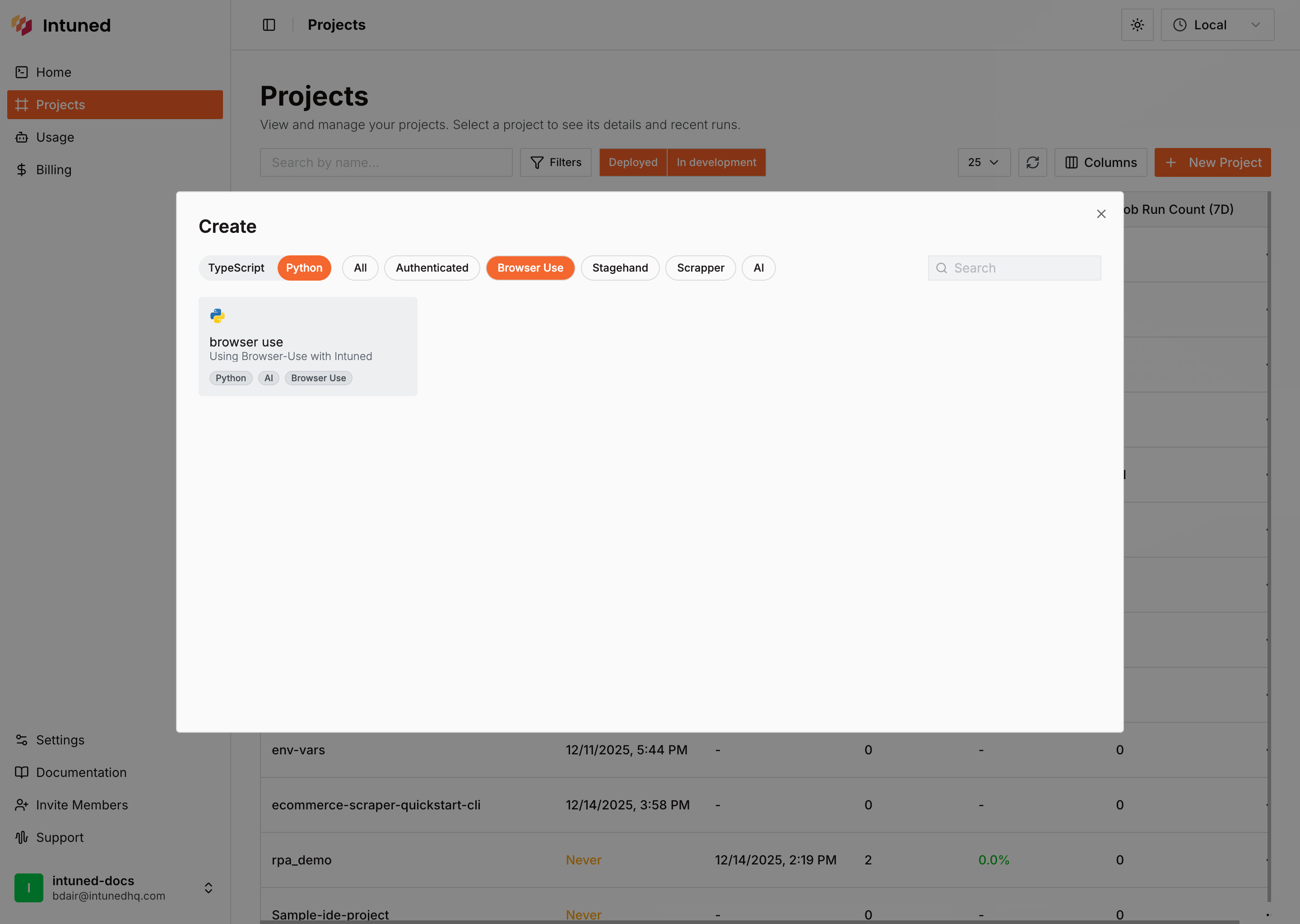
Create a project
- Go to Intuned dashboard
- Select + New Project > Templates > Browser Use Template
- Name it and select Create Project
2
Explore the project
The template includes a The automation code:
purchase-item API that uses AI agents to purchase products from an e-commerce site.Project structure:What this does: Uses an AI agent to autonomously purchase a product from an e-commerce site. Takes login credentials, product name, and checkout details, then navigates through the entire purchase flow using
flash_mode for optimized performance. Returns detailed execution results. Agent actions won’t appear in Playwright traces.3
Run your automation
Run the AI agent to test your setup.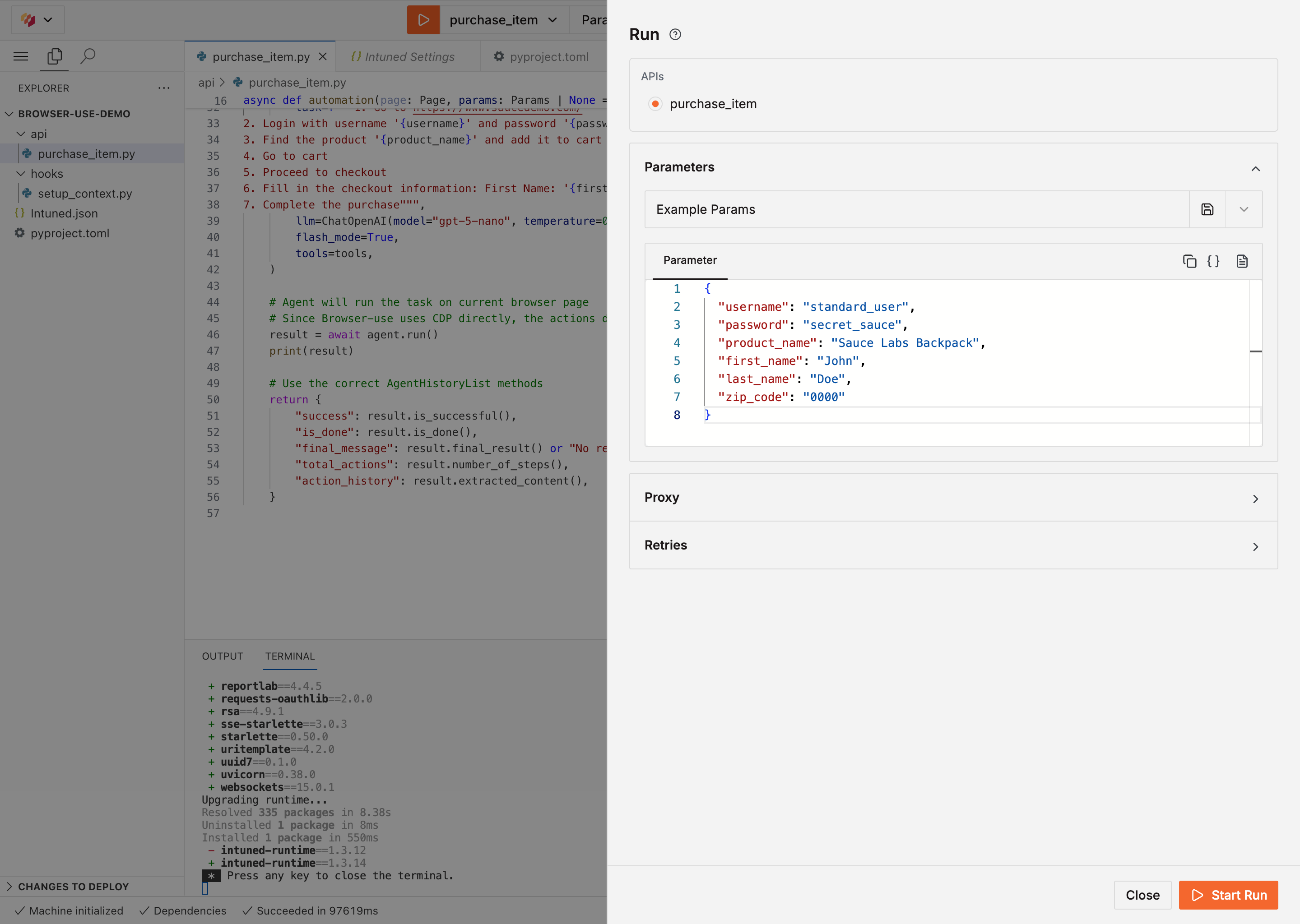
- In the IDE, select purchase-item from the API dropdown
- Enter the purchase parameters in the params panel
- Select Run
4
Deploy and test
Deploy your automation to Intuned’s infrastructure.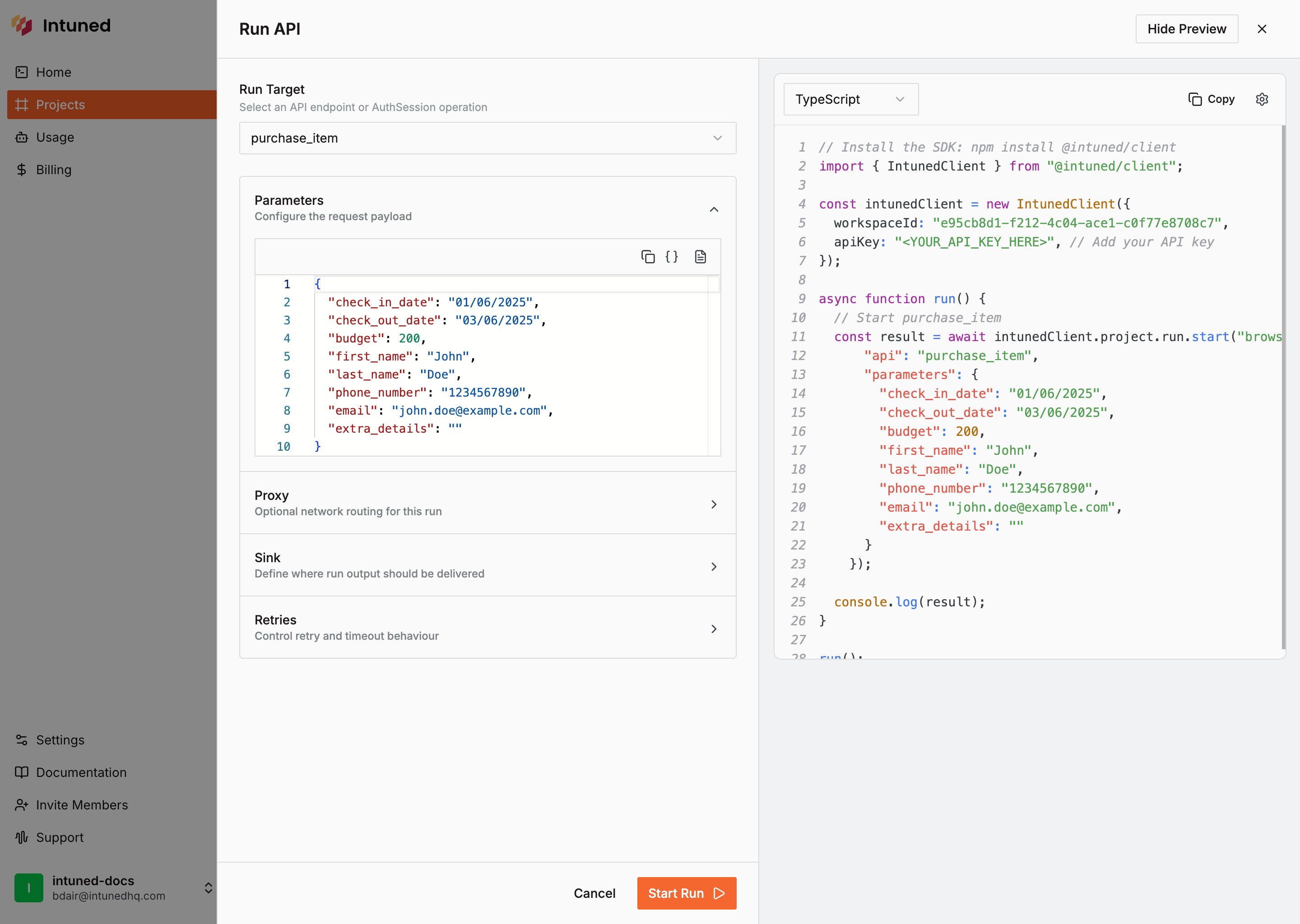
- In the Online IDE, select Deploy in the top-right corner
- After deployment completes, go to the project’s Runs page
- Select Start Run, then choose
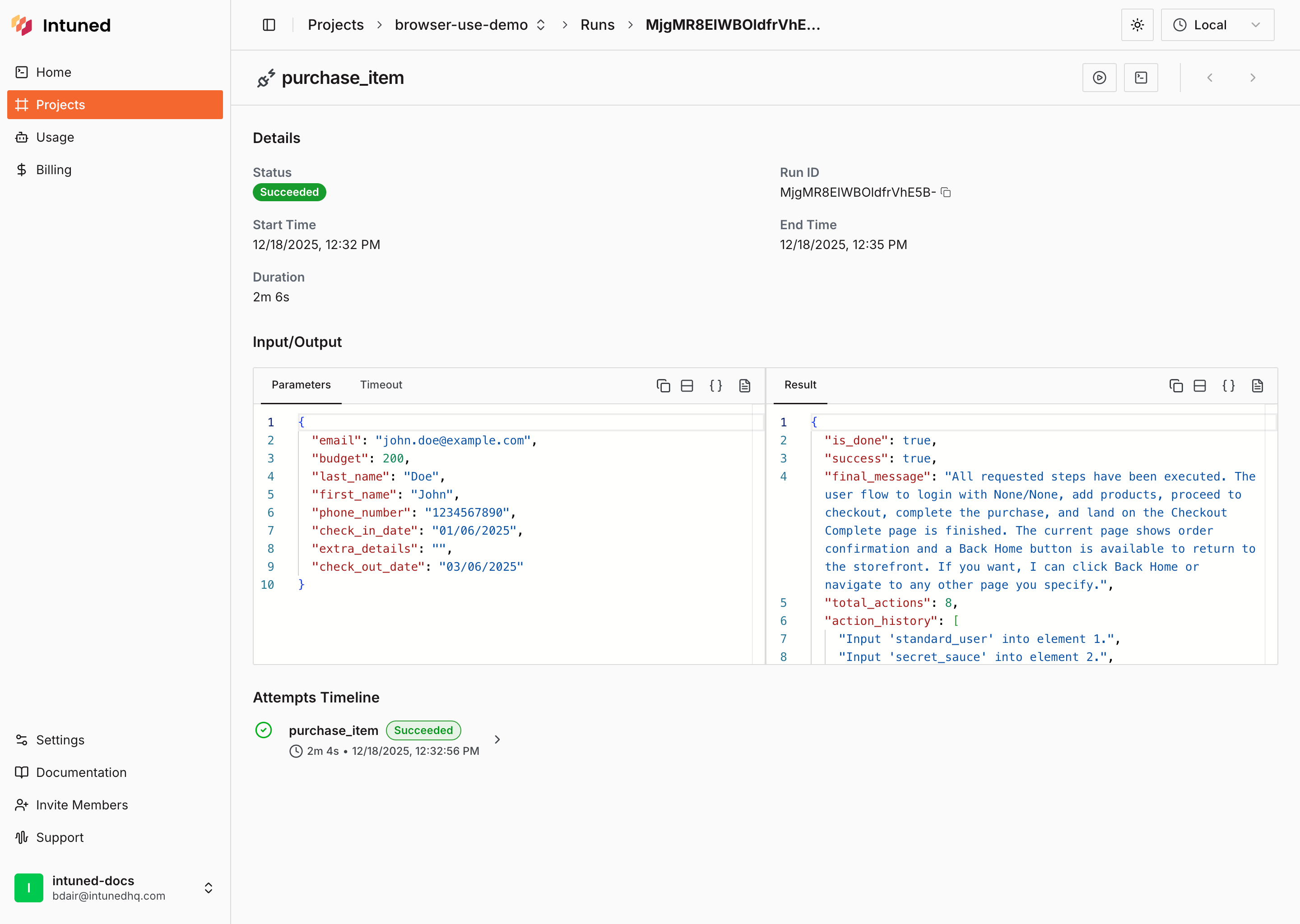
purchase-itemAPI - Enter purchase parameters and select Start Run
- After the run completes, view the purchase results
How it works
- The
setup_contexthook runs before your API executes. It creates a Browser instance using Intuned’s CDP URL and stores it inattemptStore - Your API retrieves the Browser instance from
attemptStoreand uses it to create AI agents - Parameters passed to your API control the agent’s behavior. Change these to adjust your automation flow.
Related resources
Browser Use Documentation
Official Browser Use documentation and API reference
Browser Use GitHub
View the source code and contribute to Browser Use
Intuned Cookbook
Complete Browser Use example in the Intuned Cookbook
attemptStore Reference
Learn more about sharing data between hooks and APIs