

What is Intuned Agent?
Intuned Agent is an AI agent that builds, edits, and maintains browser automation Projects. It runs inside the Intuned platform with a real browser, full access to the platform via the Intuned CLI, and works in the background as long as needed. Learn more about Intuned Agent’s full capabilities in the overview.Prerequisites
- An active Intuned account (sign up here). No credit card required—Intuned has a free plan.
What you’ll build
You’ll instruct Intuned Agent to build an RPA that automates OpenEMR’s demo instance. The agent will build:- AuthSessions for secure login to the OpenEMR portal
- An API to retrieve the list of existing patients
- An API to add a new patient
Create your first RPA
Enter your prompt
- Go to app.intuned.io/agent.
- Paste the prompt below into the input and send it.
Prompt
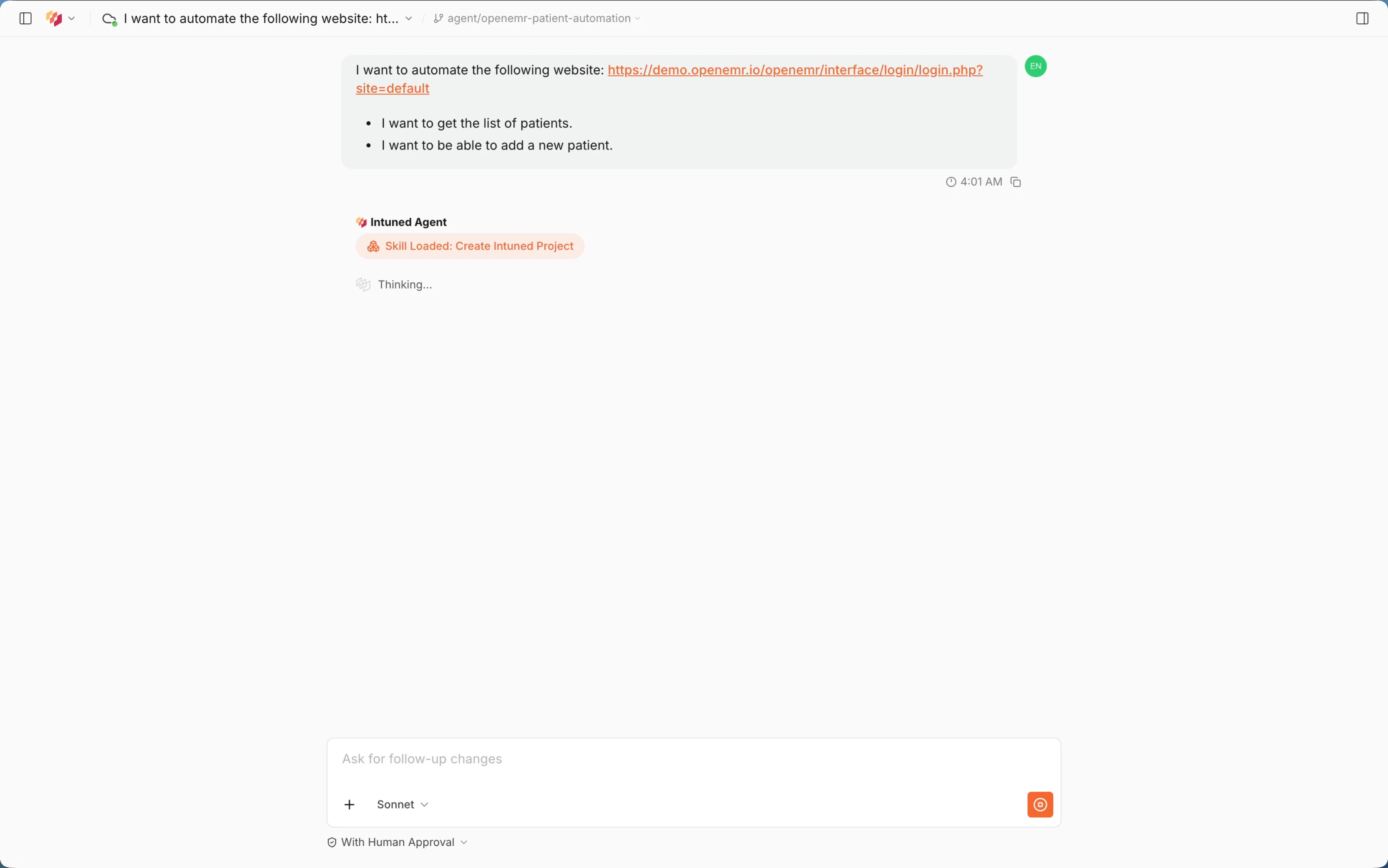
Choose your language
The agent asks which language you’d like to use for the project. Select TypeScript or Python.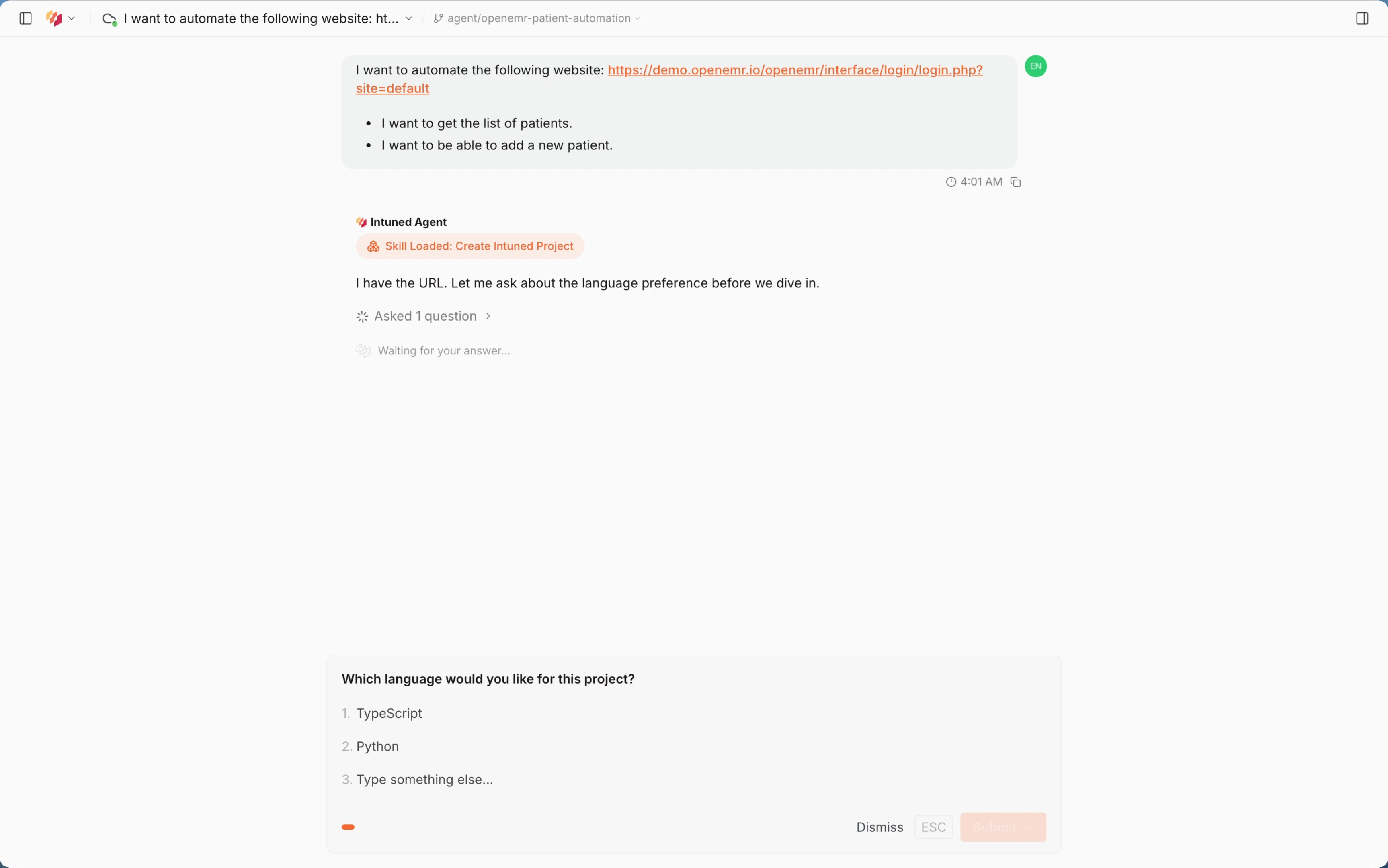
Enter credentials
The agent detects that the site requires login and asks for credentials. Values are saved securely and never shared with the AI agent.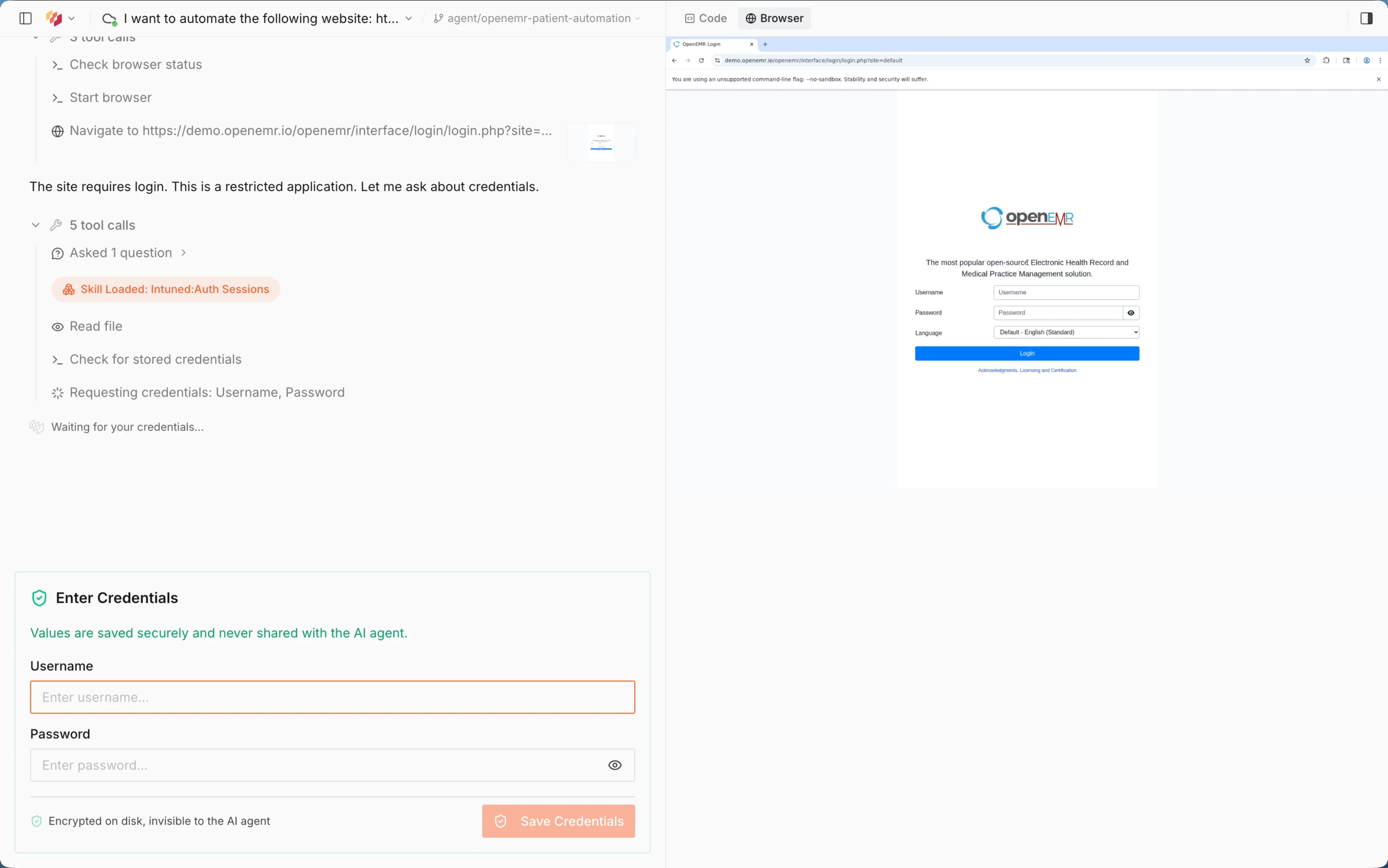
- Username:
admin - Password:
pass - Select Save Credentials.
Answer the agent's questions
The agent explores the site — navigating pages, inspecting forms, and analyzing the data structure. It then asks clarifying questions to finalize the design, such as whether the “get patients” API should support filtering or return all patients. Answer each question as it appears.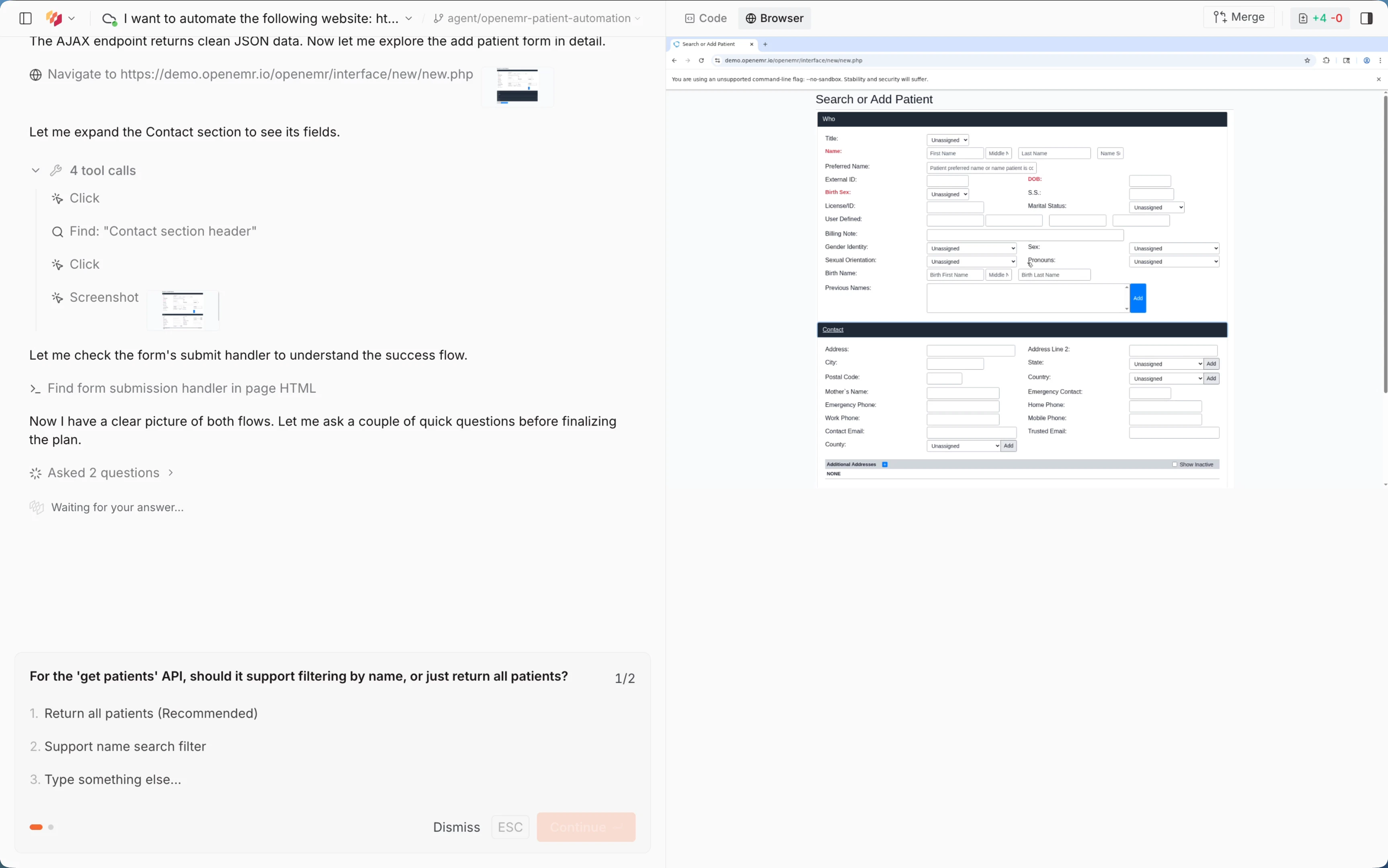
Approve the plan
Once the agent has finished exploring, it presents a full plan including configuration (start URL, auth, language, template), discovered URLs, and the API structure. Review it and select Approve Plan to proceed, or Suggest Changes to adjust.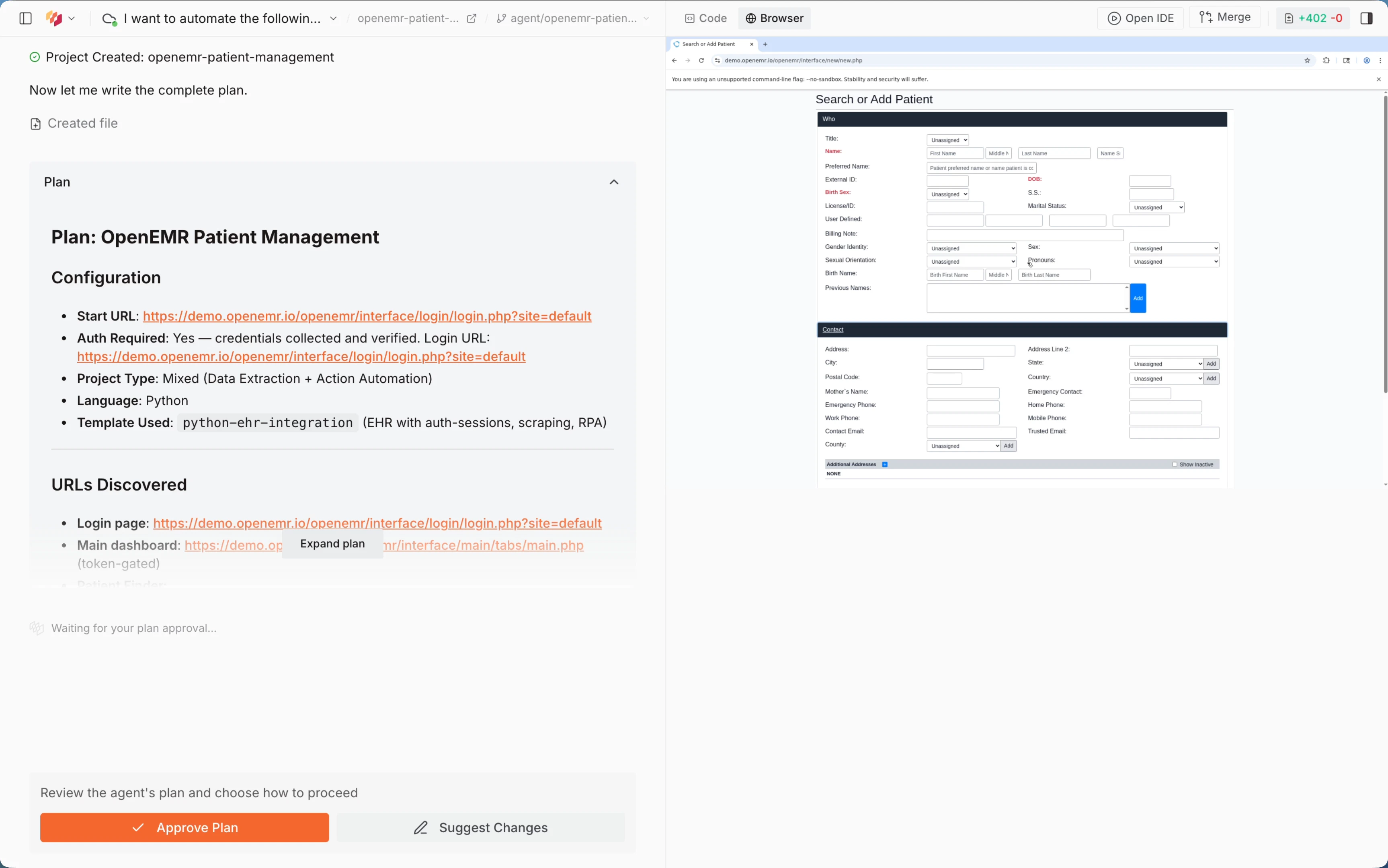
Wait for the agent to build
The agent writes the code, runs local and E2E platform tests, and validates the output. This typically takes 30–60 minutes.
Review results and deploy
When the agent finishes, it shows a work summary describing what was built and the test results. In this case, the agent built two APIs (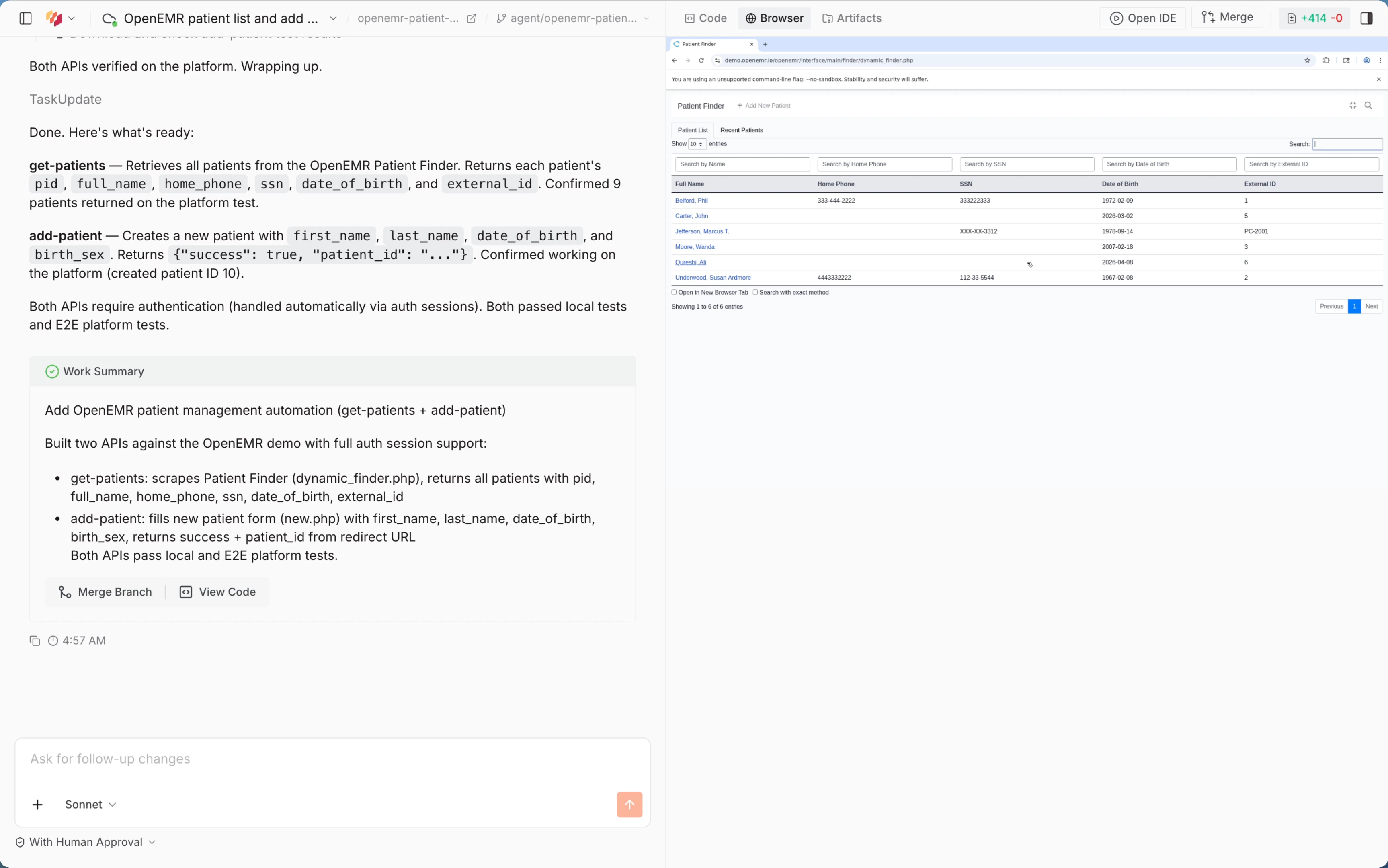
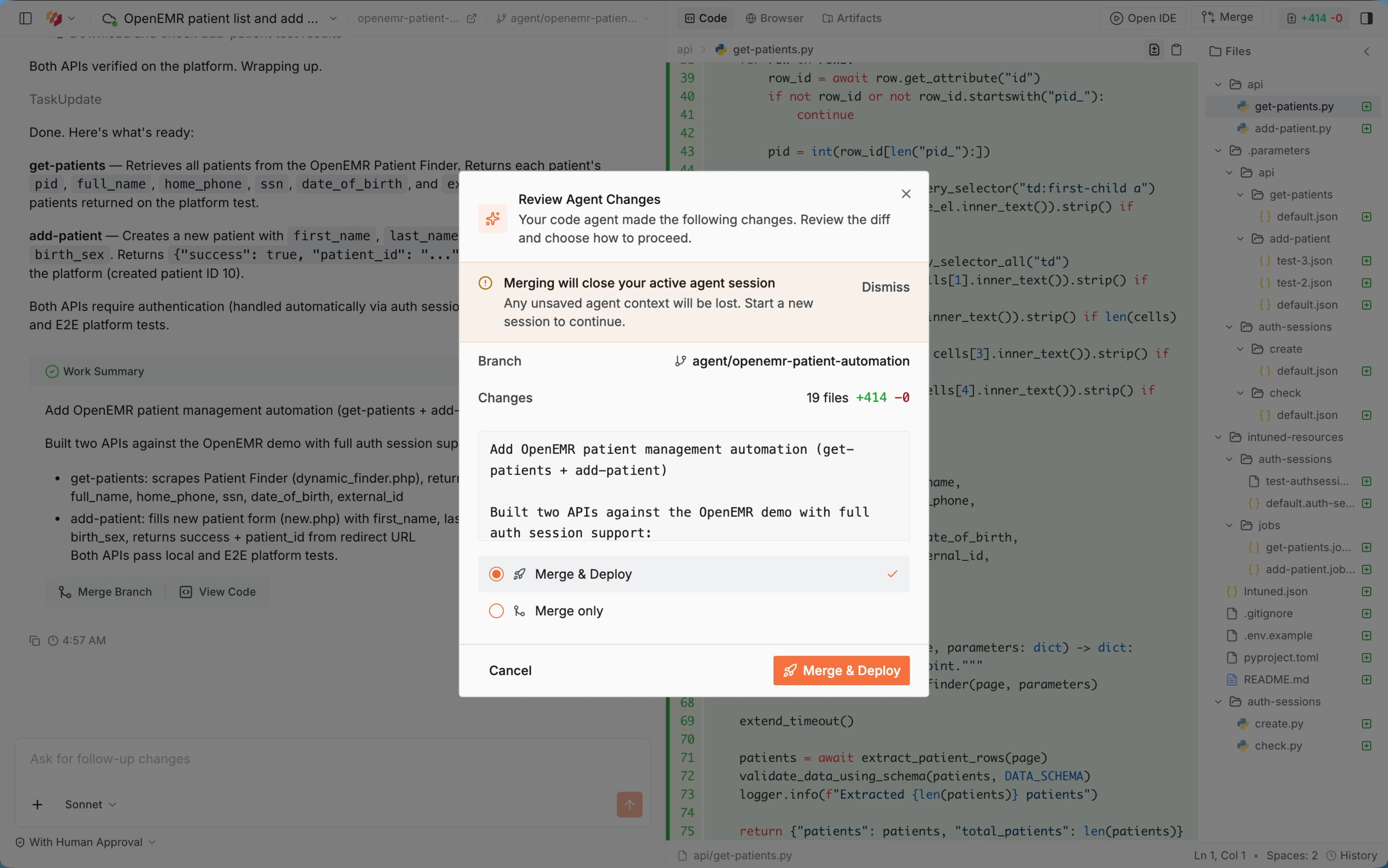
get-patients and add-patient), both with auth session support and passing E2E tests.Select View Code to inspect the generated code, or Merge Branch to deploy.Run your automation
Once deployed, navigate to your project and select the Runs tab. Select Start Run to trigger your automation.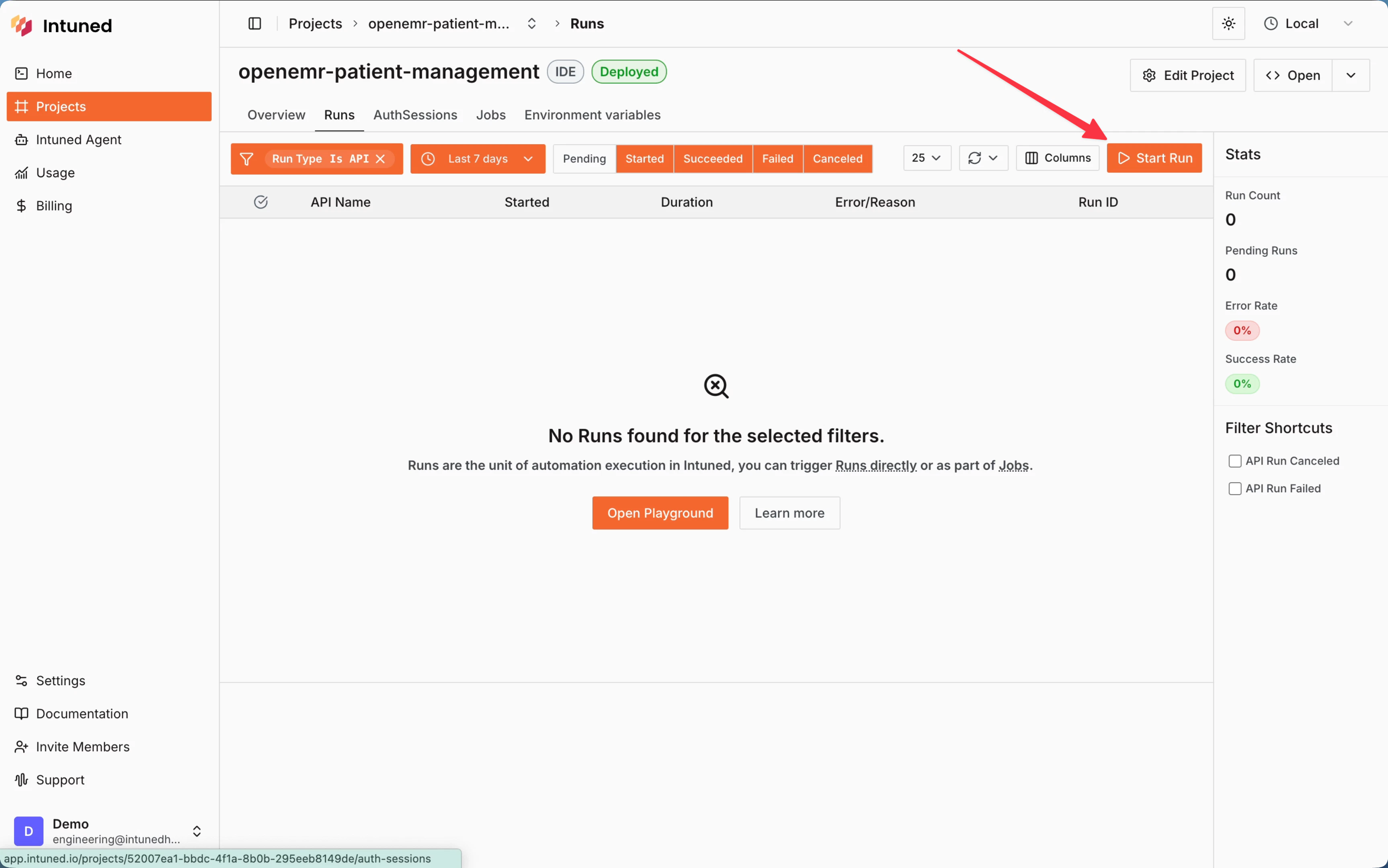
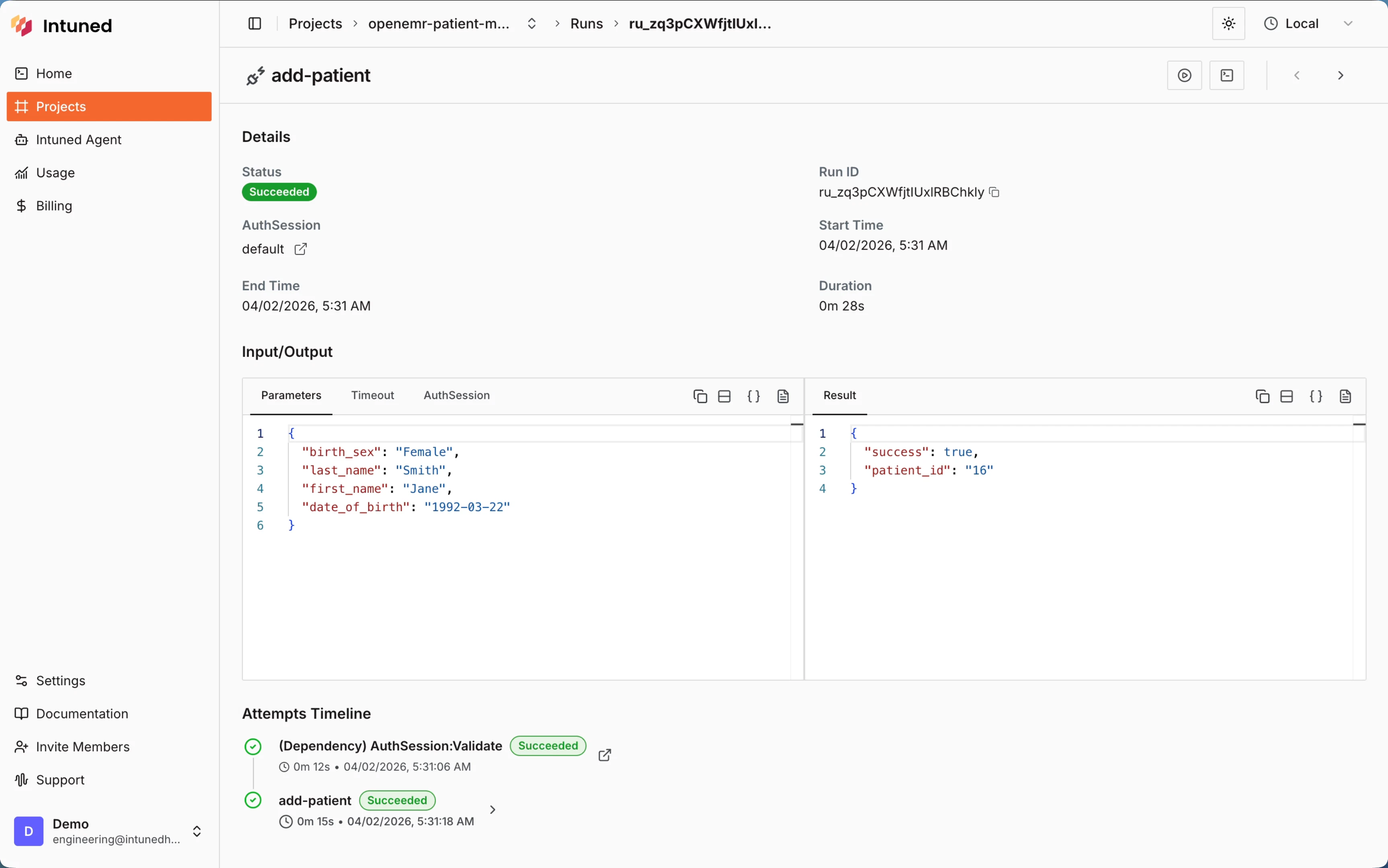
(Optional) Iterate on your automation
Start a new conversation and select Pick project to load your automation. You can then ask the agent to add new APIs, adjust form fields, handle edge cases, or update the login flow.Example prompt:
What’s next?
- Intuned Agent — Learn more about Intuned Agent’s capabilities, including editing existing projects and fixing failed runs.
- Authentication — For automations that require login, Intuned provides built-in authentication support. You define how to log in and how to verify a session, and Intuned handles the rest—validating sessions before runs, reusing them when possible, and recreating them when expired.
- Monitoring and traces — Every run generates detailed logs, browser traces, and session recordings. Use these tools to debug failures, verify your automation is working correctly, and understand what happened during execution.
- Online IDE — Learn more about the Intuned IDE, which you can use to manually edit the automation you just created.